
Blynk ESP32 Tutorial: Control LEDs, Relays and Sensors by Phone
Blynk ESP32 tutorial: create a template and datastreams (V0, V1), get the auth token, control an LED and relay, chart sensor data, send alerts, use BlynkTimer.
Blynk and the ESP32 are the fastest way to control a board from anywhere in the world without writing your own phone app. Blynk IoT gives you a cloud server the ESP32 connects to (Blynk.Cloud), a mobile app where you build a dashboard by drag and drop, and a web dashboard. When you tap a switch on your phone, the command goes to the cloud first and from there to the ESP32; the temperature the ESP32 measures travels back the same way and shows up on your phone as a number and a chart. Your phone and the board don't have to be in the same house: it even works when your phone is on mobile data.
In this guide you'll build a working project from scratch: you'll open a Blynk.Cloud account, define a template and datastreams (V0, V1, V2, V3), get the device's auth token, install the library, control an LED and a relay from your phone, chart DHT11 sensor data and get a notification on your phone when the temperature rises. You'll also learn why you shouldn't use delay() and what BlynkTimer does instead, how to work out the free plan's message limit, why code left over from the old Blynk doesn't compile, and how to fix the most common connection errors.
What is Blynk IoT and how does it work?
With Blynk, the ESP32 and your phone never connect to each other directly; both connect to Blynk.Cloud and the server carries the messages. When the ESP32 starts, it joins Wi-Fi, then connects to the Blynk server and identifies itself with its auth token. Data flows through virtual pins (V0–V255): a virtual pin is not a real leg of the ESP32 but a numbered data channel between your code and the app. The switch in the app writes 1 to V1, the BLYNK_WRITE(V1) function in your code catches it and energizes the relay; when your code runs Blynk.virtualWrite(V2, 24.5), the gauge on your phone updates. These are the building blocks:
| Concept | What it does | Example in this guide |
|---|---|---|
| Template | The shared recipe for devices of the same kind: datastreams, dashboards and events | ESP32 Home |
| Datastream | A data channel tied to a virtual pin, with a fixed type and range | V2: Temperature, Double, 0–50 °C |
| Device | A real board created from the template; each one has its own data | The ESP32 in the living room |
| Auth token | The device's secret identity key; your code uses it to connect to the cloud | The BLYNK_AUTH_TOKEN line |
| Widget | Dashboard elements such as switches, gauges and charts | Button, Gauge, SuperChart |
| Event | An alert that sends notifications and is logged on the timeline | yuksek_sicaklik |
Differences between the old Blynk and the new Blynk IoT
Most Blynk videos and sketches on the internet were made for the old version (Blynk Legacy), which no longer works. The new platform launched in May 2021; the old app was pulled from the stores in June 2022 and the old cloud servers were shut down for good on December 31, 2022. So a token from an old project, energy points you once bought, or the blynk-cloud.com address are useless today; you need to rebuild the project on the new platform. The good news: most of the ESP32 code (BLYNK_WRITE, virtualWrite, BlynkTimer) stayed the same.
| Feature | Old Blynk (Legacy) | Blynk IoT (new) |
|---|---|---|
| Where is the project set up? | Everything in a project inside the phone app | Templates and datastreams in Blynk.Console (web), dashboards on phone and web |
| Auth token | One per project, sent by email | One per device, shown on the device page |
| Pricing model | Widgets were bought with energy points | Monthly plans with device, message and feature limits |
| Top of the sketch | Just a char auth[] line | BLYNK_TEMPLATE_ID, BLYNK_TEMPLATE_NAME and BLYNK_AUTH_TOKEN are required |
| Notifications | Blynk.notify() and Blynk.email() | An event is defined in the template and triggered with Blynk.logEvent() |
| Server | blynk-cloud.com, port 80 or 8080 (shut down) | blynk.cloud, port 80 or 443 with SSL |
| Web dashboard | None | Yes (Blynk.Console) |
| Local server | An open-source Java server could be self-hosted | No personal local server; the old server is no longer updated |
Parts list and wiring
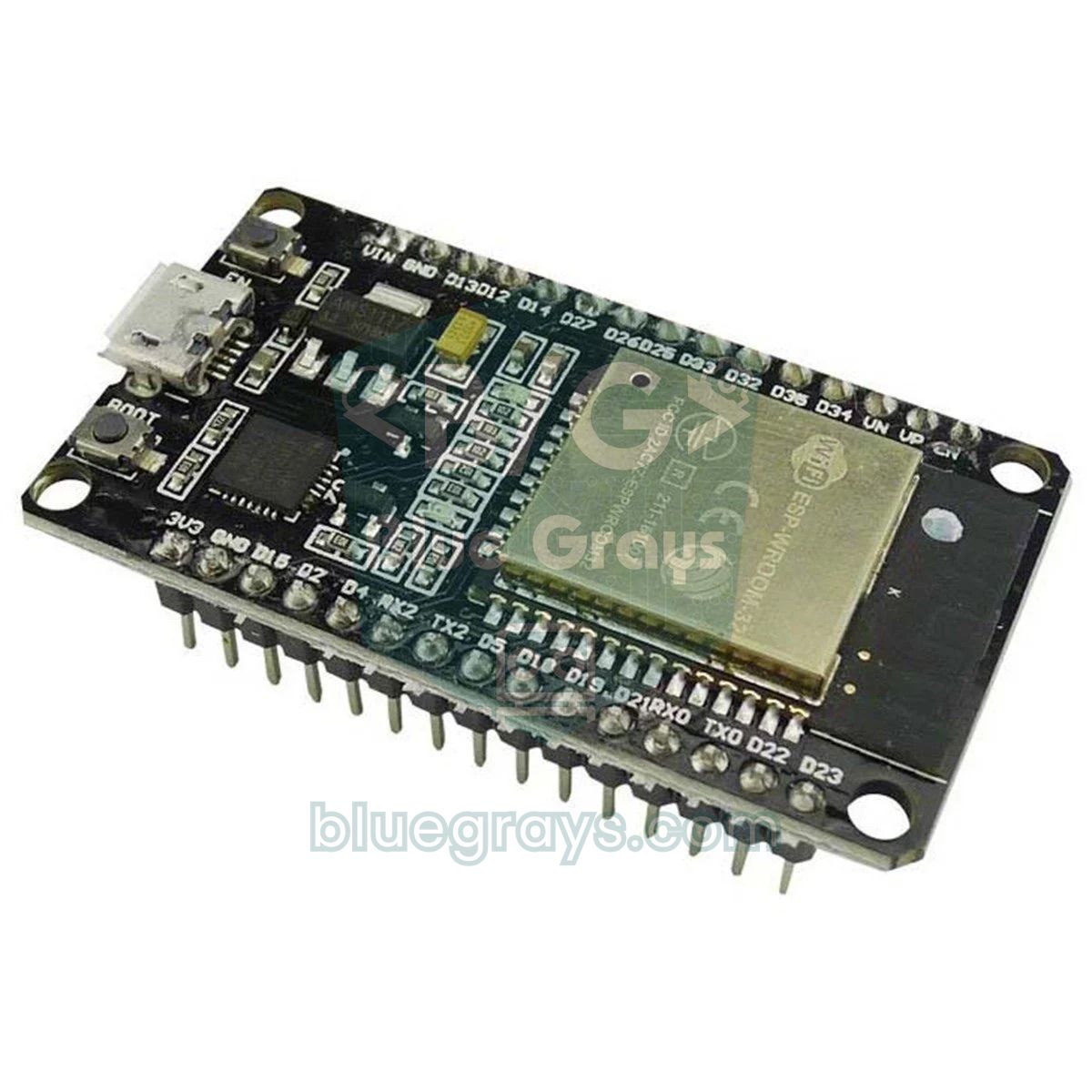
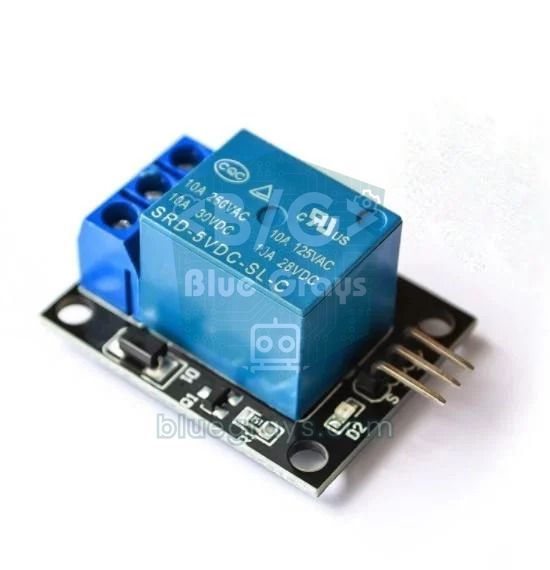
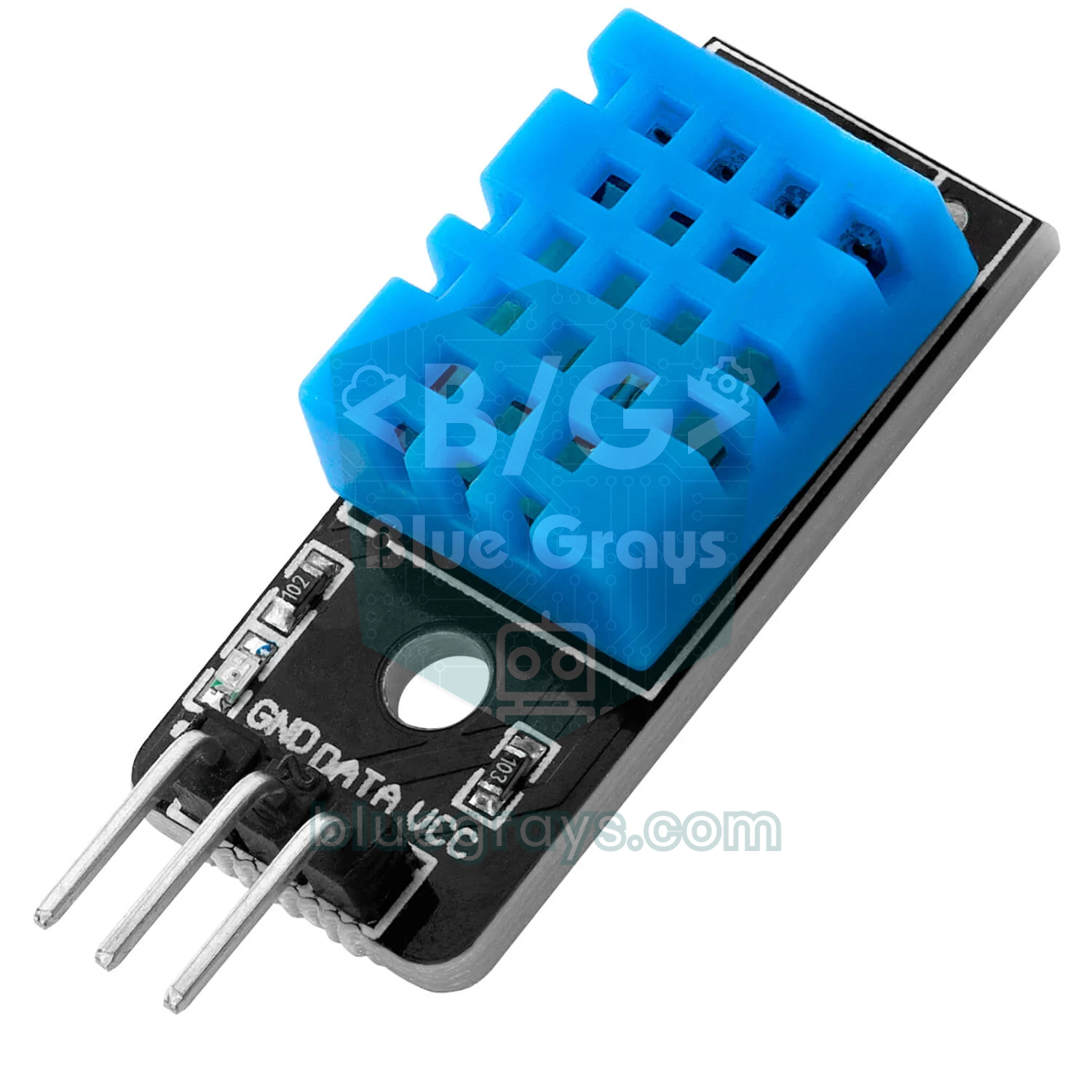
For this project you'll use an ESP32 development board, a 5 V relay module, a DHT11 temperature and humidity sensor, an optional LED with a 220 Ω resistor, a breadboard and jumper wires. For the LED, the board's built-in blue LED on GPIO 2 is enough; if you add an external LED, you can find the resistor value with the LED resistor calculator. Check your board's pin layout in the Pinout tool too; on some boards the 5 V pin is labeled VIN, on others 5V.
| Part | Part pin | ESP32 pin | Note |
|---|---|---|---|
| LED (optional) | Long leg (+) | GPIO 2 | Through a 220 Ω resistor; short leg to GND |
| Relay module | VCC | VIN / 5V | About 5 V is present on this pin when powered over USB |
| Relay module | GND | GND | Common ground |
| Relay module | IN | GPIO 26 | For an active-LOW module set ROLE_AKTIF_LOW = true in the code |
| DHT11 | VCC | 3V3 | Works from 3.3–5.5 V |
| DHT11 | DATA | GPIO 4 | A bare sensor needs a 10 kΩ pull-up; modules have it on board |
| DHT11 | GND | GND | Common ground |
Step 1: Create a Blynk.Cloud account and a template
- On your computer go to blynk.cloud, sign up for a free account with your email address and set your password using the link in the email you receive.
- In the left menu go to Developer Zone > My Templates and click + New Template.
- Give the template a name (for example ESP32 Home), choose ESP32 as the hardware and WiFi as the connection type, and create the template.
- The BLYNK_TEMPLATE_ID and BLYNK_TEMPLATE_NAME values shown on the template page will go into your code; for now just note where they are.
- If a Quickstart wizard pops up when you sign up, you can skip it; in this guide we'll do every step by hand so you see what each setting is for.
Step 2: Define the datastreams (V0, V1, V2, V3)
A datastream is a virtual pin's ID card: it sets which pin it is, the data type (Integer for whole numbers, Double for decimals, String for text), the minimum and maximum value, the unit and how many decimals are shown. Open the template in edit mode, go to the Datastreams tab, choose + New Datastream > Virtual Pin and create these four channels:
| Virtual pin | Name | Data type | Min – Max | Unit and decimals | Widget |
|---|---|---|---|---|---|
| V0 | LED | Integer | 0 – 1 | None | Button / Switch |
| V1 | Relay | Integer | 0 – 1 | None | Button / Switch |
| V2 | Temperature | Double | 0 – 50 | °C, #.# | Gauge, SuperChart |
| V3 | Humidity | Double | 0 – 100 | %, # | Gauge, SuperChart |
Step 3: Create a device and get the auth token
The template is a recipe, the device is the real board made from it. In the left menu open Devices, click + New Device, pick the ESP32 Home template with From template and give the device a name. Once the device is created, a three-line configuration appears: BLYNK_TEMPLATE_ID, BLYNK_TEMPLATE_NAME and BLYNK_AUTH_TOKEN. Copy these lines; you can also find them later in the Device Info section of the device page (called Developer Tools in some versions of the interface).
Step 4: Install the Blynk library in the Arduino IDE
- If the ESP32 board package isn't installed in the Arduino IDE yet, install it first; the steps are in What Is the ESP32?
- Open the Library Manager, type Blynk in the search box and install the official Blynk library by Volodymyr Shymanskyy. If asked about dependencies, choose Install all.
- For the sensor, install Adafruit's DHT sensor library and the Adafruit Unified Sensor library it requires from the same place. If you run into trouble, see the How to Add an Arduino Library guide.
- Select ESP32 Dev Module under Tools > Board, connect the board with a USB cable that carries data and choose the right port.
- The library comes with ready-made examples: File > Examples > Blynk > Boards_WiFi > ESP32_WiFi is the simplest form of the first sketch below.
First sketch: turn an LED on and off from your phone (V0)
In the code below, replace the top three lines with the ones you copied from your device page, and the Wi-Fi name and password with your own. These three #define lines must come before the #include lines; the library looks for these values while compiling and throws a compile error if it can't find them.
1// Bu üç satırı Blynk.Console'daki cihaz sayfasından kopyala / copy these three lines from the device page in Blynk.Console
2#define BLYNK_TEMPLATE_ID   "TMPLxxxxxxxx"
3#define BLYNK_TEMPLATE_NAME "ESP32 Ev"
4#define BLYNK_AUTH_TOKEN    "CihazTokeniniBurayaYapistir"
5
6#define BLYNK_PRINT Serial          // bağlantı günlüğünü Seri Monitör'e yaz / print the connection log to the Serial Monitor
7
8#include <WiFi.h>
9#include <WiFiClient.h>
10#include <BlynkSimpleEsp32.h>
11
12char ssid[] = "AgAdi";              // Wi-Fi adın (yalnız 2,4 GHz) / your Wi-Fi name (2.4 GHz only)
13char pass[] = "Sifre123";           // Wi-Fi şifren / your Wi-Fi password
14
15const int LED_PIN = 2;              // çoğu DevKit'te dahili LED / onboard LED on most DevKits
16
17// Uygulama V0'a her değer yazdığında çalışır / runs every time the app writes a value to V0
18BLYNK_WRITE(V0) {
19  int deger = param.asInt();        // anahtar: 0 ya da 1 / switch: 0 or 1
20  digitalWrite(LED_PIN, deger);
21  Serial.print("V0 = ");
22  Serial.println(deger);
23}
24
25// Buluta her bağlanışta son V0 değerini iste / ask for the last V0 value on every connection
26BLYNK_CONNECTED() {
27  Blynk.syncVirtual(V0);
28}
29
30void setup() {
31  Serial.begin(115200);
32  pinMode(LED_PIN, OUTPUT);
33  Blynk.begin(BLYNK_AUTH_TOKEN, ssid, pass);   // Wi-Fi'ye ve Blynk.Cloud'a bağlan / connect to Wi-Fi and Blynk.Cloud
34}
35
36void loop() {
37  Blynk.run();                      // gelen komutları işler, bağlantıyı canlı tutar / handles commands, keeps the link alive
38}| Line | What it does |
|---|---|
| BLYNK_PRINT Serial | Makes the library print its connection steps to the Serial Monitor; very handy when troubleshooting |
| BLYNK_WRITE(V0) | A function that runs automatically when the app or web dashboard sends a value to V0 |
| param.asInt() | Converts the incoming value to an integer; use asFloat() for decimals and asStr() for text |
| BLYNK_CONNECTED() | Runs once after every successful connection |
| Blynk.syncVirtual(V0) | Asks the server for the last value of V0, so the LED returns to its previous state even after a restart |
| Blynk.begin(...) | Connects to Wi-Fi and Blynk.Cloud; waits until connected |
| Blynk.run() | Processes incoming commands and keeps the connection alive; it must be called in loop without any waiting |
After uploading the code and opening the Serial Monitor at 115200 baud, you should see lines like "Connecting to AgAdi", "Connected to WiFi", the IP address, "Connecting to blynk.cloud:80" and finally "Ready (ping: 45ms)." in that order. Once the Ready line appears, the device shows as Online in Blynk.Console. On the first connection you may also see a line starting with "Redirecting to"; the library automatically switches to the regional server your account lives on, which is normal.
Setting up the phone and web dashboards
The code is ready, so let's place the buttons. In Blynk, the mobile dashboard and the web dashboard are designed separately; since both use the same datastreams, a change you make from one shows up instantly on the other.
- Install the Blynk IoT app on your phone (not the old Blynk or Blynk Legacy) and log in with the same account.
- Turn on Developer Mode on your profile page, then tap the ESP32 Home template in the Developer Zone.
- Tap the empty canvas to add widgets: a Button or Switch each for V0 and V1, a Gauge or Labeled Value for V2 and V3, and a SuperChart for history.
- Tap each widget and select the matching datastream in its settings; you can add V2 and V3 to the SuperChart together. Changes are saved automatically.
- For the web dashboard, edit the template in Blynk.Console, drag and drop widgets on the Web Dashboard tab, pick the datastream from each widget's gear icon and click Save.
- In the app, tap your device's name and try the switch: the LED on GPIO 2 should light up instantly and the Serial Monitor should print "V0 = 1".
Relay and sensor: reading without delay() using BlynkTimer
The golden rule of Blynk is: loop() should contain only Blynk.run() and timer.run(). If you put delay(2000) in loop, the ESP32 can't see commands from your phone during that time and the switch responds late; very long waits make the server consider the device offline. Worse, if you put Blynk.virtualWrite() straight into loop, the ESP32 tries to send hundreds of messages per second; the server throttles the device and your monthly message quota runs out fast. The fix is BlynkTimer, which works on the millis() principle: it calls the function you choose at the interval you choose, and loop stays free in between. We explain this idea in detail in Arduino millis() vs delay().
The code below controls the relay with V1, sends the temperature read from the DHT11 to V2 and the humidity to V3 every 60 seconds, and triggers a notification event when the temperature goes above 30 °C. For how the sensor works, see DHT11 Temperature and Humidity Sensor.
1#define BLYNK_TEMPLATE_ID   "TMPLxxxxxxxx"
2#define BLYNK_TEMPLATE_NAME "ESP32 Ev"
3#define BLYNK_AUTH_TOKEN    "CihazTokeniniBurayaYapistir"
4#define BLYNK_PRINT Serial
5
6#include <WiFi.h>
7#include <WiFiClient.h>
8#include <BlynkSimpleEsp32.h>
9#include <DHT.h>
10
11char ssid[] = "AgAdi";
12char pass[] = "Sifre123";
13
14const int ROLE_PIN = 26;            // röle modülünün IN pini / relay module IN pin
15const int DHT_PIN  = 4;             // DHT11 veri pini / DHT11 data pin
16const bool ROLE_AKTIF_LOW = true;   // çoğu modül LOW'da çeker / most modules switch on with LOW
17
18DHT dht(DHT_PIN, DHT11);            // DHT22 kullanıyorsan DHT22 yaz / write DHT22 if you use a DHT22
19BlynkTimer timer;                   // delay() yerine zamanlayıcı / a timer instead of delay()
20bool alarmGitti = false;            // aynı bildirimin tekrarını önler / stops the same alert repeating
21
22void roleYaz(bool acik) {
23  if (ROLE_AKTIF_LOW) digitalWrite(ROLE_PIN, acik ? LOW : HIGH);
24  else                digitalWrite(ROLE_PIN, acik ? HIGH : LOW);
25}
26
27// V1: uygulamadaki röle anahtarı / relay switch in the app
28BLYNK_WRITE(V1) {
29  roleYaz(param.asInt() == 1);
30}
31
32// Elektrik gidip gelince rölenin son durumunu geri al / restore the relay state after a power cut
33BLYNK_CONNECTED() {
34  Blynk.syncVirtual(V1);
35}
36
37// Zamanlayıcının çağırdığı fonksiyon / the function called by the timer
38void sensorGonder() {
39  float sicaklik = dht.readTemperature();
40  float nem = dht.readHumidity();
41  if (isnan(sicaklik) || isnan(nem)) {
42    Serial.println("DHT okunamadi / DHT read failed");
43    return;
44  }
45  Blynk.virtualWrite(V2, sicaklik);   // V2: sıcaklık (°C) / temperature (°C)
46  Blynk.virtualWrite(V3, nem);        // V3: nem (%) / humidity (%)
47
48  // 30 °C'yi geçince tek bildirim, 28 °C'nin altında yeniden kur / one alert above 30 °C, re-arm below 28 °C
49  if (sicaklik > 30.0 && !alarmGitti) {
50    Blynk.logEvent("yuksek_sicaklik", String("Sicaklik / Temp: ") + sicaklik + " C");
51    alarmGitti = true;
52  } else if (sicaklik < 28.0) {
53    alarmGitti = false;
54  }
55}
56
57void setup() {
58  Serial.begin(115200);
59  pinMode(ROLE_PIN, OUTPUT);
60  roleYaz(false);                   // açılışta röle kapalı / relay off at boot
61  dht.begin();
62  Blynk.begin(BLYNK_AUTH_TOKEN, ssid, pass);
63  timer.setInterval(60000L, sensorGonder);   // 60 saniyede bir ölç ve gönder / measure and send every 60 seconds
64}
65
66void loop() {
67  Blynk.run();
68  timer.run();                      // loop'ta delay() ya da virtualWrite olmasın / no delay() or virtualWrite in loop
69}
The line timer.setInterval(60000L, sensorGonder) calls the function every 60,000 milliseconds; the L at the end marks the number as a long. For one-off jobs use timer.setTimeout(), for example to switch the relay on and turn it off 5 seconds later. One BlynkTimer object holds up to 16 timers, which is more than enough for most projects. The isnan() check stops a meaningless NaN value from reaching the cloud when the sensor can't be read. The alarmGitti flag and the gap between the 30 and 28 °C thresholds (hysteresis) prevent a new notification on every reading while the temperature hovers around 30 °C.
Showing sensor data on a chart
Two things are needed for the chart to fill up: the ESP32 has to send data with virtualWrite, and the datastream has to keep history. If Last Value is selected for history in the datastream settings, the server stores only the latest value and no chart is drawn; the per-minute average (1 Minute AVG) option is enough for charts. On the free plan, history is kept for 1 week, and raw (RAW) data storage is reserved for paid plans. In SuperChart you can switch between time ranges such as hours, days and weeks and see temperature and humidity in two colors on the same chart. Since data arrives every 60 seconds, the first points take a few minutes to appear; don't get impatient and drop the interval to 1 second, you'll see why in the free plan section.
Sending notifications: events and Blynk.logEvent()
In the new Blynk, notifications work through events. You first define the event in the template, then trigger it in code with Blynk.logEvent(); Blynk writes the event to the device's timeline and, depending on its settings, sends a push notification or an email to your phone. An event description can be up to 300 characters, but since the library's send buffer is small, it's best to keep it short.
- Open the template in edit mode and switch to the Events & Notifications tab.
- Click + Create Event, give the event a name such as "High temperature" and set its event code to yuksek_sicaklik. The code may only contain letters, digits and underscores and must match the text in your sketch exactly.
- Choose Warning as the event type; Info, Warning and Critical set how serious the alert is. Make sure the timeline option is on so the event shows up in the app.
- On the Notifications tab turn notifications on, pick your own account as the recipient and push and email as channels; if you like, limit notifications to one per hour.
- Click Save on the template and confirm updating the device. Don't forget to allow notifications for the Blynk IoT app on your phone.
| Limit | Value |
|---|---|
| Events per device per day (logEvent) | 100 |
| Between two events of the same type | At least 1 second |
| Between two notifications (push, email) | At least 5 seconds |
| Event description | Up to 300 characters |
| Request rate per device | Up to 50 per second |
| String value length | Up to 1024 bytes |
Free plan limits: how to do the message maths
Blynk's free plan is enough for learning and small projects, but a project built without knowing its limits can go silent mid-month. As of October 2026, Blynk's pricing page lists these values for the free plan: 5 devices, 1 user, 100,000 device messages per month, 1 week of data history, 10 templates, 5 events per template, 1 webhook and 5 automations. These limits have changed several times in recent years; before building a long-term project, check the current values on Blynk's pricing page or in your account's plan settings. What counts most toward the quota are the virtualWrite, syncVirtual and logEvent commands your device sends, and every single virtualWrite is one message. A month has about 2,592,000 seconds, so the maths is simple:
| Send interval | 1 datastream (30 days) | 2 datastreams (30 days) | Fits the 100,000 limit? |
|---|---|---|---|
| 2 seconds | 1,296,000 | 2,592,000 | No |
| 10 seconds | 259,200 | 518,400 | No |
| 30 seconds | 86,400 | 172,800 | One value fits, two don't |
| 60 seconds | 43,200 | 86,400 | Fits, but with two values there's little headroom |
| 5 minutes | 8,640 | 17,280 | Fits easily |
A connection that doesn't hang without Wi-Fi
Blynk.begin() is easy but has a drawback: if Wi-Fi or the Blynk connection can't be established, it waits forever inside setup() and the rest of the board never runs. In projects that must keep working when the internet drops, like a thermostat or an irrigation system, you should manage the connection yourself. The skeleton below starts Wi-Fi without waiting, only applies the settings with Blynk.config() and checks the connection every 10 seconds; meanwhile the local jobs you add to the timer keep running regardless of the internet.
1#define BLYNK_TEMPLATE_ID   "TMPLxxxxxxxx"
2#define BLYNK_TEMPLATE_NAME "ESP32 Ev"
3#define BLYNK_AUTH_TOKEN    "CihazTokeniniBurayaYapistir"
4#define BLYNK_PRINT Serial
5
6#include <WiFi.h>
7#include <WiFiClient.h>
8#include <BlynkSimpleEsp32.h>
9
10char ssid[] = "AgAdi";
11char pass[] = "Sifre123";
12
13BlynkTimer timer;
14
15// Wi-Fi varsa ama Blynk bağlı değilse yeniden dene / retry Blynk when Wi-Fi is up but Blynk is not
16void baglantiKontrol() {
17  if (WiFi.status() == WL_CONNECTED && !Blynk.connected()) {
18    Serial.println("Blynk'e yeniden baglaniliyor / reconnecting to Blynk");
19    Blynk.connect(3000);            // en fazla 3 saniye bekle / wait at most 3 seconds
20  }
21}
22
23void setup() {
24  Serial.begin(115200);
25  WiFi.mode(WIFI_STA);
26  WiFi.begin(ssid, pass);           // beklemeden başlat / start without waiting
27  Blynk.config(BLYNK_AUTH_TOKEN);   // yalnız ayarla, bağlanmayı bekleme / configure only, don't block
28  timer.setInterval(10000L, baglantiKontrol);   // 10 saniyede bir kontrol / check every 10 seconds
29}
30
31void loop() {
32  if (Blynk.connected()) {
33    Blynk.run();
34  }
35  timer.run();                      // yerel işler internet yokken de çalışır / local tasks keep running offline
36}
The ESP32 tries to reconnect to Wi-Fi on its own when the link drops; the code only reconnects to Blynk once Wi-Fi is back. If you want your data encrypted, just include BlynkSimpleEsp32_SSL.h instead of BlynkSimpleEsp32.h; the connection then uses TLS on port 443 instead of 80 and also gets past port blocks on some school or company networks. If you don't want to hard-code your Wi-Fi details, the library's Blynk.Edgent > Edgent_ESP32 example lets you enter the network name and password from the Blynk IoT app on your phone; with this method the auth token is assigned automatically when the device is added and the code can be updated over the air (OTA). The same code also runs on ESP8266 boards: for a NodeMCU, just use ESP8266WiFi.h and BlynkSimpleEsp8266.h.
Blynk with the Raspberry Pi Pico W and MicroPython
Blynk isn't just for the ESP32. If you use MicroPython on a Raspberry Pi Pico W, all you need is to copy the single-file BlynkLib.py from Blynk's Python library to the Pico with Thonny. Be aware that this library is no longer actively developed and that Blynk recommends its MQTT API for new projects; still, it does the job for learning and simple projects. The code below controls the Pico W's onboard LED with V0 and sends the on-chip temperature sensor's reading to V2 once a minute. Create a separate device for the Pico W in Blynk.Console and use its token. If you're new to MicroPython, MicroPython Basics is a good place to start.
1import network, time
2from machine import Pin, ADC
3import BlynkLib                      # BlynkLib.py Pico'da olmalı / BlynkLib.py must be on the Pico
4
5WIFI_SSID = "AgAdi"
6WIFI_PASS = "Sifre123"
7BLYNK_AUTH = "PicoTokeniniBurayaYapistir"
8
9led = Pin("LED", Pin.OUT)            # Pico W dahili LED / Pico W onboard LED
10sensor = ADC(4)                      # yongadaki sıcaklık sensörü / on-chip temperature sensor
11
12wlan = network.WLAN(network.STA_IF)
13wlan.active(True)
14wlan.connect(WIFI_SSID, WIFI_PASS)
15while not wlan.isconnected():
16    time.sleep(0.5)
17print("IP:", wlan.ifconfig()[0])
18
19blynk = BlynkLib.Blynk(BLYNK_AUTH, insecure=True)   # 80 portu, TLS'siz / port 80, no TLS
20
21@blynk.on("V0")
22def v0_yazildi(value):               # uygulamadaki anahtar / switch in the app
23    led.value(int(value[0]))
24
25@blynk.on("connected")
26def baglandi(ping):
27    print("Blynk hazir / ready, ping:", ping, "ms")
28    blynk.sync_virtual(0)            # son V0 değerini iste / ask for the last V0 value
29
30son = time.ticks_ms()
31while True:
32    blynk.run()
33    if time.ticks_diff(time.ticks_ms(), son) >= 60000:   # 60 saniyede bir / every 60 seconds
34        son = time.ticks_ms()
35        volt = sensor.read_u16() * 3.3 / 65535
36        sicaklik = 27 - (volt - 0.706) / 0.001721
37        blynk.virtual_write(2, round(sicaklik, 1))      # V2: sıcaklık / temperature
In this example the connection is made unencrypted on port 80 with insecure=True; this is the option that uses the least memory and it's on the same level as BlynkSimpleEsp32.h on the ESP32. If you remove this parameter, the library tries to use TLS on port 443. The reason we measure time with ticks_ms in the loop instead of time.sleep() is the same as on the Arduino side: if blynk.run() isn't called often, commands lag and the connection drops. The on-chip temperature sensor can be a few degrees off from room temperature; connect a DHT11 or DS18B20 for real measurements.
Project ideas with Blynk
- Smart plug: switch a desk lamp or a fan on and off from anywhere in the world with a relay; for relay wiring see What Is a Relay Module?
- Remote plant watering: run the pump when the soil moisture sensor reports dry soil and follow the moisture level on a chart.
- Smart greenhouse: switch on a fan when temperature and humidity rise and get a notification when values cross a threshold; details in Smart Greenhouse Project.
- Burglar alarm: send a critical notification to your phone with logEvent when the PIR motion sensor detects someone.
- Gas leak alert: when the MQ-2 gas sensor crosses its threshold, sound a buzzer and make your phone buzz too.
- Weather station: compare temperature, humidity and pressure from a BME280 on a weekly chart.
- Door and window monitor: see in the app whether a door was left open with a reed switch.
Common errors and fixes
| Symptom or message | Cause | Fix |
|---|---|---|
| "Please specify your BLYNK_TEMPLATE_ID and BLYNK_TEMPLATE_NAME" when compiling | Lines missing, written after the #include, or the old BLYNK_DEVICE_NAME used | Put the three #define lines at the very top, before the includes; change DEVICE_NAME to TEMPLATE_NAME |
| "'class BlynkWifi' has no member named 'notify'" when compiling | The Blynk.notify() command from old Blynk code | Create an event in the template and use Blynk.logEvent() |
| "Invalid auth token" in the Serial Monitor | Token missing or copied wrong, device deleted, or an old Blynk token in use | Copy the token again from the device page with no spaces at the start or end |
| Nothing after the "Connecting to AgAdi" line | The board can't join Wi-Fi: 5 GHz network, wrong password or weak signal | Use a 2.4 GHz network; see the ESP32 Wi-Fi guide for details |
| "Connecting to blynk.cloud:80" repeats or "Login timeout" | No internet on the network, or a school or company network blocks the connection | Try a phone hotspot; use port 443 with BlynkSimpleEsp32_SSL.h |
| "Heartbeat timeout", device often Offline | Long delay() or a blocking loop in loop, weak power supply | Move waits into BlynkTimer, use a good cable and power adapter |
| Nothing happens when you press the switch | The widget is bound to another datastream or the pin in BLYNK_WRITE is different | The pin in the widget settings must match the Vx in your code |
| Gauge always shows 1 or the chart is empty | The datastream's Max was left at 1 or history is set to Last Value | Fix Min and Max to the sensor's range and change the history setting |
| After a while no data arrives at all | The monthly message quota is used up | Lengthen the send interval and send only on change |
| Relay works the wrong way round or never releases | Active-LOW module or the 3.3 V signal isn't enough | Flip ROLE_AKTIF_LOW and use a 3.3 V compatible module |
Blynk, your own web server or MQTT?
| Method | Pros | Cons | When to choose it |
|---|---|---|---|
| Blynk IoT | Ready-made dashboard without writing an app, access from outside your home, notifications | Free plan limits, depends on the cloud | Fast prototypes and remote monitoring |
| ESP32 web server | Completely free, works without internet | Usually reachable only from the same network, you write the interface | In-home control panel |
| MQTT and Home Assistant | Unlimited messages, runs locally, powerful automation | Longer setup, needs an always-on server | A permanent smart home system |
| Telegram bot | Free, ideal for alerts and commands | No charts or dashboard | Alarms and simple commands |
In short, Blynk is the easiest way to get quick results with a ready-made, good-looking dashboard and to reach your project from outside your home. If you want an unlimited, fully local system, read ESP32 Web Server and WebSocket or ESP32 MQTT and Home Assistant; if you just want to send alerts to your phone, check out the ESP32 Telegram Bot guide.
Once you understand the template, datastream and auth token trio, connecting a new ESP32 project to your phone with Blynk takes just a few minutes. Combine the LED, relay and sensor examples here and you have the start of your own smart home system. In the BlueGrays app you can also find ESP32 projects such as blinking an LED, connecting to Wi-Fi, measuring temperature with a DHT22, smart lighting, plant watering and a motion alarm with Telegram, each with a step-by-step circuit diagram and code.
Frequently asked questions
Is Blynk free?
Yes, Blynk has a free plan for personal use. As of October 2026 it offers 5 devices, 100,000 device messages per month and 1 week of data history. For more devices, unlimited messages and longer data storage you need to move to a paid monthly plan.
Where do I find the Blynk auth token?
In Blynk.Console, open your device from the Devices section; in Device Info you'll see the BLYNK_TEMPLATE_ID, BLYNK_TEMPLATE_NAME and BLYNK_AUTH_TOKEN lines ready to paste into your code. In the new Blynk the token is no longer sent by email, and every device has its own token.
Does the old Blynk app still work?
No. The old Blynk (Legacy) app was removed from the stores in 2022 and its cloud servers were shut down on December 31, 2022. You need to rebuild old projects on the new Blynk IoT platform with templates and datastreams; most of the ESP32 code can be reused with small changes.
What is a virtual pin in Blynk?
A virtual pin is a numbered data channel between the app and your code, and it doesn't correspond to a physical leg of the board. They are numbered from V0 to V255; values from the app are read with BLYNK_WRITE(Vx), and values from the board are sent to the app with Blynk.virtualWrite(Vx, value). This lets you process incoming values however you like and bring sensor data to the dashboard.
Why does my ESP32 show as offline in Blynk?
The most common causes are a wrong or missing auth token, the ESP32 trying to join a 5 GHz network, long delay() calls in loop() and a weak power supply. If the "Ready" line doesn't appear in the Serial Monitor, the problem is the connection; if it does, make sure you're looking at the right device in the app.
Does Blynk work without internet?
No. In Blynk IoT, commands and data travel through Blynk.Cloud, so both the ESP32 and your phone need internet access. For control without internet, you can use the ESP32's own web server, ESP-NOW or Bluetooth.
Projects to build after reading this
See all projects
LED Blink with ESP32
Teaches basic GPIO output usage with ESP32. We achieve a blinking effect by turning an LED on and off from a digital pin. ESP32 version of the classic blink project on Arduino UNO; the basic blink commands in the Arduino environment are the same, but the ESP32's pin layout and 3.3 V GPIO levels differ from those of the Arduino UNO.

ESP32 Built-in LED Blink
Blinking the built-in blue LED on the ESP32 DevKit V1. No external components required! The first project you should try when you buy an ESP32. GPIO 2 is connected to the built-in LED.

Reading Light Intensity with the ESP32 LDR Module
Real-time monitoring of the LDR module's raw ADC value and relative light percentage calculated from dark and light reference values in the Serial Monitor. This percentage is not a lux measurement. Teaches the module’s calibration logic. It is ideal to complete this before Project 10, as it is used to determine the threshold value.

ESP32 Wi-Fi STA Connection (with LCD Screen)
In this project, we connect the ESP32 to the home Wi-Fi network in Station (STA) mode in a secure, fault-tolerant manner. We store the SSID and password in a separate `secrets.h` file to prevent leaking to Git, set up an auto-reconnect mechanism, and display the RSSI signal level and IP address on an I2C LCD screen. The internal LED works as a status indicator. It is a production-grade connection manager.

ESP32 DHT22 Temperature and Humidity (with LCD Display)
This project measures ambient temperature and humidity using a DHT22 sensor and displays the data in real time on a 16x2 I2C LCD. Data is read from the sensor using the one-wire protocol via the Adafruit DHT library. This project serves as the foundation for IoT weather stations, smart home automation, or environmental monitoring systems in greenhouses. Communication with the DHT22 is established via the ESP32's GPIO 4 pin.

ESP32 Smart Lighting (PIR + LDR + Relay + OLED)
Turn your hallway, bathroom, or pantry into smart lighting with ESP32! Using a PIR motion sensor, LDR light sensor, and a relay module, we build the classic "light turns on when motion is detected in the dark" scenario — if the environment is already bright, motion does NOT trigger the light, saving energy during the day. The light stays on for 30 seconds; if motion continues, the timer resets and the light stays on longer. The SSD1306 OLED shows large-font status (ON / DAYTIME / WAITING), a cou

ESP 32 Smart Plant Watering System
In this project, an automatic plant watering system was developed using an ESP32 and a soil moisture sensor. The sensor continuously measures the soil’s moisture level. When the moisture level drops below a specified threshold, the ESP32 activates the relay to turn on the water pump and water the plant. When the soil is sufficiently moist, the pump automatically stops. Thanks to this project, plants can be watered regularly, and water can be conserved. _______________________________ Connections
ESP32 Motion Alarm System (PIR + Buzzer + LED + Telegram)
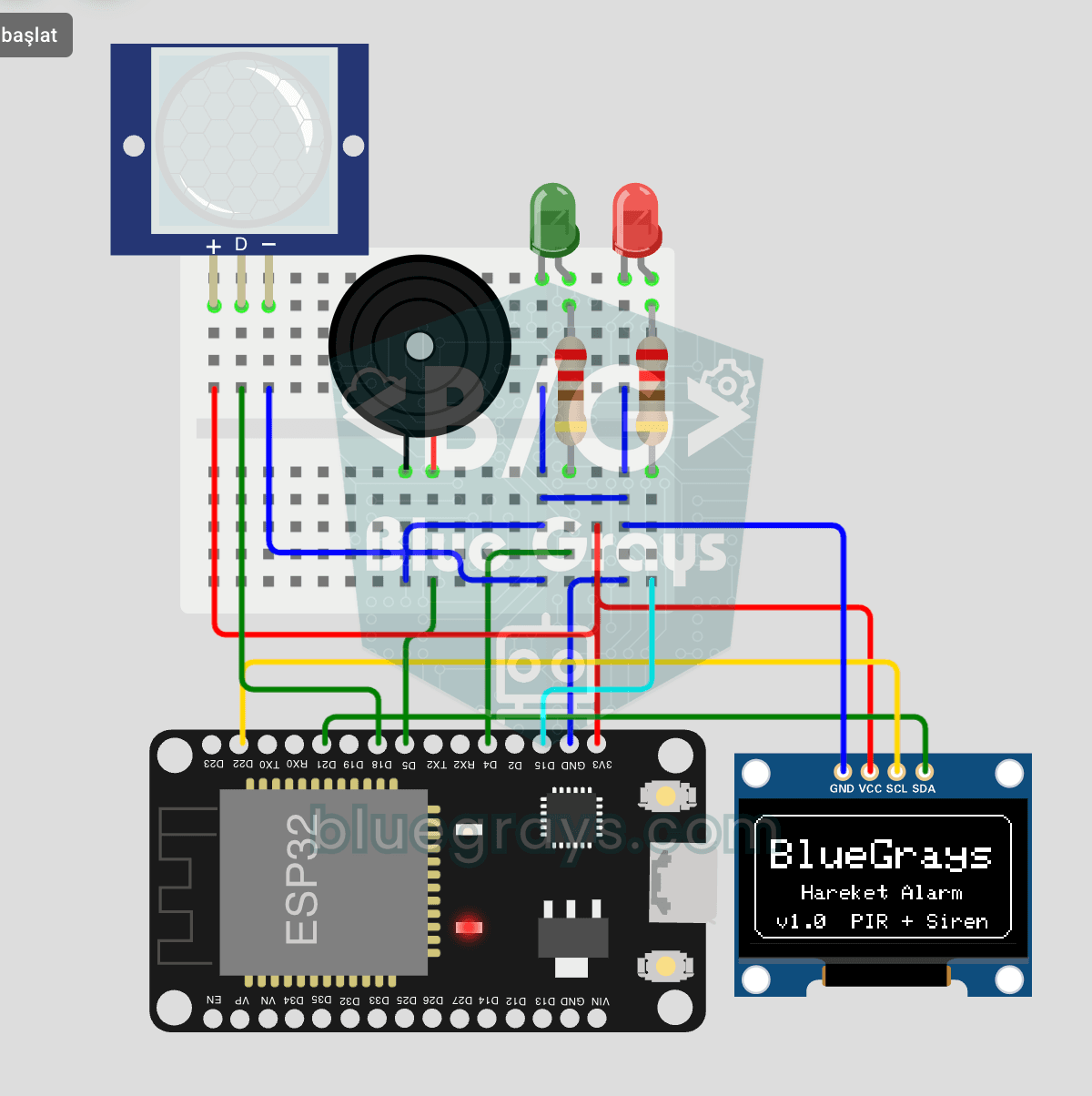
A smart security alarm system that activates the buzzer and LED when the PIR sensor detects motion, while simultaneously sending an instant notification to the owner via Telegram. It includes a 30-second cooldown to limit the frequency of repeated alarms; this mechanism does not validate PIR detections or eliminate false triggers. Suitable for home security, garage monitoring, warehouses, or workrooms. With ESP32-CAM, photo notifications can be added; with the classic ESP32 DevKit V1, text notif