
MAX7219 Arduino LED Matrix: Scrolling Text with MD_Parola
MAX7219 Arduino guide: wire 8x8 and 4-in-1 8x32 LED matrix modules, scroll text with MD_Parola, fix mirrored text with FC16_HW, plus clock and ESP32 code.
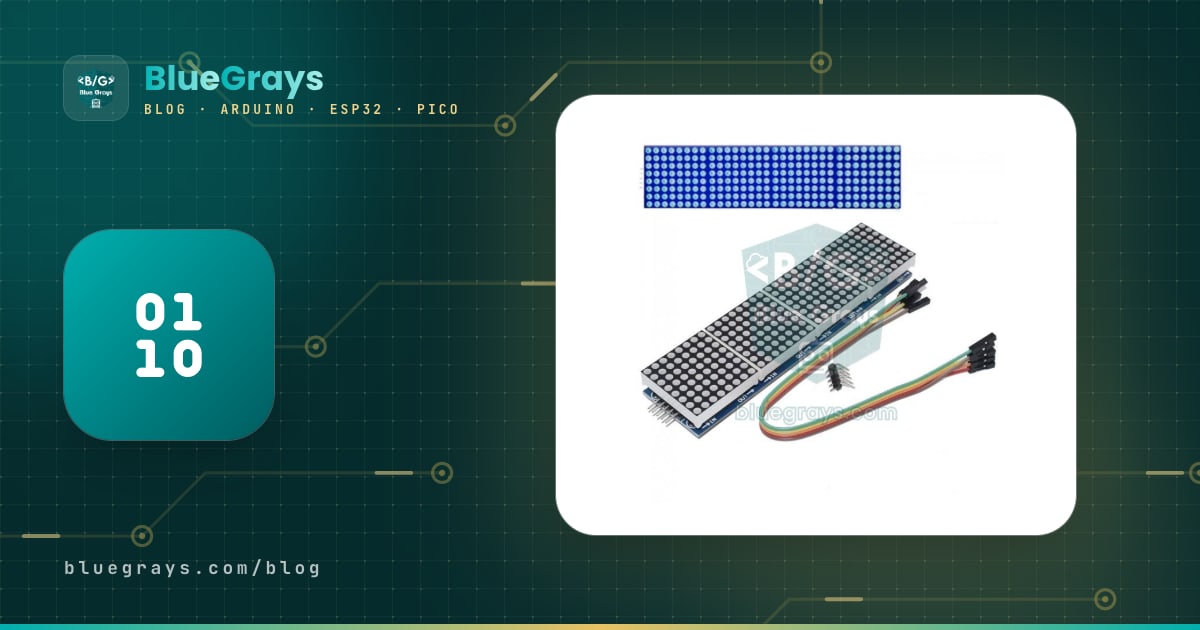
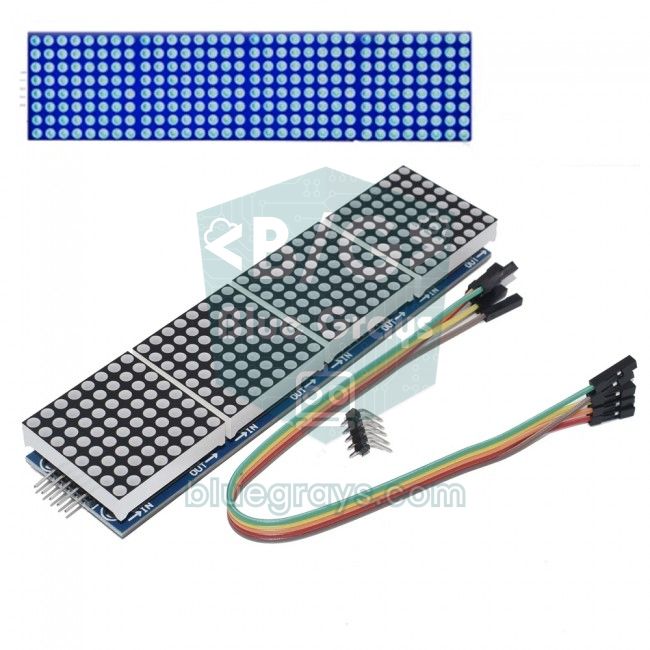
The MAX7219 is a cheap driver chip that runs 64 LEDs on its own, and it's the easiest way to use an LED matrix with Arduino. You'll usually find it in two forms: a module with a single 8x8 dot matrix and a 4-in-1 8x32 dot matrix module with four matrices side by side. The MAX7219 needs only 3 signal wires from the Arduino (DIN, CS, CLK); it scans the rows hundreds of times per second, sets the brightness and remembers the state of every LED by itself. That leaves the Arduino free for scrolling text, clocks, scoreboards or animations, and you can make the display as long as you like by chaining modules end to end.
In this guide you'll learn how the MAX7219 works, how to connect the module to an Arduino Uno, ESP32 and Raspberry Pi Pico over SPI, how to chain modules and how to show your first scrolling text with the MD_Parola library. Then you'll fix the upside-down or mirrored text problem that trips up most beginners by choosing the right hardware type (FC16_HW), work out brightness and power consumption, display accented and custom characters, and build a clock with an RTC module and a pixel-by-pixel animation. The final sections cover sending messages from your phone with an ESP32, MicroPython code for the Pico and fixes for the most common mistakes.
What is the MAX7219 and how does it work?
You can't wire 64 LEDs to individual Arduino pins, so LED matrices use multiplexing. In an 8x8 matrix the LEDs sit on a grid of 8 rows and 8 columns. At any moment the MAX7219 enables just one group of LEDs (a "digit" in the datasheet, which is a row or a column on a matrix), drives the other lines to choose which of the eight LEDs in that group light up, then moves on to the next group. All eight groups are scanned about 800 times per second; your eye can't follow that speed, so the image looks steady. Meanwhile the chip keeps each group's pattern in its own 8x8-bit RAM, limits the LED current with a single resistor and sets the brightness in 16 steps.
The Arduino talks to the MAX7219 over a 3-wire serial interface that works much like SPI. Every command is a 16-bit packet: the upper byte selects the register to write and the lower byte carries the value. While CS (LOAD in the datasheet) is LOW, bits shift in from DIN on every rising edge of CLK; when CS goes HIGH again, the packet is written to the register. It's the same idea as the 74HC595 shift register, but because the MAX7219 also handles scanning and current limiting, it's far less work. You'll find how SPI works in general in What is SPI?.
| Feature | Value |
|---|---|
| Supply voltage | 4.0–5.5 V (5 V in practice) |
| Interface | 3-wire serial (DIN, CLK, CS), up to 10 MHz |
| LEDs driven | 64 (an 8x8 matrix or eight 7-segment digits) |
| Scan rate | 800 Hz typical (8 digits) |
| Segment current | Set by the RSET resistor, 40 mA max (usually 10 kΩ on modules) |
| Brightness | 16 steps, duty cycle from 1/32 to 31/32 |
| Shutdown current | About 150 µA |
| Input HIGH threshold | At least 3.5 V (with a 5 V supply) |
| Daisy chaining | DOUT output to the DIN input of the next chip |
The MAX7219 has 14 addressable registers, but the ones you need for an LED matrix are in the table below. The libraries set them for you; still, knowing what they do helps a lot when you're debugging. For example, when the chip is first powered it starts in shutdown mode with a dark display, so if the initialisation code doesn't run, the module seems completely dead. Its sibling, the MAX7221, has the same registers but adds a true SPI-compatible CS pin and slew-rate-limited segment drivers that reduce electromagnetic interference.
| Address | Register | Purpose |
|---|---|---|
| 0x00 | No-Op | Leaves this chip unchanged while a packet goes to another chip in the chain |
| 0x01–0x08 | Digit 0–7 | The 8-bit LED pattern of each of the eight rows (or columns) |
| 0x09 | Decode Mode | BCD decoding for 7-segment digits; off (0x00) for a matrix |
| 0x0A | Intensity | Brightness, from 0x0 to 0xF |
| 0x0B | Scan Limit | Number of digits to scan; 7 (all eight) for a matrix |
| 0x0C | Shutdown | 0: shutdown mode, 1: normal operation |
| 0x0F | Display Test | 1: every LED lights at full brightness |
Single 8x8 module or 4-in-1 8x32 module?
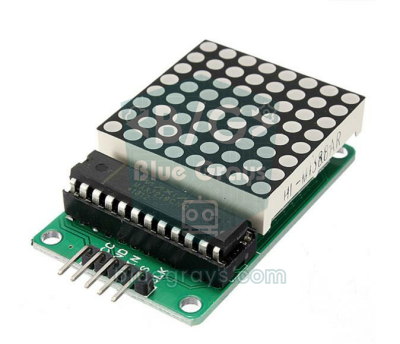
The two modules you'll meet most often use the same circuit; the difference is how the LED matrix is wired to the MAX7219 and the shape of the board. The single module on a green board has a DIP (24-pin) MAX7219 and an 8x8 matrix such as the 1088AS, with input pins (VCC, GND, DIN, CS, CLK) at one end and output pins (VCC, GND, DOUT, CS, CLK) at the other. On the blue 4-in-1 module, four SMD MAX7219 chips sit under the matrices and the four blocks are already chained at the factory; the board is usually marked FC-16. For long scrolling text, the 4-in-1 module is both cheaper and tidier.
| Feature | Single 8x8 module | 4-in-1 8x32 module (FC-16) |
|---|---|---|
| Resolution | 8x8 = 64 LEDs | 32x8 = 256 LEDs |
| Number of MAX7219s | 1 (DIP package) | 4 (SMD package) |
| Hardware type in code | Usually GENERIC_HW | Usually FC16_HW |
| Characters visible at once | 1 | 4–6 (depending on letter width) |
| Maximum current at full brightness | About 330 mA | About 1.3 A |
| Best for | Icons, dice, smiley faces, small games | Scrolling text, clocks, scoreboards |
MAX7219 wiring: Arduino Uno, ESP32 and Pico
The module has five pins: VCC and GND for power, DIN for data, CLK for the clock and CS for chip select (load). By default the MD_Parola and MD_MAX72XX libraries use hardware SPI, so DIN must go to your board's MOSI pin and CLK to its SCK pin, while CS can be any digital pin. You can check where the hardware SPI pins are on your board with the Pinout tool. Always plug the wires into the module's input (IN) side, the end marked DIN; the end marked DOUT is for the next module.
| Module pin | Arduino Uno | ESP32 | Raspberry Pi Pico |
|---|---|---|---|
| VCC | 5V | 5V (VIN) | VBUS (5 V) |
| GND | GND | GND | GND |
| DIN | D11 (MOSI) | GPIO 23 (MOSI) | GP19 (SPI0 TX) |
| CS | D10 | GPIO 5 | GP17 |
| CLK | D13 (SCK) | GPIO 18 (SCK) | GP18 (SPI0 SCK) |
The ESP32 and Pico have 3.3 V pins, while the MAX7219 datasheet asks for at least 3.5 V as a HIGH level with a 5 V supply. So 3.3 V signals are technically just below the limit. Most modules still work, but with long wires or certain chip batches you may see random dots and corrupted images. The reliable fix is a buffer such as the 74HCT125, which accepts 3.3 V as HIGH and outputs 5 V, or a fast logic level converter on the DIN, CLK and CS lines. Keeping the signal wires under 20 cm often solves the problem too.
Chaining modules (daisy chain)
The MAX7219's DOUT pin outputs the data that entered DIN 16.5 clock cycles later. When you connect the OUT side of one module to the IN side of the next, DOUT goes to the next chip's DIN, while CLK and CS are shared by all chips. That way only 3 signal wires still leave the Arduino, but the display can be 8, 16 or 32 blocks long. On every update the library sends packets down the whole chain, and when CS rises they all update at the same moment. On 4-in-1 modules this wiring is already on the board; to make an 8-block (64x8) display from two 4-in-1 modules, simply connect the OUT pins of the first module to the IN pins of the second and set MAX_DEVICES to 8 in your code.
In the library, block numbers start at the module closest to the DIN input and increase to the left; for MD_MAX72XX the origin is the top-right corner of the display. That's why the DIN input must stay on the right-hand side for the text to read correctly. As the chain grows, power becomes the real limit: feed 5 V and GND back into the chain with thick wires every 4–8 blocks, and add a 10 µF electrolytic and a 100 nF ceramic capacitor at each module's supply input. The datasheet recommends this pair too, to smooth out the ripple caused by the LEDs' current pulses.
Installing the libraries: MD_MAX72XX and MD_Parola
The two most popular MAX7219 libraries come from the same author (majicDesigns) and work together. MD_MAX72XX does the low-level work: it initialises the modules, writes pixels and columns and manages the font. MD_Parola builds on it with scrolling text, effects, alignment and zones. The LedControl library you'll see in older examples works too, but you have to write the scrolling yourself. If you've never installed a library, read How to add a library in Arduino first.
- In the Arduino IDE, open the Library Manager (Tools > Manage Libraries) and search for MD_Parola.
- Install the MD_Parola library by majicDesigns. When it asks about dependencies, choose Install all so MD_MAX72XX is installed too.
- Wire the module as shown in the table above, and for a 4-in-1 module set HARDWARE_TYPE to FC16_HW and MAX_DEVICES to 4 in your code.
- Upload the sketch. If the text looks upside down, mirrored or rotated, don't worry; you'll fix it with a single line in the hardware type section below.
First program: scrolling text with MD_Parola
1// MAX7219 4'lü modülde kayan yazı (MD_Parola) / Scrolling text on a 4-in-1 MAX7219 module (MD_Parola)
2#include <MD_Parola.h>
3#include <MD_MAX72xx.h>
4#include <SPI.h>
5
6#define HARDWARE_TYPE MD_MAX72XX::FC16_HW   // mavi PCB'li 4'lü modül / blue-PCB 4-in-1 module
7#define MAX_DEVICES 4                       // zincirdeki 8x8 blok sayısı / number of 8x8 blocks in the chain
8#define CS_PIN 10                           // DIN = D11 (MOSI), CLK = D13 (SCK)
9
10MD_Parola display = MD_Parola(HARDWARE_TYPE, CS_PIN, MAX_DEVICES);
11
12void setup() {
13  display.begin();
14  display.setIntensity(4);                  // parlaklık 0–15 / brightness 0–15
15  display.displayClear();
16  // metin, hizalama, hız (ms/kare), bekleme (ms), giriş efekti, çıkış efekti
17  // text, alignment, speed (ms/frame), pause (ms), entry effect, exit effect
18  display.displayText("Merhaba BlueGrays!", PA_CENTER, 50, 1000, PA_SCROLL_LEFT, PA_SCROLL_LEFT);
19}
20
21void loop() {
22  if (display.displayAnimate()) {           // efekt bittiğinde true döner / returns true when the effect ends
23    display.displayReset();                 // aynı yazıyı baştan başlat / restart the same text
24  }
25}
The most important line is displayText(): it takes the text, the alignment (PA_LEFT, PA_CENTER, PA_RIGHT), the time between frames in milliseconds, the pause after the text settles and the entry and exit effects, in that order. The smaller the speed value, the faster the text moves; 25–60 ms gives readable scrolling. displayAnimate() advances at most one frame each time it's called and returns straight away. That's why it has to be called constantly in loop() and why you shouldn't use delay() in the rest of your code; otherwise the text stutters. You'll find how to wait without blocking the program in millis() vs delay().
| Function | What it does |
|---|---|
| begin() | Initialises the modules, wakes them from shutdown and clears the display |
| displayText(text, align, speed, pause, effectIn, effectOut) | Sets the text and effects to show and starts the animation |
| displayAnimate() | Draws the next frame; returns true when the effect has finished |
| displayReset() | Plays the same text and effect again from the start |
| print("...") | Shows static text with no effect |
| setIntensity(0–15) | Sets the brightness of all modules |
| setInvert(true) | Swaps lit and unlit LEDs (negative image) |
| displayShutdown(true) | Puts the display into shutdown mode; false wakes it up |
| begin(2) and setZone(0, 0, 1) | Splits the display into independent zones, each with its own text and effect |
Apart from PA_SCROLL_LEFT there are many entry and exit effects: PA_PRINT (text appears at once), PA_SCROLL_UP and PA_SCROLL_DOWN (vertical scrolling), PA_WIPE, PA_OPENING and PA_CLOSING (opening from and closing to the centre), PA_FADE (fading through brightness), PA_DISSOLVE, PA_BLINDS, PA_RANDOM and PA_GROW_UP. To see them all, upload the Parola_Animation_Catalog sketch from File > Examples > MD_Parola; don't forget to change the HARDWARE_TYPE and MAX_DEVICES lines to match your module.
Choosing the hardware type (FC16_HW) and fixing mirrored text
Manufacturers wire the 8x8 matrix to the MAX7219 in different ways: on some boards the chip's "digit" lines go to the rows, on others to the columns, and the row or column order may be reversed. The library makes up for this with the HARDWARE_TYPE setting. If you pick the wrong type the module isn't faulty, but the letters in every 8x8 block look mirrored, upside down or rotated by 90 degrees. Because most older code online uses PAROLA_HW or GENERIC_HW, this is the most common problem with the blue 4-in-1 modules sold today. The table below shows what to change for each symptom; it's based on the 4-in-1 FC-16 module.
| What you see | Likely cause | Fix |
|---|---|---|
| Letters are mirrored left to right in every block | PAROLA_HW selected, column order reversed | Use FC16_HW |
| Letters are rotated 90 degrees in every block | GENERIC_HW selected, rows and columns swapped | Use FC16_HW |
| Letters are upside down in every block | ICSTATION_HW selected, row and column order reversed | Use FC16_HW |
| The whole text is upside down and scrolls left to right | The module is the wrong way round, DIN input on the left | Turn the module 180 degrees so the DIN input is on the right |
| Only some blocks are correct, the rest are blank or scrambled | MAX_DEVICES doesn't match the real number of blocks | Set MAX_DEVICES to the number of blocks |
Brightness and power consumption
Brightness depends on two things. The first is the RSET resistor on the module: the chip sends about 100 times the current flowing out of the ISET pin to the LEDs. Modules usually use 10 kΩ, which means a peak current slightly above 40 mA for red LEDs and about 40 mA for blue and white ones. The second is the Intensity register you set in software: a value n from 0 to 15 keeps the LEDs on for (2n+1)/32 of each scan interval, so 0 is the lowest (1/32) and 15 the highest (31/32) brightness. And because each row is only lit for one eighth of the time, even at full brightness a single LED averages about 5 mA. You can look up forward voltages by LED colour in the LED voltages tool.
You can roughly estimate a module's average current like this: I ≈ 8 mA + 5 mA × (2n+1)/32 × L. Here 8 mA is the chip's own consumption, n is the brightness value and L is the number of lit LEDs on that module (0–64); 5 mA is one eighth of the 40 mA peak current. For example, at brightness 15 with all 64 LEDs on you get 8 + 5 × 0.97 × 64 ≈ 318 mA, which agrees with the 330 mA in the datasheet. Scrolling text usually lights only 25–35 percent of the LEDs, so real consumption is much lower. The table below shows typical values for a 4-in-1 module.
| Condition | Per module | 4-in-1 module (32x8) |
|---|---|---|
| All LEDs on, brightness 15 | ≈ 320 mA | ≈ 1.3 A |
| All LEDs on, brightness 7 | ≈ 160 mA | ≈ 630 mA |
| Scrolling text (~30% of LEDs), brightness 7 | ≈ 55 mA | ≈ 210 mA |
| Scrolling text (~30% of LEDs), brightness 2 | ≈ 25 mA | ≈ 90 mA |
| Shutdown mode (displayShutdown) | ≈ 0.15 mA | ≈ 0.6 mA |
To dim the display at night you can adjust the brightness automatically with an LDR light sensor, and put the display to sleep with displayShutdown(true) when nobody is around. If you're designing a battery-powered sign, enter the values above into the Battery life tool to work out how many hours it will last. Indoors, a brightness of around 2–4 instead of 15 is usually enough; it's easier on the eyes and cuts the LED current to roughly a third to a sixth.
Accented and special characters (UTF-8)
The Arduino IDE saves your code as UTF-8, so a letter such as "é" or "ü" isn't one byte in the text but two. MD_Parola looks up every byte as a character number in the font, so accented letters turn into meaningless symbols. The library's default font contains the full Latin-1 set (é, è, à, ñ, ç, ä, ö, ü, ß and more), so all you need is a small function that converts UTF-8 into the font's codes. Letters outside Latin-1, such as the Turkish ğ, ı and ş in the example below, have to be drawn pixel by pixel and added with addChar(). The sketch does both steps.
1// MAX7219 + MD_Parola: Türkçe karakterli kayan yazı / Scrolling text with Turkish letters
2#include <MD_Parola.h>
3#include <MD_MAX72xx.h>
4#include <SPI.h>
5
6#define HARDWARE_TYPE MD_MAX72XX::FC16_HW
7#define MAX_DEVICES 4
8#define CS_PIN 10
9
10MD_Parola display = MD_Parola(HARDWARE_TYPE, CS_PIN, MAX_DEVICES);
11
12// Fontta olmayan 6 harf: ilk bayt genişlik, sonrakiler sütunlar (bit 0 = en üst satır)
13// 6 letters missing from the font: first byte is the width, then the columns (bit 0 = top row)
14const uint8_t trG[] = {5, 56, 69, 70, 85, 116};  // Ğ
15const uint8_t trg[] = {4, 25, 166, 166, 125};    // ğ
16const uint8_t trI[] = {3, 68, 125, 68};          // İ
17const uint8_t tri[] = {1, 124};                  // ı
18const uint8_t trS[] = {5, 70, 73, 201, 73, 49};  // Ş
19const uint8_t trs[] = {4, 88, 212, 84, 52};      // ş
20
21// UTF-8 metni fontun kodlarına çevirir / converts UTF-8 text to the font's codes
22void utf8ToFont(const char *src, char *dst, size_t size) {
23  size_t n = 0;
24  while (*src && n < size - 1) {
25    uint8_t c = *src++;
26    if (c < 0x80) { dst[n++] = c; continue; }            // ASCII aynen kalır / ASCII stays as is
27    if ((c & 0xE0) == 0xC0 && *src) {                    // 2 baytlık harf / 2-byte letter
28      uint16_t u = ((c & 0x1F) << 6) | (*src++ & 0x3F);
29      switch (u) {
30        case 0x11E: dst[n++] = (char)0x80; break;        // Ğ
31        case 0x11F: dst[n++] = (char)0x81; break;        // ğ
32        case 0x130: dst[n++] = (char)0x82; break;        // İ
33        case 0x131: dst[n++] = (char)0x83; break;        // ı
34        case 0x15E: dst[n++] = (char)0x84; break;        // Ş
35        case 0x15F: dst[n++] = (char)0x85; break;        // ş
36        default: dst[n++] = (u < 0x100) ? (char)u : '?'; // ç ö ü Ç Ö Ü ° fontta var / already in the font
37      }
38      continue;
39    }
40    while ((*src & 0xC0) == 0x80) src++;                 // desteklenmeyen karakteri atla / skip an unsupported character
41    dst[n++] = '?';
42  }
43  dst[n] = '\0';
44}
45
46char message[96];
47
48void setup() {
49  display.begin();
50  display.setIntensity(3);
51  display.addChar(0x80, trG);                // addChar begin()'den sonra / addChar after begin()
52  display.addChar(0x81, trg);
53  display.addChar(0x82, trI);
54  display.addChar(0x83, tri);
55  display.addChar(0x84, trS);
56  display.addChar(0x85, trs);
57  utf8ToFont("Günaydın İstanbul! Şehirde hava 22°C, çok güzel bir gün.", message, sizeof(message));
58  display.displayText(message, PA_LEFT, 40, 1000, PA_SCROLL_LEFT, PA_SCROLL_LEFT);
59}
60
61void loop() {
62  if (display.displayAnimate()) display.displayReset();
63}
In each custom character array, the first byte is the width of the letter in columns and the following bytes are the columns from left to right; bit 0 of each byte is the top row. For example, the dotless ı is a single column, and the value 124 (0b01111100) lights rows 2 to 6; the only difference from a normal i is the missing dot on top. On the capital Ğ and İ the body of the letter was made two rows shorter (5 rows instead of 7) to make room for the accent mark. addChar() doesn't copy the data, it only stores its address, so the arrays must be global and added after begin(). The codes 0x80–0x85 were chosen because they never appear in normal text. In the same way you can add any symbol you like, such as a degree sign, an arrow or a heart.
Clock example: a digital clock with an RTC module
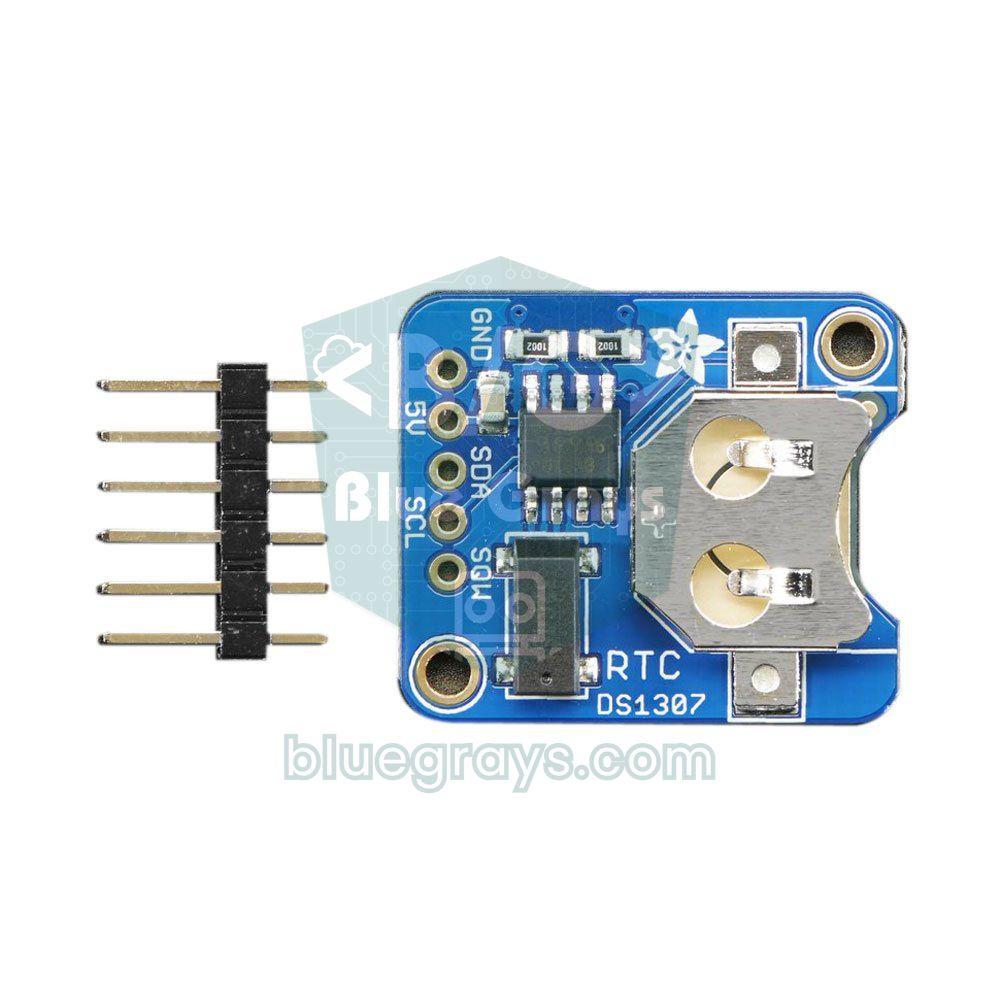
The Arduino's millis() counter resets when power is lost, and because of the Uno's ceramic resonator it can drift by up to several minutes a day. For a real clock, use an RTC clock module. Connect the DS1307 module to the I2C bus (SDA → A4, SCL → A5, VCC → 5V, GND → GND); the MAX7219 uses the SPI pins, so the two modules don't clash. For the code, install Adafruit's RTClib library from the Library Manager.
1// MAX7219 + DS1307 RTC ile dijital saat / Digital clock with MAX7219 + DS1307 RTC
2#include <MD_Parola.h>
3#include <MD_MAX72xx.h>
4#include <SPI.h>
5#include <RTClib.h>                         // Adafruit RTClib
6
7#define HARDWARE_TYPE MD_MAX72XX::FC16_HW
8#define MAX_DEVICES 4
9#define CS_PIN 10
10
11MD_Parola display = MD_Parola(HARDWARE_TYPE, CS_PIN, MAX_DEVICES);
12RTC_DS1307 rtc;                             // SDA = A4, SCL = A5
13
14char timeText[8];                           // "12:34" + sonlandırıcı / + terminator
15uint8_t lastSecond = 99;
16
17void setup() {
18  display.begin();
19  display.setIntensity(2);
20  display.setTextAlignment(PA_CENTER);      // print() bu hizalamayı kullanır / print() uses this alignment
21  if (!rtc.begin()) {
22    display.print("RTC?");                  // modül bulunamadı / module not found
23    while (true) {}
24  }
25  if (!rtc.isrunning()) {
26    rtc.adjust(DateTime(F(__DATE__), F(__TIME__)));   // ilk kurulumda derleme saati / compile time on first run
27  }
28}
29
30void loop() {
31  DateTime now = rtc.now();
32  if (now.second() != lastSecond) {         // saniyede bir güncelle / update once a second
33    lastSecond = now.second();
34    // ':' ve boşluk aynı genişlikte, yazı kaymaz / ':' and space are equally wide, nothing shifts
35    sprintf(timeText, (lastSecond % 2) ? "%02d %02d" : "%02d:%02d", now.hour(), now.minute());
36    display.print(timeText);
37  }
38}
The sketch reads the time once a second and blinks the colon on and off. In the default font the colon (:) and the space are the same width (2 columns), so the digits don't jump around. When the RTC runs for the first time, it's set to the moment the sketch was compiled. A DS1307 can drift by about a minute a month; for a more accurate clock, get a DS3231 module and use RTC_DS3231 instead of RTC_DS1307 and change the condition if (!rtc.isrunning()) to if (rtc.lostPower()). Thanks to its temperature-compensated crystal, the DS3231 drifts only about a minute a year. You can also split the display into two zones to show the time on one side and the temperature on the other.
Animation: drawing pixel by pixel with MD_MAX72XX
To go beyond scrolling text, you can use the MD_MAX72XX library directly. It treats the whole chain as a single pixel display: a 4-in-1 module has 32 columns and 8 rows. setPoint(row, column, state) turns a single LED on or off, setColumn() writes all 8 bits of a column at once and clear() blanks the display. The origin (0, 0) is the top-right corner; column numbers increase to the left and row numbers increase downwards. The code below draws a ball that bounces off the edges of the display:
1// MD_MAX72XX ile seken top animasyonu / Bouncing ball animation with MD_MAX72XX
2#include <MD_MAX72xx.h>
3#include <SPI.h>
4
5#define HARDWARE_TYPE MD_MAX72XX::FC16_HW
6#define MAX_DEVICES 4
7#define CS_PIN 10
8
9MD_MAX72XX mx = MD_MAX72XX(HARDWARE_TYPE, CS_PIN, MAX_DEVICES);
10
11int x = 0, y = 0;                           // topun konumu (sütun, satır) / ball position (column, row)
12int dx = 1, dy = 1;                         // hareket yönü / direction of travel
13
14void setup() {
15  mx.begin();
16  mx.control(MD_MAX72XX::INTENSITY, 2);
17  mx.clear();
18}
19
20void loop() {
21  const int lastCol = mx.getColumnCount() - 1;          // 4 modülde 31 / 31 with 4 modules
22  mx.control(MD_MAX72XX::UPDATE, MD_MAX72XX::OFF);      // çizim bitene kadar gönderme / hold updates while drawing
23  mx.setPoint(y, x, false);                             // eski konumu sil / erase the old position
24  x += dx;
25  y += dy;
26  if (x <= 0 || x >= lastCol) dx = -dx;                 // kenara çarpınca dön / bounce off the edge
27  if (y <= 0 || y >= 7) dy = -dy;
28  mx.setPoint(y, x, true);                              // yeni konumu yak / light the new position
29  mx.control(MD_MAX72XX::UPDATE, MD_MAX72XX::ON);       // hepsini tek seferde gönder / send everything at once
30  delay(40);
31}
In every frame, automatic updating (UPDATE) is switched off first, the old pixel is erased and the new one drawn, then UPDATE is switched back on so the changes go to the modules in one go. This stops a half-drawn frame from appearing on the display. With the same approach you can draw dice, smiley faces, a snake game or audio level bars. The MD_MAX72XX examples also include ready-made animations such as Pac-Man, robot eyes and an hourglass. When you're using MD_Parola, you can reach the same drawing functions through getGraphicObject().
Messages over the internet with an ESP32: scrolling text from your phone
With an ESP32 you can make your scrolling sign wireless. The code below connects to your home network, first scrolls its own IP address across the display, then shows the time it gets from the internet (NTP). Open that IP address in the browser of a phone on the same Wi-Fi and you'll see a text box; the message you type starts scrolling on the next round and alternates with the clock. The module connects to the VSPI pins as in the table: CLK to GPIO 18, DIN to GPIO 23 and CS to GPIO 5. If you're new to the ESP32, read What is the ESP32? first.
1// ESP32: telefondan mesaj + internet saati / ESP32: message from your phone + internet time
2#include <WiFi.h>
3#include <WebServer.h>
4#include <time.h>
5#include <MD_Parola.h>
6#include <MD_MAX72xx.h>
7#include <SPI.h>
8
9#define HARDWARE_TYPE MD_MAX72XX::FC16_HW
10#define MAX_DEVICES 4
11#define CS_PIN 5                            // VSPI: CLK = GPIO 18, DIN = GPIO 23
12
13const char* ssid = "AgAdi";                 // Wi-Fi adın / your Wi-Fi name
14const char* password = "Sifre123";          // Wi-Fi şifren / your Wi-Fi password
15
16MD_Parola display = MD_Parola(HARDWARE_TYPE, CS_PIN, MAX_DEVICES);
17WebServer server(80);
18
19char message[128];
20char nextMessage[128];
21char clockText[8] = "--:--";
22bool newMessage = false;
23bool showClock = false;
24
25const char PAGE[] = R"rawliteral(<!DOCTYPE html><html><head><meta charset="utf-8">
26<meta name="viewport" content="width=device-width"><title>MAX7219</title></head><body>
27<h2>Kayan yazı / Scrolling text</h2>
28<form action="/"><input name="m" maxlength="100"> <button>Gönder / Send</button></form>
29</body></html>)rawliteral";
30
31void handleRoot() {
32  if (server.hasArg("m")) {                 // formdan gelen mesaj / message from the form
33    server.arg("m").toCharArray(nextMessage, sizeof(nextMessage));
34    newMessage = true;
35  }
36  server.send(200, "text/html; charset=utf-8", PAGE);
37}
38
39void setup() {
40  display.begin();
41  display.setIntensity(3);
42  display.print("WiFi..");
43  WiFi.begin(ssid, password);
44  while (WiFi.status() != WL_CONNECTED) delay(500);
45  configTime(3 * 3600, 0, "pool.ntp.org");  // Türkiye UTC+3 / Turkey is UTC+3
46  snprintf(message, sizeof(message), "IP: %s", WiFi.localIP().toString().c_str());
47  server.on("/", handleRoot);
48  server.begin();
49  display.displayText(message, PA_LEFT, 40, 0, PA_SCROLL_LEFT, PA_SCROLL_LEFT);
50}
51
52void loop() {
53  server.handleClient();
54  if (display.displayAnimate()) {           // önceki gösterim bitti / the previous show has ended
55    showClock = !showClock;
56    if (newMessage) {                       // yeni mesaj sırayı keser / a new message jumps the queue
57      strlcpy(message, nextMessage, sizeof(message));
58      newMessage = false;
59      showClock = false;
60    }
61    if (showClock) {
62      struct tm t;
63      if (getLocalTime(&t, 10)) strftime(clockText, sizeof(clockText), "%H:%M", &t);
64      display.displayText(clockText, PA_CENTER, 40, 3000, PA_SCROLL_DOWN, PA_SCROLL_UP);
65    } else {
66      display.displayText(message, PA_LEFT, 40, 0, PA_SCROLL_LEFT, PA_SCROLL_LEFT);
67    }
68  }
69}
handleRoot() doesn't push the message from the form straight to the display; it parks it in nextMessage. The message is copied only when the current animation has finished (when displayAnimate() returns true), so the text MD_Parola is reading never changes halfway through. The 3 × 3600 value in configTime() is the UTC+3 time zone used in Turkey; for the UK, replace that line with configTzTime("GMT0BST,M3.5.0/1,M10.5.0", "pool.ntp.org"), which also handles daylight saving time. For accented messages, add the addChar() lines and the utf8ToFont() function from above to this sketch and replace the strlcpy() line with utf8ToFont(nextMessage, message, sizeof(message)). For internet time and real-time web dashboards, see ESP32 NTP clock and ESP32 web server and WebSocket.
MAX7219 with the Raspberry Pi Pico and MicroPython
On the Pico with MicroPython, the most practical approach is to copy the open-source max7219.py driver (micropython-max7219) to the Pico with Thonny. Because the driver uses MicroPython's framebuf module, drawing functions such as text(), pixel(), line() and rect() come ready to use, and it runs in the right orientation on 4-in-1 FC-16 modules. Power the module from VBUS (5 V) and connect DIN to GP19, CLK to GP18 and CS to GP17. MicroPython also claims SPI0's MISO pin (GP16), so don't use that pin for anything else. framebuf's font is 8x8 pixels and ASCII only, so a 4-in-1 module shows 4 letters at a time and accented letters aren't displayed. For setup, see What is the Raspberry Pi Pico? and MicroPython basics.
1# Pico + 4'lü MAX7219 modül: kayan yazı / Pico + 4-in-1 MAX7219 module: scrolling text
2from machine import Pin, SPI
3import time
4import max7219                        # max7219.py Pico'da olmalı / must be on the Pico
5
6# GP18 = SCK -> CLK, GP19 = MOSI -> DIN, GP17 -> CS; GP16 (MISO) boş kalır / GP16 (MISO) stays free
7spi = SPI(0, baudrate=5_000_000, polarity=0, phase=0, sck=Pin(18), mosi=Pin(19))
8display = max7219.Matrix8x8(spi, Pin(17, Pin.OUT), 4)
9display.brightness(3)                 # parlaklık 0–15 / brightness 0–15
10
11def scroll(text, delay_ms=35):
12    width = len(text) * 8             # her harf 8 piksel / each letter is 8 px wide
13    for x in range(32, -width, -1):   # sağdan girip solda kaybolur / enters right, leaves left
14        display.fill(0)
15        display.text(text, x, 0, 1)
16        display.show()
17        time.sleep_ms(delay_ms)
18
19while True:
20    scroll("BlueGrays + Pico")
21    display.fill(0)
22    display.text("Pico", 0, 0, 1)     # 4 harf tam sığar / exactly 4 letters fit
23    display.show()
24    time.sleep(1)
25    display.fill(0)
26    display.rect(0, 0, 32, 8, 1)      # ekran çerçevesi / display frame
27    display.show()
28    time.sleep_ms(500)
MAX7219 project ideas
- Scrolling message sign: build a message board for a shop, classroom or bedroom door, and change the message from your phone with an HC-05 Bluetooth module.
- Clock, calendar and temperature: show the time and date from an RTC and the temperature and humidity from a DHT11 sensor in turn.
- Internet clock and weather: scroll the NTP time and the temperature from a weather API with an ESP32.
- Scoreboard: run a two-zone display for a table tennis or basketball match with an IR remote.
- Mini games: play snake, Pong or an obstacle dodger on the 32x8 display with a joystick; more ideas in Arduino game projects.
- Audio level meter: draw the readings from a sound sensor as a 32-column bar graph.
- 32x32 animation panel: stack four 4-in-1 modules on top of each other and play animations such as rain, stars and fireworks.
Common mistakes and how to fix them
| Symptom | Likely cause | Fix |
|---|---|---|
| No LEDs light up | No power, the wires are on the module's OUT side, or the CS pin doesn't match the code | Plug the wires into the IN side marked DIN and check CS_PIN and the 5 V supply |
| All LEDs are fully lit and never change | No data arrives: DIN and CLK are swapped, or the chip is stuck in test mode | Connect DIN to MOSI and CLK to SCK, then power-cycle the module |
| Letters are mirrored, upside down or rotated 90 degrees | Wrong HARDWARE_TYPE | Try FC16_HW on a 4-in-1 module and GENERIC_HW on a single module |
| The whole text is upside down and scrolls left to right | The module is mounted the wrong way round, DIN input on the left | Turn the module 180 degrees; the DIN input must be on the right |
| Only one block works or the text looks cut off | Wrong MAX_DEVICES or a broken link between modules | Set MAX_DEVICES to the number of blocks and check the OUT → IN wires |
| The Arduino resets or the image flickers at higher brightness | The 500 mA USB limit is exceeded and the voltage drops | Use an external 5 V 2 A adapter, join the grounds and lower the brightness |
| Random dots and corrupted characters on an ESP32 | The 3.3 V signal is below the 3.5 V HIGH threshold, and the wires are long | Shift the level up with a 74HCT125 and shorten the wires |
| Accented letters show up as meaningless symbols | The UTF-8 bytes go straight to the font | Use the utf8ToFont() and addChar() approach |
| The scrolling text stutters and jerks | There's a delay() or a long task in loop() | Call displayAnimate() often and handle waits with millis() |
The MAX7219 is one of the cheapest ways to get an eye-catching display with just a few wires: the chip handles scanning, current limiting and brightness, so you can focus on what to show. Start by drawing icons on a single 8x8 module, then move on to scrolling text, a clock and wireless messages with an ESP32 on a 4-in-1 module. If you want colourful, individually controlled LEDs, WS2812B NeoPixel LEDs are a good choice, and for a project that only shows numbers, a 7-segment display. In the BlueGrays app you'll find MAX7219 projects such as a dot matrix clock and calendar, a weather station, 32x8 animations and scrolling text, step by step with circuit diagrams and code.
Frequently asked questions
Why does the text on my MAX7219 module look upside down or mirrored?
Manufacturers wire the 8x8 matrix to the MAX7219 in different ways, and the library compensates with the HARDWARE_TYPE setting. Most blue 4-in-1 modules sold today display correctly with FC16_HW, and single green modules with GENERIC_HW. If the image is still wrong, try PAROLA_HW and ICSTATION_HW as well; only one line of code changes.
How many MAX7219 modules can be daisy-chained?
The chip itself has no limit, and because MD_MAX72XX stores the number of modules in a byte, the software allows up to 255. In practice, power and signal quality set the limit: feed 5 V and GND back into the chain every 4–8 blocks, keep the wires short and add a 10 µF and a 100 nF capacitor to each module. The longer the chain, the longer each update takes and the more RAM it uses.
Does the MAX7219 work with an ESP32 at 3.3 V?
The MAX7219 needs at least a 4 V supply, so power the module from the ESP32's 5V (VIN) pin. The datasheet asks for 3.5 V as a HIGH level with a 5 V supply; the ESP32's 3.3 V signals still work on most modules, but they're below that limit. For reliable operation, put a level shifter such as a 74HCT125 on the DIN, CLK and CS lines.
How much current does a MAX7219 LED matrix draw?
A single 8x8 module with all LEDs on at full brightness draws about 330 mA, and a 4-in-1 8x32 module up to 1.3 A. With scrolling text only some of the LEDs are lit and brightness is usually kept between 2 and 7, so a 4-in-1 module typically draws around 100–250 mA. In shutdown mode each chip uses only about 150 µA.
How do I show accented or special characters on a MAX7219?
The MD_Parola default font contains the Latin-1 characters such as é, ñ, ä, ö, ü and ß, but the Arduino IDE stores them as two UTF-8 bytes. Convert the text into the font's codes with a small function before displaying it. Characters outside Latin-1 can be drawn yourself and added with addChar().
Can a MAX7219 drive a 7-segment display?
Yes. The MAX7219 was actually designed for common-cathode 7-segment displays with up to 8 digits, and it has a BCD mode that decodes the digits by itself. You can easily use ready-made 8-digit MAX7219 display modules with the setDigit() function of the LedControl library. Common-anode displays can't be connected to this chip directly.
Projects to build after reading this
See all projects
Dot Matrix Clock and Calendar (MAX7219, DS1307)
A glowing board for your desk or wall that shows the time and date in scrolling text. The 8x32 LED display holds a big-digit clock whose two dots blink every second; at the start of each minute the da

Dot Matrix Clock, Calendar and Weather Station (MAX7219, DS1307)
A scrolling-text board for your desk or wall that shows the time, the date and the room's weather in turn. On the 8x32 LED display you first see the temperature in both Celsius and Fahrenheit, then th

4x 32x8 Matrix LED Animation and Text
Stack four long LED matrix modules on top of each other and you get a square screen with more than a thousand dots of light. First, letters pour down from the top like rain in the movies, then a curta

4x 32x8 LED Matrix - 6-Animation Pack
Four 32x8 LED panels stacked on top of each other form a square screen where six animations play in turn: falling digital rain, a growing spiral, cells that are born and die all by themselves, ripplin

Pixel Snake 8x8 Matrix
Build the classic snake game with your own hands and play it. On a colorful 8x8 light matrix, you steer a green snake with a joystick and eat red apples; with every apple the snake grows, speeds up a

Real-Time Clock from the Internet via ESP32 NTP
The ESP32 connects to Wi-Fi and retrieves real time with millisecond precision from NTP (Network Time Protocol) servers. Thanks to the `configTzTime()` function, the Turkey time zone (TRT, UTC+3) is automatically applied, and DST transitions in countries that observe daylight saving time are automatically managed using a POSIX TZ string. The time is displayed both on the Serial Monitor and on an optional I2C LCD. `configTzTime()` starts the SNTP service; periodic resynchronization takes place wh

Digital Clock with ESP32 and DS1307 RTC (I2C + LCD)
In this project, we display the time and date on a 16x2 I2C LCD screen using the DS1307 real-time clock (RTC) module. The DS1307 is a battery-backed RTC that maintains the time even if the ESP32 is powered off. Both modules share the same I2C bus (SDA/SCL), allowing us to learn how to control multiple devices using just two signal wires. Through this project, you will gain practical knowledge of the I2C communication protocol, RTC module operation, and dynamic data display on an LCD screen.
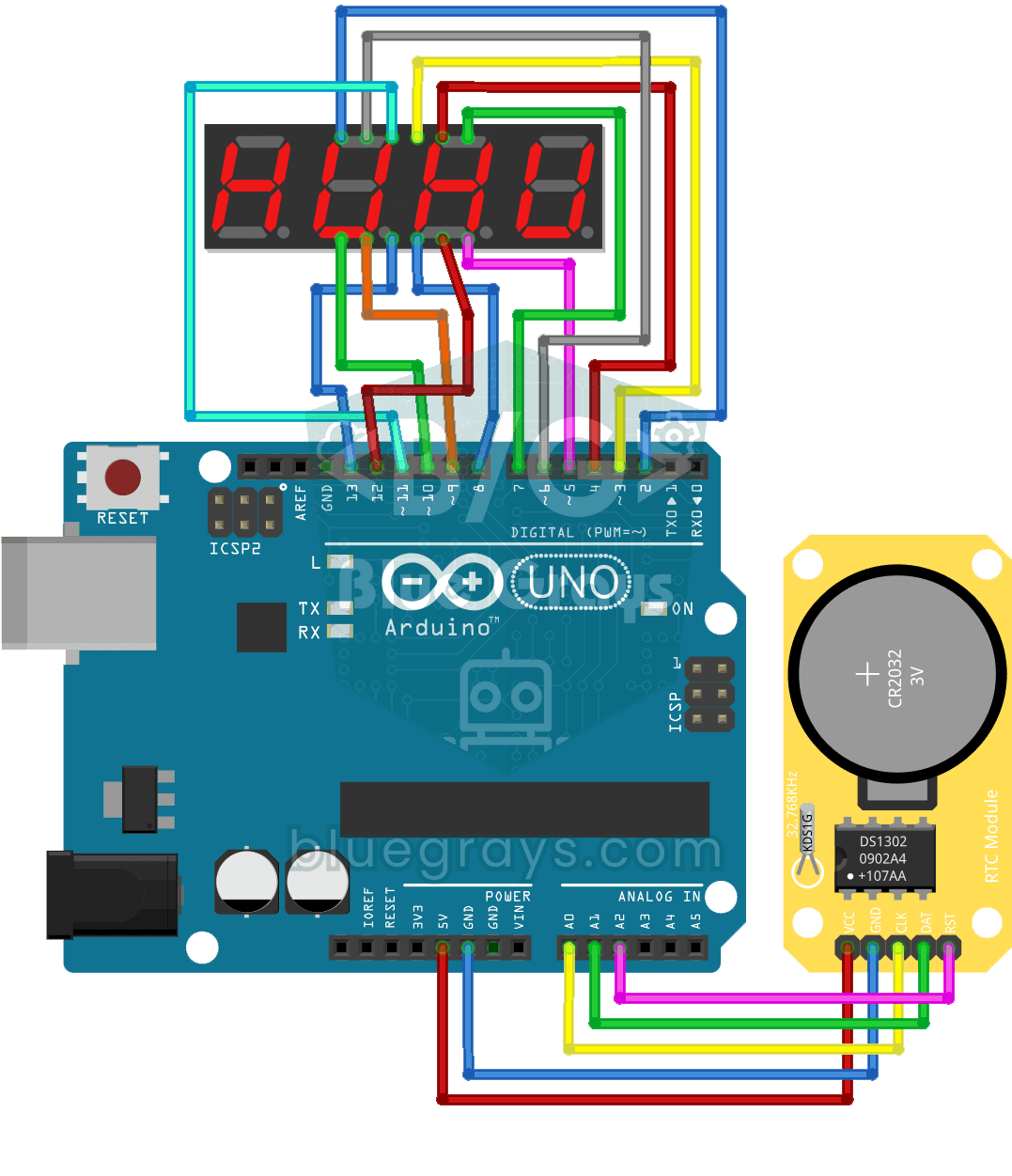
Digital Clock with 4-Digit 7-Segment Display
A four-digit glowing digital clock, much like the one on a kitchen oven. The DS1302 clock module keeps the time, and every second the Arduino reads the hours and minutes and shows them on the four-dig