
ESP32 DHT22 Web Server: Temperature, Humidity and a 24-Hour Chart
Build an ESP32 DHT22 web server: wiring table, WebServer and AsyncWebServer code, a self-refreshing page, a 24-hour Chart.js graph and a fix for nan readings.

An ESP32 DHT22 web server is the quickest way to put a temperature and humidity sensor on your Wi-Fi and read the values in your phone's browser. The ESP32 takes the measurements and runs a small web server at the same time, so you don't need a separate computer, an app or a cloud service. Any phone, tablet or laptop on the same network sees the latest readings as soon as it opens the ESP32's IP address.
We'll build it step by step: first we wire the DHT22 correctly and read it reliably, then we make a simple page that refreshes itself, and finally we draw the last 24 hours of temperature and humidity with Chart.js. You'll write the same server with the standard WebServer library and with ESPAsyncWebServer, and we'll look at what causes the dreaded "nan" reading and what changes if you use a DHT11 instead.
How does an ESP32 DHT22 web server work?
The system has three parts. The ESP32 joins your home network as a client (station mode) and gets an IP address from the router. In the background it reads the DHT22 at a fixed interval and keeps the last valid value in memory. When your phone's browser opens that IP address, the ESP32 sends an HTML page; a few lines of JavaScript inside the page then request just the numbers (JSON) every few seconds and update the display without reloading the whole page. For the chart, the ESP32 writes an average value into a ring buffer every 5 minutes, and the browser fetches that list and draws it with Chart.js.
| URL | What it returns | Who requests it, and when |
|---|---|---|
| / | The HTML page (layout and JavaScript) | The browser, when the page first opens |
| /data | Latest reading, e.g. {"t":23.4,"h":51.2} | JavaScript, every 5 seconds |
| /history | 5-minute averages for the last 24 hours | JavaScript, once a minute |
Parts list and DHT22 specifications
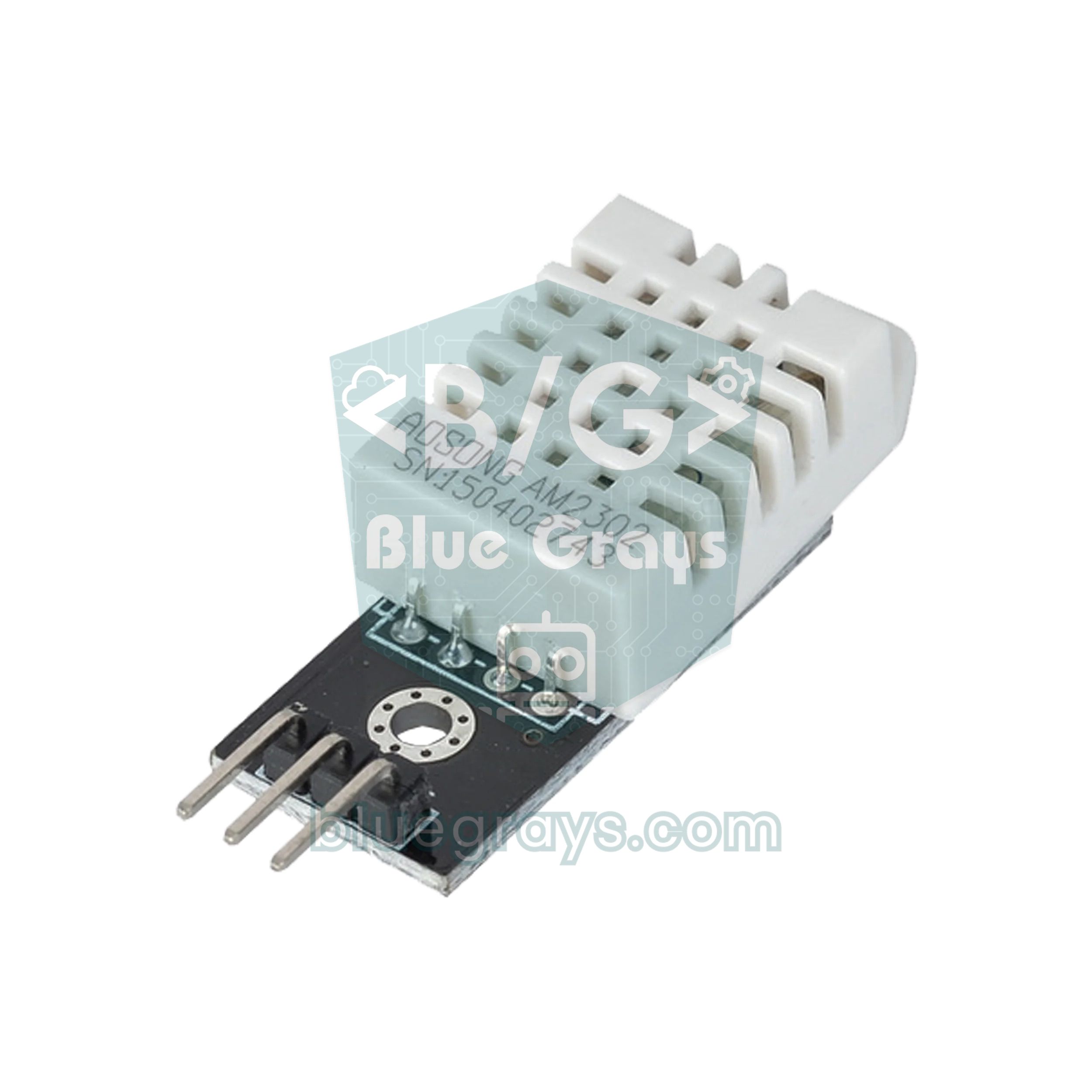
You'll need an ESP32 development board (DevKit V1, NodeMCU-32S or similar), a DHT22 sensor or a 3-pin DHT22 module, one 10 kΩ resistor if you use the bare sensor, a breadboard, jumper wires and a 2.4 GHz Wi-Fi network. The DHT22 is also sold as the AM2302; the wired AM2302 version already has the pull-up resistor built in. The table below compares the DHT22 with its cheaper sibling, the DHT11:
| Feature | DHT22 (AM2302) | DHT11 |
|---|---|---|
| Temperature range | −40 … 80 °C | 0 … 50 °C |
| Temperature accuracy | ±0.5 °C | ±2 °C |
| Humidity range | 0 … 100% RH | 20 … 90% RH |
| Humidity accuracy | ±2 … 5% RH | ±5% RH |
| Resolution | 0.1 °C / 0.1% | 1 °C / 1% |
| Minimum read interval | 2 seconds | 1 second |
| Supply voltage | 3.3 … 6 V | 3.3 … 5.5 V |
| Current (measuring / idle) | 1–1.5 mA / 40–50 µA | 0.5–2.5 mA / 100–150 µA |
ESP32 DHT22 wiring
| DHT22 pin | ESP32 pin | Note |
|---|---|---|
| VCC (+, pin 1) | 3V3 | Don't use 5 V; the data line is pulled up to this voltage |
| DATA (OUT, pin 2) | GPIO 4 | On the bare sensor, 10 kΩ between DATA and VCC |
| NC (pin 3) | Not connected | Only on the 4-pin bare sensor |
| GND (−, pin 4) | GND | Common ground with the ESP32 |
If you have the 3-pin module, the pull-up resistor (and usually a small capacitor) is already on the board, so you can connect it directly. With the 4-pin bare sensor you need a 4.7–10 kΩ resistor between DATA and VCC; without it the line floats and most readings fail. At 3.3 V, keep the cable under 1 metre; for longer runs use a 4.7 kΩ pull-up and twisted-pair cable. Also keep the sensor away from the ESP32 itself: the Wi-Fi chip and the regulator warm the board, and a sensor sitting right next to it reads 1–2 °C above the room.
Installing the libraries
- Install the ESP32 board package in the Arduino IDE (see What Is the ESP32? for details) and pick ESP32 Dev Module under Tools > Board.
- In the Library Manager, search for DHT sensor library (Adafruit) and install it; accept the Adafruit Unified Sensor dependency when asked.
- The WebServer library ships with the ESP32 package, so there's nothing extra to install.
- For the async version, install ESP Async WebServer and Async TCP (by ESP32Async). The old, unmaintained me-no-dev versions often fail to compile with recent ESP32 cores.
Step 1: reading the DHT22 and avoiding "nan"
Test the sensor on its own before you add the web part. When a read fails, the Adafruit library returns NaN (not a number) instead of a value, and the Serial Monitor prints "nan". So check every value with isnan(), throw away the failed reading and try again 2 seconds later. The readDHT() function in the code below makes three attempts; if all three fail it returns false and you simply keep using the last valid value.
1#include <DHT.h>
2
3#define DHT_PIN 4          // DHT22 DATA → GPIO 4
4#define DHT_TYPE DHT22     // DHT11 için DHT11 yaz / write DHT11 for a DHT11
5
6DHT dht(DHT_PIN, DHT_TYPE);
7
8// 3 denemeli güvenli okuma / safe read with 3 attempts
9bool readDHT(float &t, float &h) {
10  for (int i = 0; i < 3; i++) {
11    h = dht.readHumidity();
12    t = dht.readTemperature();
13    if (!isnan(t) && !isnan(h)) return true;   // ikisi de geçerli / both valid
14    delay(2100);           // DHT22 iki okuma arası en az 2 sn ister / DHT22 needs 2 s between reads
15  }
16  return false;
17}
18
19void setup() {
20  Serial.begin(115200);
21  dht.begin();
22  delay(2000);             // sensörün açılmasını bekle / let the sensor power up
23}
24
25void loop() {
26  float t, h;
27  if (readDHT(t, h)) {
28    float hi = dht.computeHeatIndex(t, h, false);   // hissedilen sıcaklık / heat index
29    Serial.printf("Sicaklik / Temp: %.1f C  Nem / Humidity: %.1f %%  Hissedilen / Feels like: %.1f C\n", t, h, hi);
30  } else {
31    Serial.println("DHT okunamadi, kabloyu ve pini kontrol et / DHT read failed, check wiring and pin");
32  }
33  delay(5000);
34}
Open the Serial Monitor at 115200 baud. Every 5 seconds you should see a line with temperature, humidity and the heat index (feels-like temperature). If you keep getting "DHT read failed", the problem is almost always hardware: the DATA wire is on the wrong pin, the pull-up is missing, the sensor is powered from 5 V or DHT_TYPE is set wrong. An occasional single failure is normal, though: Wi-Fi interrupts can upset the sensor's microsecond-level timing, and a retry takes care of it.
Step 2: a simple self-refreshing web page (WebServer)
Our first server is as simple as it gets: the ESP32 connects to Wi-Fi and, when the root URL (/) is requested, sends an HTML page showing the latest reading in large digits. The meta refresh tag at the top tells the browser to reload the page every 10 seconds, so you get a near-live display without writing a single line of JavaScript. Change the network name and password, upload the sketch and open the IP address from the Serial Monitor on your phone.
1#include <WiFi.h>
2#include <WebServer.h>
3#include <DHT.h>
4
5const char* ssid = "AgAdi"; // Wi-Fi adın / your Wi-Fi name
6const char* password = "Sifre123"; // Wi-Fi şifren / your Wi-Fi password
7
8DHT dht(4, DHT22); // DATA → GPIO 4
9WebServer server(80);
10
11float t = NAN, h = NAN; // son geçerli ölçüm / last valid reading
12unsigned long lastRead = 0;
13
14void handleRoot() {
15 String html = "<!DOCTYPE html><html><head><meta charset='utf-8'>"
16 "<meta name='viewport' content='width=device-width,initial-scale=1'>"
17 "<meta http-equiv='refresh' content='10'>" // 10 sn'de bir yenile / reload every 10 s
18 "<title>ESP32 DHT22</title></head>"
19 "<body style='font-family:sans-serif;text-align:center'><h2>ESP32 + DHT22</h2>";
20 if (isnan(t) || isnan(h)) {
21 html += "<p>Sensor okunamadi / Sensor read failed</p>";
22 } else {
23 html += "<p style='font-size:44px'>" + String(t, 1) + " °C</p>";
24 html += "<p style='font-size:44px'>" + String(h, 1) + " %</p>";
25 }
26 html += "</body></html>";
27 server.send(200, "text/html", html);
28}
29
30void setup() {
31 Serial.begin(115200);
32 dht.begin();
33 WiFi.mode(WIFI_STA);
34 WiFi.begin(ssid, password);
35 while (WiFi.status() != WL_CONNECTED) { delay(500); Serial.print('.'); }
36 Serial.print("\nIP: ");
37 Serial.println(WiFi.localIP()); // bu adresi telefonda aç / open this address on your phone
38 server.on("/", handleRoot);
39 server.begin();
40}
41
42void loop() {
43 server.handleClient(); // gelen istekleri cevapla / answer incoming requests
44 if (millis() - lastRead >= 5000) { // 5 sn'de bir oku / read every 5 s
45 lastRead = millis();
46 float nt = dht.readTemperature();
47 float nh = dht.readHumidity();
48 if (!isnan(nt) && !isnan(nh)) { t = nt; h = nh; } // hatalı ölçümü at / drop failed readings
49 }
50}Step 3: a 24-hour chart with Chart.js
Meta refresh is simple, but it downloads the whole page every time and shows no history. Let's do better: the page loads once, the values arrive as JSON from /data every 5 seconds through JavaScript's fetch(), and the chart is pulled from /history. Splitting 24 hours into 5-minute slots gives 24 × 12 = 288 samples. Each sample stores one 4-byte float for temperature and one for humidity, so 288 × 2 × 4 = 2,304 bytes, about 2.3 KB of RAM; that's tiny next to the ESP32's 520 KB.
1#include <WiFi.h>
2#include <WebServer.h>
3#include <DHT.h>
4
5const char* ssid = "AgAdi";              // Wi-Fi adın / your Wi-Fi name
6const char* password = "Sifre123";       // Wi-Fi şifren / your Wi-Fi password
7
8#define DHT_PIN 4                        // DHT22 DATA → GPIO 4
9#define DHT_TYPE DHT22                   // DHT11 için DHT11 / DHT11 for a DHT11
10DHT dht(DHT_PIN, DHT_TYPE);
11WebServer server(80);
12
13const unsigned long READ_MS = 10000;     // 10 sn'de bir ölç / read every 10 s
14const unsigned long STEP_MS = 300000;    // 5 dk'da bir kaydet / store every 5 min
15const int N = 288;                       // 24 sa × 12 = 288 kayıt / 24 h × 12 = 288 samples
16
17float temps[N], hums[N];                 // halka tampon / ring buffer
18int count = 0, head = 0;                 // dolu kayıt, sıradaki yer / stored samples, next slot
19float lastT = NAN, lastH = NAN;          // son geçerli ölçüm / last valid reading
20float sumT = 0, sumH = 0;                // 5 dk ortalaması için / for the 5-min average
21int sumN = 0;
22unsigned long lastRead = 0, lastStep = 0;
23
24const char PAGE[] PROGMEM = R"HTML(<!DOCTYPE html>
25<html><head><meta charset="utf-8">
26<meta name="viewport" content="width=device-width,initial-scale=1">
27<title>ESP32 DHT22</title>
28<script src="https://cdn.jsdelivr.net/npm/[email protected]/dist/chart.umd.min.js"></script>
29<style>
30body{font-family:sans-serif;margin:16px;background:#f2f4f7;color:#222}
31.box{display:inline-block;background:#fff;border-radius:12px;padding:10px 18px;margin:4px;font-size:30px}
32small{display:block;font-size:13px;color:#666}
33</style></head><body>
34<h2>ESP32 + DHT22</h2>
35<div class="box"><small>Sıcaklık / Temperature</small><span id="t">--</span> °C</div>
36<div class="box"><small>Nem / Humidity</small><span id="h">--</span> %</div>
37<canvas id="c" height="240"></canvas>
38<script>
39const $ = id => document.getElementById(id);
40const fmt = v => v === null ? '--' : v.toFixed(1);
41const chart = new Chart($('c'), {
42  type: 'line',
43  data: { labels: [], datasets: [
44    { label: '°C', data: [], borderColor: '#e4572e', yAxisID: 'y' },
45    { label: '%', data: [], borderColor: '#2e86de', yAxisID: 'y1' } ] },
46  options: { animation: false, elements: { point: { radius: 0 } },
47    scales: { y: { position: 'left' }, y1: { position: 'right', grid: { drawOnChartArea: false } } } }
48});
49function live() {
50  fetch('/data').then(r => r.json()).then(d => { $('t').textContent = fmt(d.t); $('h').textContent = fmt(d.h); });
51}
52function loadHistory() {
53  fetch('/history').then(r => r.json()).then(d => {
54    const n = d.t.length, end = Date.now() - d.age * 1000;
55    chart.data.labels = d.t.map((_, i) => new Date(end - (n - 1 - i) * d.step * 1000).toTimeString().slice(0, 5));
56    chart.data.datasets[0].data = d.t;
57    chart.data.datasets[1].data = d.h;
58    chart.update();
59  });
60}
61live(); loadHistory();
62setInterval(live, 5000);
63setInterval(loadHistory, 60000);
64</script></body></html>)HTML";
65
66// NaN JSON'da geçersizdir, null gönder / NaN is invalid JSON, send null
67String num(float v) { return isnan(v) ? String("null") : String(v, 1); }
68
69bool readDHT(float &t, float &h) {       // 3 denemeli okuma / read with 3 attempts
70  for (int i = 0; i < 3; i++) {
71    h = dht.readHumidity();
72    t = dht.readTemperature();
73    if (!isnan(t) && !isnan(h)) return true;
74    delay(2100);
75  }
76  return false;
77}
78
79void handleRoot() { server.send(200, "text/html", PAGE); }
80
81void handleData() {
82  server.send(200, "application/json", "{\"t\":" + num(lastT) + ",\"h\":" + num(lastH) + "}");
83}
84
85void handleHistory() {
86  String t, h;
87  t.reserve(2048);
88  h.reserve(2048);
89  for (int i = 0; i < count; i++) {
90    int k = (head - count + i + N) % N;  // en eskiden en yeniye / oldest to newest
91    if (i) { t += ','; h += ','; }
92    t += num(temps[k]);
93    h += num(hums[k]);
94  }
95  String json = "{\"step\":" + String(STEP_MS / 1000) + ",\"age\":" + String((millis() - lastStep) / 1000) +
96                ",\"t\":[" + t + "],\"h\":[" + h + "]}";
97  server.send(200, "application/json", json);
98}
99
100void setup() {
101  Serial.begin(115200);
102  dht.begin();
103  WiFi.mode(WIFI_STA);
104  WiFi.begin(ssid, password);
105  while (WiFi.status() != WL_CONNECTED) { delay(500); Serial.print('.'); }
106  Serial.print("\nIP: ");
107  Serial.println(WiFi.localIP());
108  server.on("/", handleRoot);
109  server.on("/data", handleData);
110  server.on("/history", handleHistory);
111  server.begin();
112}
113
114void loop() {
115  server.handleClient();
116  unsigned long now = millis();
117  if (lastRead == 0 || now - lastRead >= READ_MS) {
118    lastRead = now;
119    float t, h;
120    if (readDHT(t, h)) { lastT = t; lastH = h; sumT += t; sumH += h; sumN++; }
121  }
122  // ilk kayıt hemen, sonra 5 dk'da bir ortalama / first sample at once, then a 5-min average
123  if ((count == 0 && sumN > 0) || (count > 0 && now - lastStep >= STEP_MS)) {
124    temps[head] = sumN ? sumT / sumN : NAN;   // ölçüm yoksa boşluk / gap if no reading
125    hums[head]  = sumN ? sumH / sumN : NAN;
126    head = (head + 1) % N;
127    if (count < N) count++;
128    sumT = sumH = 0;
129    sumN = 0;
130    lastStep = now;
131  }
132}| Code | What it does |
|---|---|
| READ_MS = 10000 | Reads the sensor every 10 seconds (the DHT22 minimum is 2 seconds) |
| STEP_MS = 300000 | Stores the average of each 5 minutes of readings as one sample |
| temps[N], hums[N] | 288-slot ring buffer; once full it overwrites the oldest sample |
| num() | Turns NaN into null, which is valid JSON |
| /history: step and age | Sample interval and age of the newest sample; the browser works out the time labels from them |
| setInterval(live, 5000) | Updates the big numbers on the page every 5 seconds |
Two small details matter here. First, JSON has no NaN value: if you write "nan" into the response when the sensor fails, the browser's JSON parser throws an error and the page looks frozen. That's why num() sends null instead, and Chart.js draws null values as gaps in the line. Second, the ESP32 doesn't need to fetch the time from the internet: the browser uses its own clock and places each point "so many steps before now". If you want real date and time stamps, add the method from ESP32 NTP Time.
Chart.js is downloaded from the jsDelivr CDN when the page opens, so your phone needs internet access to show the chart. If the ESP32 runs only as its own access point (AP mode), or there's no internet at home, put chart.umd.min.js (about 200 KB) on LittleFS and serve it straight from the ESP32. We cover serving files from LittleFS in ESP32 Async Web Server and WebSocket.
The same server with AsyncWebServer
The standard WebServer library is synchronous: no request gets answered unless server.handleClient() is called in loop(). If readDHT() spends a few seconds retrying, the page doesn't respond for that long either. ESPAsyncWebServer handles requests in the background in its own task; the page opens instantly no matter what loop() is doing, and several phones can connect at once. The code below serves the same /data endpoint with the async library:
1#include <WiFi.h>
2#include <AsyncTCP.h>
3#include <ESPAsyncWebServer.h>
4#include <DHT.h>
5
6const char* ssid = "AgAdi"; // Wi-Fi adın / your Wi-Fi name
7const char* password = "Sifre123"; // Wi-Fi şifren / your Wi-Fi password
8
9DHT dht(4, DHT22); // DATA → GPIO 4
10AsyncWebServer server(80);
11float lastT = NAN, lastH = NAN; // loop() yazar, sunucu okur / loop() writes, server reads
12
13const char PAGE[] PROGMEM = R"HTML(<!DOCTYPE html><html><head><meta charset="utf-8">
14<meta name="viewport" content="width=device-width,initial-scale=1"><title>ESP32 DHT22</title></head>
15<body style="font-family:sans-serif;text-align:center"><h2>ESP32 + DHT22 (Async)</h2>
16<p style="font-size:44px"><span id="t">--</span> °C</p>
17<p style="font-size:44px"><span id="h">--</span> %</p>
18<script>
19const fmt = v => v === null ? '--' : v.toFixed(1);
20function live() {
21 fetch('/data').then(r => r.json()).then(d => {
22 document.getElementById('t').textContent = fmt(d.t);
23 document.getElementById('h').textContent = fmt(d.h);
24 });
25}
26live(); setInterval(live, 5000);
27</script></body></html>)HTML";
28
29String num(float v) { return isnan(v) ? String("null") : String(v, 1); }
30
31void setup() {
32 Serial.begin(115200);
33 dht.begin();
34 WiFi.mode(WIFI_STA);
35 WiFi.begin(ssid, password);
36 while (WiFi.status() != WL_CONNECTED) { delay(500); Serial.print('.'); }
37 Serial.print("\nIP: ");
38 Serial.println(WiFi.localIP());
39
40 server.on("/", HTTP_GET, [](AsyncWebServerRequest *request) {
41 request->send(200, "text/html", PAGE);
42 });
43 server.on("/data", HTTP_GET, [](AsyncWebServerRequest *request) { // burada sensör okunmaz / no sensor read here
44 request->send(200, "application/json", "{\"t\":" + num(lastT) + ",\"h\":" + num(lastH) + "}");
45 });
46 server.begin(); // istekler arka planda karşılanır / requests are handled in the background
47}
48
49void loop() {
50 static unsigned long lastRead = 0;
51 if (millis() - lastRead >= 10000) { // 10 sn'de bir oku / read every 10 s
52 lastRead = millis();
53 float t = dht.readTemperature();
54 float h = dht.readHumidity();
55 if (!isnan(t) && !isnan(h)) { lastT = t; lastH = h; }
56 }
57}| Feature | WebServer | ESPAsyncWebServer |
|---|---|---|
| Installation | Ships with the ESP32 package | Needs ESP Async WebServer + Async TCP |
| Handling requests | handleClient() inside loop() | In the background, in its own task |
| delay() in loop() | Stalls the server too | Doesn't affect the server |
| Several clients at once | One after another | Several clients comfortably |
| WebSocket and SSE | No | Yes |
| When to choose it | First project, simple page | Charts, several users, live data |
There's one rule to follow in the async version: read the sensor in loop(), not when a request arrives, and keep the result in a global variable. If you call delay() or a slow sensor read inside a request handler, you block the async library's task and connections drop. You can move the chart page and the /history handler from Step 3 into the async code the same way; the only change is using request->send() instead of server.send().
Read interval: how often should you read the DHT22?
The DHT22 datasheet asks for at least 2 seconds between measurements; read it more often and the Adafruit library either skips the new measurement and hands back the previous value, or the sensor returns an error. Room temperature doesn't change in seconds anyway, so 10–60 seconds is ideal in practice. Polling very often can also warm the sensor slightly and make humidity read low. Storing 5-minute averages for the chart instead of single readings reduces noise and uses memory efficiently. For a battery-powered station you should put the ESP32 to sleep between readings, as explained in ESP32 Deep Sleep.
Using a DHT11: what needs to change?
If you have a DHT11, all of the code works; just change the #define DHT_TYPE DHT11 line, and the wiring stays the same. The difference is measurement quality: the DHT11 measures 0–50 °C with ±2 °C accuracy in whole-degree steps and reads humidity only between 20 and 90%. Your chart will look like a staircase and will never go below 0 °C, so choose the DHT22 for a balcony, a fridge or a greenhouse. For DHT11-specific problems, see DHT11 Temperature and Humidity Sensor.
ESP32 DHT22 web server project ideas
- Nursery monitor: Show a red warning on the page when it goes above 26 °C and send a message to your phone with a Telegram bot.
- Room thermostat: Switch a heater or fan with a relay module at a threshold you set from the web page.
- Long-term logging: Send the 5-minute averages to a Google Sheets spreadsheet and keep months of data.
- Smart home: Push the values to Home Assistant over MQTT and use them in automations.
- Station with a display: Show the same values on an OLED display so you can read them at a glance without opening the page.
- Multi-room sensing: Put an ESP32 in every room and collect the data on one main board with ESP-NOW.
Common problems and fixes
| Symptom | Likely cause | Fix |
|---|---|---|
| Page always shows -- or nan | Wrong DATA pin, no pull-up, wrong DHT_TYPE | Check the wiring table, add 10 kΩ, make sure the code says DHT22 |
| Occasional nan | Wi-Fi interrupts disturb the timing | Retry 3 times with readDHT() and keep the last valid value |
| Temperature 1–3 °C too high | Heat from the ESP32 reaches the sensor | Move the sensor 5–10 cm away on a cable |
| Page won't open | Phone on another network, or the IP changed | Join the same Wi-Fi and use the new IP from the Serial Monitor |
| Numbers appear but the chart is empty | Chart.js couldn't be downloaded (no internet) | Make sure the phone has internet, or serve the file from LittleFS |
| Chart resets after a reboot | History is kept in RAM | Write the samples to LittleFS or send them to the cloud |
| Board reboots at random | Weak USB power (brownout) | Use a good cable and a 5 V adapter rated for at least 1 A |
The small web server you've built with an ESP32 and a DHT22 is the foundation for bigger projects like thermostats, greenhouses and weather stations: swap the sensor and the same page structure can show soil moisture, air quality or pressure. If you'd like to build the circuit step by step, the ESP32 DHT22 temperature and humidity, Async Web Server and temperature logger projects in the BlueGrays app have the wiring diagrams and ready-to-upload code.
Frequently asked questions
Why does my DHT22 return nan on the ESP32?
The Adafruit library returns NaN whenever a read fails. The usual causes are the wrong DATA pin, a missing 10 kΩ pull-up resistor, DHT_TYPE left as DHT11 in the code, or reading the sensor more often than every 2 seconds. Check the wiring, drop failed readings with isnan() and try again 2 seconds later.
Can the DHT22 run on 3.3 V?
Yes. The DHT22 works from 3.3 to 6 V, and on an ESP32 it's best powered from the 3V3 pin so the data line also stays at 3.3 V. If you power it from 5 V, the pull-up resistor pulls the data line to 5 V, which can damage an ESP32 pin because the ESP32 isn't 5 V tolerant.
How do I access my ESP32 web server from outside my home network?
The server in this guide only works on your local network. Port forwarding on the router exposes the device to the internet and is a security risk. Safer options are sending the readings to a service such as MQTT, Telegram or Google Sheets, or connecting to your home network through a VPN.
DHT22 vs DHT11: which one should I buy?
A DHT11 is fine for a simple indoor display, but its ±2 °C error and whole-number steps are obvious on a chart. If you need outdoor readings, temperatures below 0 °C or a smoother graph, get the DHT22 with ±0.5 °C accuracy; the price difference is small.
Can I connect multiple DHT22 sensors to one ESP32?
Yes. Each sensor goes to its own GPIO and gets its own object in the code, for example DHT dht1(4, DHT22) and DHT dht2(16, DHT22). DHT22s can't share a data line; if you want many sensors on one wire, look at the DS18B20 or an I2C sensor like the BME280.
Does the ESP32 keep the 24-hour history after a power cut?
Not in this example: the samples are stored in RAM, so they're lost when the power goes out or the board restarts. To keep them, write the samples to LittleFS at regular intervals, save them to an SD card or send them to a cloud service such as Google Sheets.
Projects to build after reading this
See all projects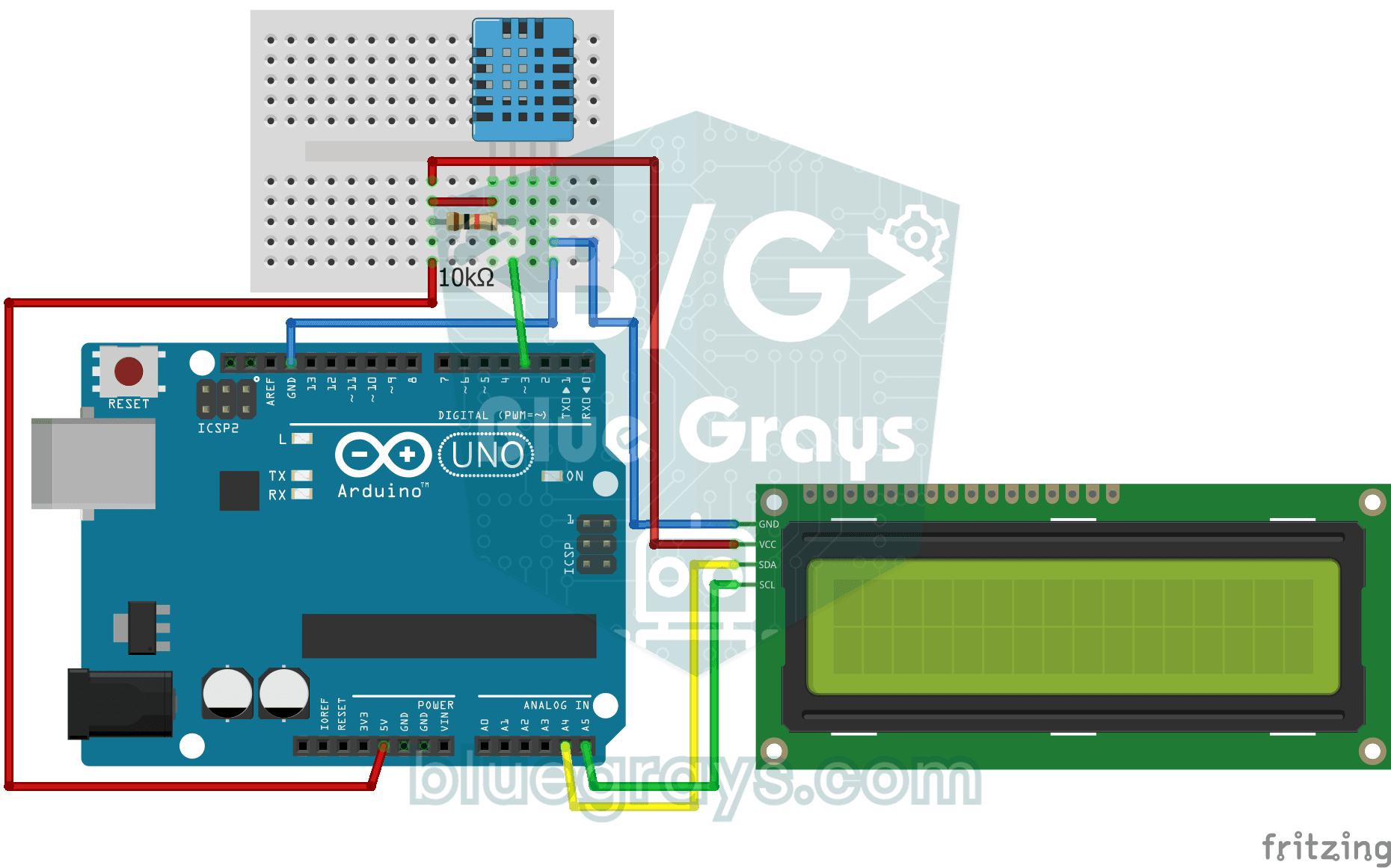
Temperature and Humidity with DHT11
How warm is your room, and is the air humid or dry? The DHT11 sensor measures temperature and humidity, and the Arduino writes the values on a two-line LCD screen, refreshing every couple of seconds.

ESP32 DHT22 Temperature and Humidity (with LCD Display)
This project measures ambient temperature and humidity using a DHT22 sensor and displays the data in real time on a 16x2 I2C LCD. Data is read from the sensor using the one-wire protocol via the Adafruit DHT library. This project serves as the foundation for IoT weather stations, smart home automation, or environmental monitoring systems in greenhouses. Communication with the DHT22 is established via the ESP32's GPIO 4 pin.

ESP32 Asynchronous Web Server (with IP Display on LCD)
In this project, we’re turning the ESP32 into an asynchronous web server that you can control from your phone or computer on the same Wi-Fi network. Thanks to the ESPAsyncWebServer library, the server can process multiple requests simultaneously (unlike the classic WebServer.h, which blocks on a single request). You’ll be able to open the ESP32’s IP address in a browser and click the ON/OFF buttons (the /on and /off routes) to turn the LED connected to GPIO 5 on and off.
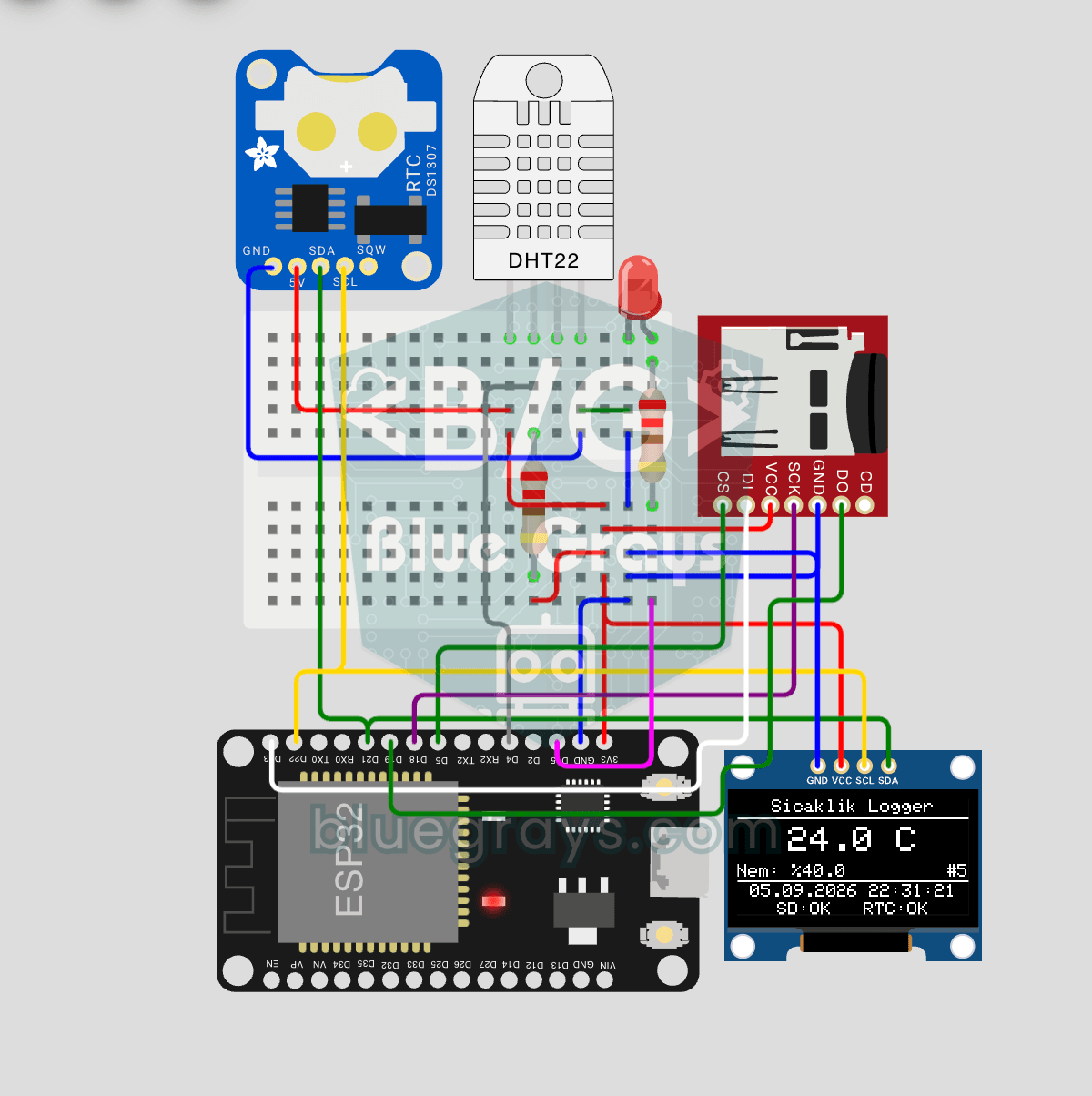
ESP32 Temperature Data Logger (DHT22 + DS1307 RTC + microSD + OLED)
Build a timed temperature and humidity logger with the ESP32! A DHT22 sensor reads temperature and humidity once a minute, and each reading is saved to a microSD card in CSV format with a real-time stamp from the DS1307 RTC module. The OLED display shows the latest temperature, humidity, timestamp and total number of records live, in large text.

ESP32 WebSocket Counter (2 Buttons + LCD + Real-Time Web)
In this project, two buttons wired to the ESP32 (GPIO 5 counts up, GPIO 4 counts down) change a counter. The value updates instantly both on a 16x2 I2C LCD and, through the WebSocket support of ESPAsyncWebServer, in every connected browser without reloading the page. Instead of HTTP polling a single persistent connection is used, and the ESP32 sends the new value to everyone with ws.textAll().

ESP32 Wi-Fi STA Connection (with LCD Screen)
In this project, we connect the ESP32 to the home Wi-Fi network in Station (STA) mode in a secure, fault-tolerant manner. We store the SSID and password in a separate secrets.h file to prevent leaking to Git, set up an auto-reconnect mechanism, and display the RSSI signal level and IP address on an I2C LCD screen. The internal LED works as a status indicator. It is a production-grade connection manager.

ESP32 mDNS: Accessing the Device via bluegrays-esp.local (with LCD Screen)
In this project we add an mDNS (Multicast DNS) service to the ESP32, so you reach it by a readable host name like bluegrays-esp.local instead of an IP address. Even if the IP assigned by DHCP changes, the device always answers to the same name. A small web server on the board lets you control the LED from your browser at http://bluegrays-esp.local/.

Real-Time Clock from the Internet via ESP32 NTP
The ESP32 connects to Wi-Fi and fetches the real time from NTP (Network Time Protocol) servers with millisecond precision. configTzTime() applies the Turkey time zone (TRT, UTC+3) automatically, and in countries with daylight saving time the DST switch is handled by a POSIX TZ string. The time is printed both to the Serial Monitor and to an optional I2C LCD.