
ESP32 NTP Time: Internet Clock with Time Zone, OLED, RTC Backup
How to get NTP time on the ESP32: configTzTime and time zones, getLocalTime, strftime, an OLED clock, DS3231 backup, a daily scheduled task and Pico W ntptime.
Getting the time with ESP32 NTP means connecting the board to time servers on the internet and learning the date and time to within a few tens of milliseconds, without any clock module. Once the ESP32 is on Wi-Fi, a single configTzTime() call fetches the time, applies your time zone and then the board keeps counting on its own. Desk clocks, timed watering, timestamps for data logging, a morning alarm or lights that switch on at a set time no longer need a separate RTC module.
In this guide we'll go step by step through how NTP works, setting the correct time zone, writing the date in any format with getLocalTime and strftime, showing the time on an OLED display, keeping the time with a DS3231 module when Wi-Fi drops or power is lost, and running a task at a specific time every day. In the last section we'll do the same job on the Raspberry Pi Pico W with MicroPython's ntptime module.
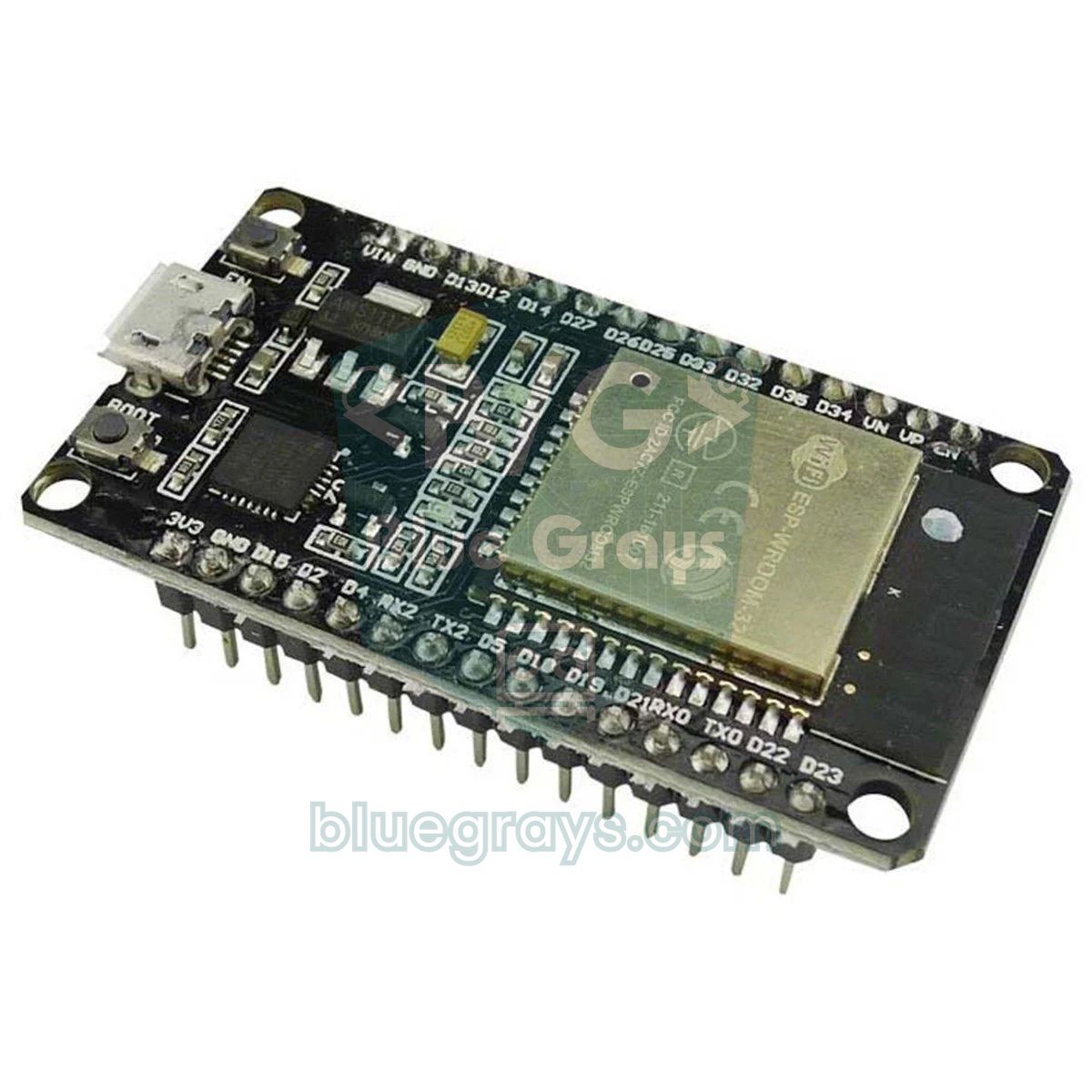
What is NTP and how does the ESP32 get the time?
NTP (Network Time Protocol) is a protocol, in use since the 1980s, for synchronising the clocks of computers and devices over the internet. Servers are arranged in layers called strata: stratum 1 servers are connected directly to an atomic clock or GPS, stratum 2 servers take their time from them, and so on. The ESP32 asks for the time with a small packet on UDP port 123; the server replies with a timestamp containing the seconds since 1900 plus a fraction of a second. The ESP32 accounts for the round-trip time of the packet and sets its own clock. On a home connection the accuracy you get this way is usually between 10 and 50 milliseconds, which is more than enough for a clock project.
The lwIP network stack inside the ESP32 uses SNTP, a simplified version of NTP. Once the time has been received, the ESP32 keeps it as the system time and continues counting with a timer derived from its crystal; it doesn't go to the internet every second. In the background it asks the server again at regular intervals (by default every 3 hours in the Arduino ESP32 core) and corrects small drifts. The system time is kept in UTC; the local time you see is calculated from it by applying the time zone rule.
| Concept | Value / explanation |
|---|---|
| Protocol and port | SNTP, UDP 123 |
| Timestamp | Seconds since 1900 (the ESP32 converts this to 1970-based Unix time) |
| Typical accuracy | 10–50 ms on a home connection |
| Resync | Default 3 hours in Arduino ESP32, changed with sntp_set_sync_interval() (minimum 15 s) |
| Maximum servers | 3 (the server names passed to configTzTime) |
| Internet traffic | Request and reply are 48-byte NTP packets each; a few kilobytes a day at most |
| What you need | ESP32, a 2.4 GHz Wi-Fi network and an internet connection |
configTime and configTzTime: setting the time zone
There are two ways to start NTP in the Arduino ESP32 core. configTime(gmtOffset_sec, daylightOffset_sec, server1, server2, server3) takes the UTC offset and the daylight saving offset in seconds. For Turkey, for example, you write configTime(10800, 0, "pool.ntp.org"), because 3 hours is 10,800 seconds and Turkey has stayed on UTC+3 all year round without daylight saving since 2016. This method is simple, but it doesn't know your region's daylight saving dates; in places that observe DST, such as Europe or the US, the switch happens on the wrong day, so use configTzTime there.
The better way is configTzTime(TZ, server1, server2, server3). This function takes a time zone string in POSIX format that also contains the daylight saving rules, and the ESP32 handles the switch itself every year. For Turkey the string is "<+03>-3": the +03 in angle brackets is the abbreviation shown on screen, and -3 means you subtract 3 hours from local time to reach UTC. The table below lists the strings for common regions.
| Region | TZ string (configTzTime) | configTime equivalent |
|---|---|---|
| Turkey (UTC+3 all year) | <+03>-3 | configTime(10800, 0, ...) |
| Germany, France, Italy, Spain | CET-1CEST,M3.5.0,M10.5.0/3 | Not suitable, use configTzTime |
| UK, Portugal | GMT0BST,M3.5.0/1,M10.5.0 | Not suitable, use configTzTime |
| US Eastern (New York) | EST5EDT,M3.2.0,M11.1.0 | Not suitable, use configTzTime |
| Azerbaijan, Georgia (UTC+4) | <+04>-4 | configTime(14400, 0, ...) |
| UTC (for timestamps) | UTC0 | configTime(0, 0, ...) |
What you need and wiring
To see the time in the Serial Monitor, an ESP32 and a Wi-Fi network are all you need. Later in the guide we use a 0.96 inch SSD1306 OLED display to show the time, a DS3231 RTC module to keep it through power cuts and a relay module for the scheduled task example. The OLED and the DS3231 share the same I2C bus, so both connect to the same two pins. You can look up the ESP32 pinout with the Pinout tool.
| Part pin | ESP32 | Raspberry Pi Pico W | Note |
|---|---|---|---|
| OLED / DS3231 VCC | 3V3 | 3V3 (OUT) | Both run on 3.3 V |
| OLED / DS3231 GND | GND | GND | Common ground |
| OLED / DS3231 SDA | GPIO 21 | GP4 | I2C data line |
| OLED / DS3231 SCL | GPIO 22 | GP5 | I2C clock line |
| Relay module IN | GPIO 26 | GP15 | Scheduled task example |
| Relay module VCC | 5V (VIN) | VBUS | Most relay coils need 5 V |
Step by step: your first ESP32 NTP sketch
- Make sure the ESP32 board package is installed in the Arduino IDE and select ESP32 Dev Module under Tools. If you don't know how, see the What Is the ESP32 post.
- No extra library is needed: WiFi.h and time.h come with the ESP32 core.
- Replace the WIFI_SSID and WIFI_PASS values with your own network, and TZ_INFO with your time zone from the table above.
- Upload the sketch and open the Serial Monitor at 115200 baud.
- You should first see Wi-Fi dots, then after a few seconds the date and time updating every second.
1#include <WiFi.h>
2#include <time.h>
3
4const char* WIFI_SSID = "AgAdi";       // Wi-Fi adı / Wi-Fi name
5const char* WIFI_PASS = "Sifre123";    // Wi-Fi şifresi / Wi-Fi password
6const char* TZ_INFO   = "<+03>-3";     // Türkiye: UTC+3, yaz saati yok / Turkey: UTC+3, no DST
7
8void setup() {
9  Serial.begin(115200);
10  WiFi.begin(WIFI_SSID, WIFI_PASS);
11  Serial.print("Wi-Fi");
12  while (WiFi.status() != WL_CONNECTED) {    // bağlanana kadar bekle / wait until connected
13    delay(500);
14    Serial.print(".");
15  }
16  Serial.println(" OK");
17
18  // NTP sunucuları + saat dilimi / NTP servers + time zone
19  configTzTime(TZ_INFO, "pool.ntp.org", "time.cloudflare.com");
20
21  struct tm t;
22  while (!getLocalTime(&t)) {                // ilk eşitlemeyi bekle (5 sn deneme) / wait for the first sync (5 s per try)
23    Serial.println("NTP bekleniyor / waiting for NTP");
24  }
25  Serial.println("Saat alindi / time received");
26}
27
28void loop() {
29  struct tm t;
30  if (getLocalTime(&t)) {
31    Serial.println(&t, "%d.%m.%Y %H:%M:%S");  // ör. 16.11.2026 14:05:09 / e.g. 16.11.2026 14:05:09
32  }
33  delay(1000);
34}
35| Line | What does it do? |
|---|---|
| configTzTime(TZ_INFO, ...) | Starts the SNTP client and sets the servers and time zone; returns immediately, the time arrives in the background |
| getLocalTime(&t) | Fills a struct tm with the local time; if there's no time yet, it waits up to 5 seconds and returns false |
| Serial.println(&t, "...") | The ESP32's Print class can print a struct tm directly with a strftime format |
| time(nullptr) | Returns the seconds since 1970 (Unix time, UTC) |
There's an important detail here: getLocalTime() decides whether the time is "valid" by looking at the year. When the ESP32 boots, the system time is 1 January 1970, and the function returns false until the year is later than 2016. So code that logs data or runs tasks before NTP arrives won't accidentally produce entries dated 1970, as long as you check the return value. The second parameter is the timeout in milliseconds; if you don't want to block inside loop(), write getLocalTime(&t, 0) so it only tries once.
struct tm: the parts of the time
getLocalTime() writes the time into a struct tm, split into parts. You use these fields to compare hours, days or months when building scheduled tasks. Two fields often trip up beginners: the month counts from 0 and the year counts from 1900.
| Field | Range | Example (Monday 16 November 2026, 14:05:09) |
|---|---|---|
| tm_sec | 0–59 (60 on a leap second) | 9 |
| tm_min | 0–59 | 5 |
| tm_hour | 0–23 | 14 |
| tm_mday | 1–31 | 16 |
| tm_mon | 0–11 (0 = January) | 10 |
| tm_year | Years since 1900 | 126 (1900 + 126 = 2026) |
| tm_wday | 0–6 (0 = Sunday) | 1 |
| tm_yday | 0–365 (day of the year, from 0) | 319 |
Formatting date and time with strftime
strftime() writes the time from a struct tm into a character array according to a pattern. The percent codes in the pattern are replaced with the matching value, and every other character stays as it is. Size the array as the longest output plus one (for the terminating zero): "14:05:09" is 8 characters, so the array must be at least 9 bytes. The most common codes:
| Code | Meaning | Example output |
|---|---|---|
| %H / %M / %S | Hour (00–23) / minute / second | 14 / 05 / 09 |
| %I and %p | 12-hour clock and AM/PM | 02 PM |
| %d / %m / %Y | Day / month (01–12) / four-digit year | 16 / 11 / 2026 |
| %y | Two-digit year | 26 |
| %A / %a | Weekday name, long / short (English) | Monday / Mon |
| %B / %b | Month name, long / short (English) | November / Nov |
| %j | Day of the year (001–366) | 320 |
| %F / %T | Shortcuts for %Y-%m-%d / %H:%M:%S | 2026-11-16 / 14:05:09 |
| %Z | Time zone abbreviation | +03 |
The C library on the ESP32 only knows English day and month names; %A always prints "Monday". For dates in another language you keep the day and month names in your own arrays and use tm_wday and tm_mon as array indexes. The example below does this with Turkish names; just swap in your own language. Because the Serial Monitor supports UTF-8, accented letters display correctly there. The sketch produces both a readable date and the sortable ISO format (2026-11-16 14:05:09) for logging.
1#include <WiFi.h>
2#include <time.h>
3
4const char* WIFI_SSID = "AgAdi";
5const char* WIFI_PASS = "Sifre123";
6const char* TZ_INFO   = "<+03>-3";
7
8// tm_wday: 0 = Pazar ... 6 = Cumartesi / 0 = Sunday ... 6 = Saturday
9const char* GUNLER[] = {"Pazar", "Pazartesi", "Salı", "Çarşamba", "Perşembe", "Cuma", "Cumartesi"};
10const char* AYLAR[]  = {"Ocak", "Şubat", "Mart", "Nisan", "Mayıs", "Haziran",
11                        "Temmuz", "Ağustos", "Eylül", "Ekim", "Kasım", "Aralık"};
12
13void setup() {
14  Serial.begin(115200);
15  WiFi.begin(WIFI_SSID, WIFI_PASS);
16  while (WiFi.status() != WL_CONNECTED) delay(500);
17  configTzTime(TZ_INFO, "pool.ntp.org");
18}
19
20void loop() {
21  struct tm t;
22  if (!getLocalTime(&t)) return;             // saat henüz yok / time not set yet
23
24  char saat[9];                              // "HH:MM:SS" + '\0'
25  char iso[20];                              // "YYYY-MM-DD HH:MM:SS" + '\0'
26  strftime(saat, sizeof(saat), "%H:%M:%S", &t);
27  strftime(iso, sizeof(iso), "%Y-%m-%d %H:%M:%S", &t);
28
29  // Türkçe tarih: 16 Kasım 2026 Pazartesi / Turkish date
30  Serial.printf("%d %s %d %s  %s\n", t.tm_mday, AYLAR[t.tm_mon], t.tm_year + 1900, GUNLER[t.tm_wday], saat);
31  Serial.printf("Kayit / log: %s  epoch: %ld\n", iso, (long)time(nullptr));
32  delay(1000);
33}
34Showing the time and date on an OLED display
To turn the Serial Monitor output into a real desk clock, the 0.96 inch SSD1306 OLED display is ideal: it's cheap, connects with two wires and shows large digits crisply. The sketch below shows the weekday and date at the top, the time in a large font in the middle and the Wi-Fi status at the bottom. Because it redraws only when the second changes, not on every loop, it doesn't keep the I2C bus busy for nothing. Install the Adafruit SSD1306 and Adafruit GFX libraries from the Library Manager; the display itself is covered in the OLED Display (SSD1306) post.
1#include <WiFi.h>
2#include <Wire.h>
3#include <Adafruit_GFX.h>
4#include <Adafruit_SSD1306.h>
5#include <time.h>
6
7const char* WIFI_SSID = "AgAdi";
8const char* WIFI_PASS = "Sifre123";
9const char* TZ_INFO   = "<+03>-3";
10// OLED yazı tipinde Türkçe harf yok / the OLED font has no Turkish letters
11const char* GUNLER[] = {"Pazar", "Pazartesi", "Sali", "Carsamba", "Persembe", "Cuma", "Cumartesi"};
12
13Adafruit_SSD1306 display(128, 64, &Wire, -1);
14int sonSaniye = -1;                          // son çizilen saniye / last drawn second
15
16void yaz(const char* mesaj) {                // ekrana tek satır / one line on screen
17  display.clearDisplay();
18  display.setTextSize(1);
19  display.setCursor(0, 0);
20  display.print(mesaj);
21  display.display();
22}
23
24void setup() {
25  Wire.begin(21, 22);                        // SDA = 21, SCL = 22
26  display.begin(SSD1306_SWITCHCAPVCC, 0x3C);
27  display.setTextColor(SSD1306_WHITE);
28  yaz("Wi-Fi baglaniyor...");
29
30  WiFi.begin(WIFI_SSID, WIFI_PASS);
31  while (WiFi.status() != WL_CONNECTED) delay(300);
32  configTzTime(TZ_INFO, "pool.ntp.org", "time.cloudflare.com");
33  yaz("NTP bekleniyor...");
34}
35
36void loop() {
37  struct tm t;
38  if (!getLocalTime(&t, 0)) {                // 0 = beklemeden dene / try without waiting
39    delay(200);
40    return;
41  }
42  if (t.tm_sec == sonSaniye) {               // saniye değişmediyse çizme / redraw only on a new second
43    delay(20);
44    return;
45  }
46  sonSaniye = t.tm_sec;
47
48  char saat[9], tarih[11];
49  strftime(saat, sizeof(saat), "%H:%M:%S", &t);
50  strftime(tarih, sizeof(tarih), "%d.%m.%Y", &t);
51
52  display.clearDisplay();
53  display.setTextSize(1);
54  display.setCursor(0, 0);
55  display.print(GUNLER[t.tm_wday]);          // gün adı / day name
56  display.setCursor(68, 0);
57  display.print(tarih);                      // 10 karakter = 60 piksel / 10 chars = 60 px
58  display.setTextSize(2);
59  display.setCursor(16, 26);
60  display.print(saat);                       // 8 x 12 = 96 piksel genişlik / 96 px wide
61  display.setTextSize(1);
62  display.setCursor(0, 56);
63  display.print(WiFi.status() == WL_CONNECTED ? "Wi-Fi: var" : "Wi-Fi: yok");
64  display.display();
65}
66
Notice that the day names are written without accented letters: the default Adafruit GFX font has no characters like ş, ç or é and shows meaningless symbols instead. At text size 2 each character is 12 pixels wide; the 8-character "14:05:09" takes 96 pixels, so starting at pixel 16 centres it exactly on the 128-pixel screen. If you'd rather use a 16x2 character LCD, just print the same strftime output with lcd.print(); the wiring is explained in the I2C LCD Display post.
What happens to the time when Wi-Fi drops? DS3231 RTC backup
The most common question is: if Wi-Fi goes, does the time go too? No. Once the ESP32 has the time from NTP, it keeps counting with its own timer; losing Wi-Fi doesn't stop the clock. Because this timer runs from the 40 MHz crystal, it drifts by roughly a second or two per day, and the next sync corrects it when Wi-Fi returns. The real problem is a power cut or a restart with the EN button: then the system time goes back to 1970, and without Wi-Fi the ESP32 has no way of knowing the time.
| Situation | Is the time kept? | What to do |
|---|---|---|
| Wi-Fi drops for a while | Yes, the ESP32 keeps counting | Nothing; NTP corrects it when Wi-Fi returns |
| Deep sleep | Yes, the RTC timer keeps counting | For long sleeps, resync with NTP on some wake-ups |
| Power cut or EN button | No, the clock goes back to 1970 | Add a battery-backed RTC module like the DS3231 |
| No internet at all (field, warehouse) | NTP never arrives | Take the time from an RTC module only |
During deep sleep the time is counted not by the main crystal but by a less precise RC oscillator inside the chip. This oscillator is affected by temperature, so over long sleeps the clock can drift by a few seconds or more; in battery-powered projects that sleep for hours, it's a good habit to run an NTP sync every few wake-ups. Details are in the ESP32 Deep Sleep post.
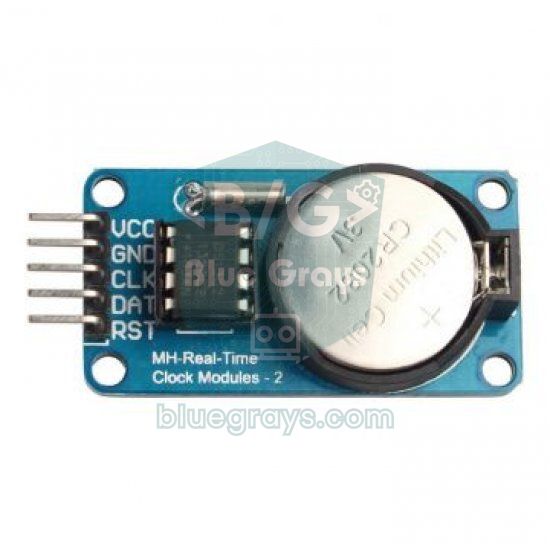
The best way to get a clock that survives power cuts is to combine both: at boot take the time from the DS3231 module immediately, correct it with NTP once Wi-Fi is up, and update the DS3231 on every NTP sync. In the sketch below the DS3231 stores UTC rather than local time; that way the time zone rule lives in one place (the TZ string) and daylight saving changes never corrupt the RTC. To catch the NTP sync, a callback is registered with sntp_set_time_sync_notification_cb(). Because this callback runs inside the network task, no I2C work is done there; it only raises a flag, and loop() takes care of writing to the DS3231. The sketch uses the RTClib library.
1#include <WiFi.h>
2#include <Wire.h>
3#include <RTClib.h>
4#include <sys/time.h>
5#include "esp_sntp.h"
6
7const char* WIFI_SSID = "AgAdi";
8const char* WIFI_PASS = "Sifre123";
9const char* TZ_INFO   = "<+03>-3";
10
11RTC_DS3231 rtc;
12volatile bool ntpGeldi = false;              // NTP eşitlemesi oldu mu? / did an NTP sync happen?
13
14void ntpCallback(struct timeval* tv) {       // her NTP eşitlemesinde çağrılır / called on every NTP sync
15  ntpGeldi = true;                           // I2C işini loop() yapsın / let loop() do the I2C work
16}
17
18void setup() {
19  Serial.begin(115200);
20  Wire.begin(21, 22);
21  setenv("TZ", TZ_INFO, 1);                  // NTP gelmese de saat dilimi geçerli / TZ valid even without NTP
22  tzset();
23
24  // 1) Sistem saatini önce DS3231'den kur (DS3231'de UTC saklanır) / set system time from the DS3231 (stores UTC)
25  if (rtc.begin() && !rtc.lostPower()) {
26    struct timeval tv = { (time_t)rtc.now().unixtime(), 0 };
27    settimeofday(&tv, nullptr);
28    Serial.println("Saat DS3231'den / time from DS3231");
29  }
30
31  // 2) Wi-Fi gelince NTP saati düzeltir; bağlantı sonra gelse de SNTP yeniden dener
32  //    NTP corrects the clock once Wi-Fi is up; SNTP keeps retrying if the link comes later
33  sntp_set_time_sync_notification_cb(ntpCallback);
34  WiFi.begin(WIFI_SSID, WIFI_PASS);
35  configTzTime(TZ_INFO, "pool.ntp.org", "time.cloudflare.com");
36}
37
38void loop() {
39  if (ntpGeldi) {
40    ntpGeldi = false;
41    rtc.adjust(DateTime((uint32_t)time(nullptr)));   // DS3231'e UTC yaz / write UTC to the DS3231
42    Serial.println("DS3231 NTP ile guncellendi / DS3231 updated from NTP");
43  }
44
45  struct tm t;
46  if (getLocalTime(&t, 0)) {
47    Serial.println(&t, "%d.%m.%Y %H:%M:%S");
48  } else {
49    Serial.println("Saat yok: NTP ve DS3231 bekleniyor / no time yet");
50  }
51  delay(1000);
52}
53Running a task at a set time every day
The most common use of NTP time is a scheduled task: run the watering pump for 10 minutes at 07:30, switch on the garden lights at 19:00, send a reading every hour on the hour. The method is simple: read the time in loop() and start the task when the hour and minute match the target. The real subtlety is stopping the task from firing hundreds of times within the same minute. For that you store the day the task ran (tm_yday) in a variable, so it never runs twice on the same day. The sketch below switches on the relay on GPIO 26 for 10 minutes every weekday morning at 07:30; because it measures the duration with millis(), the code never blocks.
1#include <WiFi.h>
2#include <time.h>
3
4const char* WIFI_SSID = "AgAdi";
5const char* WIFI_PASS = "Sifre123";
6const char* TZ_INFO   = "<+03>-3";
7
8const int ROLE_PIN = 26;                     // röle modülü IN / relay module IN
9const int GOREV_SAAT = 7;                    // her gün 07:30 / every day at 07:30
10const int GOREV_DAKIKA = 30;
11const unsigned long SURE_MS = 10UL * 60 * 1000;   // 10 dakika çalış / run for 10 minutes
12
13int sonGun = -1;                             // görevin çalıştığı son gün (tm_yday) / last day the task ran
14bool roleAcik = false;
15unsigned long acilisMs = 0;
16
17void setup() {
18  Serial.begin(115200);
19  pinMode(ROLE_PIN, OUTPUT);
20  digitalWrite(ROLE_PIN, LOW);
21  WiFi.begin(WIFI_SSID, WIFI_PASS);
22  while (WiFi.status() != WL_CONNECTED) delay(500);
23  configTzTime(TZ_INFO, "pool.ntp.org");
24}
25
26void loop() {
27  struct tm t;
28  if (getLocalTime(&t, 0)) {                 // saat geçerliyse / only when the time is valid
29    bool haftaici = (t.tm_wday >= 1 && t.tm_wday <= 5);   // Pzt-Cuma / Mon-Fri
30    if (haftaici && t.tm_hour == GOREV_SAAT && t.tm_min == GOREV_DAKIKA && t.tm_yday != sonGun) {
31      sonGun = t.tm_yday;                    // bugün bir kez / once per day
32      digitalWrite(ROLE_PIN, HIGH);
33      roleAcik = true;
34      acilisMs = millis();
35      Serial.println(&t, "%H:%M gorev basladi / task started");
36    }
37  }
38  if (roleAcik && millis() - acilisMs >= SURE_MS) {   // süre dolunca kapat / switch off after the period
39    digitalWrite(ROLE_PIN, LOW);
40    roleAcik = false;
41    Serial.println("Gorev bitti / task finished");
42  }
43  delay(200);
44}
45- Matching on seconds: a condition like t.tm_sec == 0 skips the task if the loop misses that second (while Wi-Fi reconnects or during a long delay). Checking the minute and the day is safer.
- Checking for a valid time: don't run tasks while getLocalTime() returns false, or you'll make wrong decisions based on 1970 right after boot.
- Missed tasks: if power goes at 07:29 and comes back at 07:35, the task won't run that day. If it matters, write the condition as "it's past 07:30 and it hasn't run today" and save sonGun to flash with Preferences.
- Several tasks: keep the hour, minute and duration in an array and use a separate last-run-day variable for each task.
- High-current loads: drive a pump or lamp through a relay module or a MOSFET, never directly from a pin.
Changing the sync interval and monitoring NTP
The default 3-hour sync interval suits most projects. To sync more often (for example outdoors with large temperature swings) or to reduce traffic, pass the new interval in milliseconds to sntp_set_sync_interval(). Call it before configTzTime(), because the new interval takes effect on the next start or when the current interval expires. By protocol rules the interval can't be shorter than 15 seconds. sntp_get_sync_status() returns SNTP_SYNC_STATUS_COMPLETED once after a sync completes and then resets itself, so you can catch every new sync.
1#include <WiFi.h>
2#include <time.h>
3#include "esp_sntp.h"
4
5const char* TZ_INFO = "<+03>-3";
6
7void setup() {
8  Serial.begin(115200);
9  WiFi.begin("AgAdi", "Sifre123");
10  while (WiFi.status() != WL_CONNECTED) delay(500);
11
12  sntp_set_sync_interval(6UL * 60 * 60 * 1000);   // 6 saatte bir eşitle (en az 15 sn) / sync every 6 hours (min 15 s)
13  configTzTime(TZ_INFO, "pool.ntp.org");          // ayar sntp_init() öncesi verilir / set before sntp_init()
14}
15
16void loop() {
17  if (sntp_get_sync_status() == SNTP_SYNC_STATUS_COMPLETED) {
18    Serial.println("Yeni NTP esitlemesi / new NTP sync");
19  }
20  delay(1000);
21}
22
Which NTP server should you use?
The most common choice is pool.ntp.org: a pool of thousands of servers run by volunteers worldwide that hands you the address of a server near you on each request. Country subdomains (uk.pool.ntp.org, de.pool.ntp.org) pull the server even closer. configTzTime() accepts up to three server names; if the first doesn't answer, it moves on to the next.
| Server | Feature | Note |
|---|---|---|
| pool.ntp.org | Volunteer pool, nearest server | First choice for general use |
| uk.pool.ntp.org / europe.pool.ntp.org | Country or continent pool | Slightly lower latency |
| time.cloudflare.com | Large company infrastructure | Good as a backup server |
| time.google.com | Spreads leap seconds out (leap smear) | Don't mix it with other servers |
| Your router's IP address | Some routers offer local NTP | Useful on a local network without internet |
NTP on the Raspberry Pi Pico W: ntptime
On the Raspberry Pi Pico W (and Pico 2 W) the same job is done with MicroPython's ntptime module. ntptime.settime() asks the NTP server and sets the Pico's internal RTC to UTC. MicroPython has no time zone string like the ESP32; for local time you add your offset in seconds to UTC (3 × 3600 for UTC+3 in the example). ntptime only fetches the time once and doesn't resync automatically; in long-running projects, calling settime() once or twice a day removes the drift. The Pico W's RTC is also reset when power is lost, so the same DS3231 backup applies here. Connecting the Pico W to Wi-Fi is covered in detail in the Pico W Wi-Fi and Web Server post.
1import network
2import ntptime
3import time
4
5SSID = "AgAdi"
6PASS = "Sifre123"
7UTC_OFFSET = 3 * 3600          # Türkiye UTC+3 / Turkey UTC+3
8# localtime(): 0 = Pazartesi / 0 = Monday
9GUNLER = ("Pazartesi", "Sali", "Carsamba", "Persembe", "Cuma", "Cumartesi", "Pazar")
10
11wlan = network.WLAN(network.STA_IF)
12wlan.active(True)
13wlan.connect(SSID, PASS)
14while not wlan.isconnected():  # bağlanana kadar bekle / wait until connected
15    time.sleep(0.5)
16
17ntptime.host = "pool.ntp.org"
18for deneme in range(5):        # NTP bazen zaman aşımına uğrar / NTP may time out
19    try:
20        ntptime.settime()      # dahili RTC'yi UTC'ye ayarlar / sets the internal RTC to UTC
21        break
22    except OSError:
23        time.sleep(2)
24
25def yerel_saat():              # UTC + 3 saat / UTC + 3 hours
26    return time.localtime(time.time() + UTC_OFFSET)
27
28son_gun = -1
29while True:
30    yil, ay, gun, saat, dk, sn, hgun, ygun = yerel_saat()
31    print("{:02d}.{:02d}.{} {} {:02d}:{:02d}:{:02d}".format(gun, ay, yil, GUNLER[hgun], saat, dk, sn))
32    if saat == 7 and dk == 30 and ygun != son_gun:   # her gün 07:30'da bir kez / once a day at 07:30
33        son_gun = ygun
34        print("Gorev calisti / task ran")
35    time.sleep(1)
36
In MicroPython, time.localtime() returns an eight-element tuple: year, month (1–12), day, hour, minute, second, weekday and day of the year. It differs from the ESP32's struct tm in two ways: the month starts at 1 and the weekday counts 0 = Monday. ntptime.settime() raises OSError when the network times out, which is why the sketch has a five-attempt loop.
ESP32 NTP clock project ideas
- Wi-Fi desk clock: show the time, date and room temperature on one OLED display, and dim it at night.
- Giant LED clock: show NTP time as scrolling text on a MAX7219 LED matrix.
- Timed plant watering: check soil moisture every morning and run a mini water pump for a set time if needed.
- Timestamped data logging: write sensor readings with ISO dates to an SD card.
- Weather clock: add the weather fetched from the internet next to the time; the ESP32 weather post continues from here.
- Morning report: every day at 08:00, send the home temperature and the motion detected overnight to your phone via Telegram.
Common mistakes and fixes
| Symptom | Likely cause | Fix |
|---|---|---|
| Time shows 1970 or never arrives | Wi-Fi isn't connected or the NTP port (UDP 123) is blocked | Check WiFi.status() first; on school and office networks try another network or a phone hotspot |
| Time is off by exactly your UTC offset | No time zone set, UTC is shown | configTzTime("<+03>-3", ...) or the string for your zone |
| Time is off by twice the offset | Reversed sign in the TZ string ("UTC+3") | Use "<+03>-3" or "UTC-3" for UTC+3 |
| Month is one short, year is 126 | tm_mon counts from 0, tm_year from 1900 | Use tm_mon + 1, tm_year + 1900 or strftime |
| Task fires many times in the same minute | No repeat guard | Store the day it ran (tm_yday) and check it |
| Loop stalls for 5 seconds on every pass | Without a valid time, getLocalTime() waits 5000 ms by default | Use getLocalTime(&t, 0) inside loop() |
| Strange symbols in the day name on the OLED | The font has no accented letters | Write day names in plain ASCII or switch to the U8g2 library |
ESP32 NTP is the cheapest, most hassle-free way to add accurate time to a project: with a few lines of code it gets the time to the second, handles the time zone and daylight saving itself, and with a DS3231 added it survives power cuts too. In the BlueGrays app you'll find step-by-step projects with circuit diagrams and code for real-time clock via ESP32 NTP, a digital clock with a DS1307 RTC, a weather display on an OLED and a timestamped temperature logger.
Frequently asked questions
Can the ESP32 keep time without internet?
Yes, once it has received the time from NTP: the ESP32 keeps counting the system time with its own timer, and losing Wi-Fi doesn't stop the clock. However, if power is lost or the board restarts, the time goes back to 1970. In places with no internet, or for a clock that survives power cuts, add a battery-backed RTC module such as the DS3231.
Why is my ESP32 NTP time a few hours off?
If no time zone is set, the ESP32 shows UTC, so the clock is off by exactly your UTC offset. Use configTzTime with the right POSIX string, for example "CET-1CEST,M3.5.0,M10.5.0/3" for Central Europe or "GMT0BST,M3.5.0/1,M10.5.0" for the UK. If it's off by twice the offset, the sign in your TZ string is reversed.
What is the difference between configTime and configTzTime?
configTime takes the UTC offset and a daylight saving offset in seconds but doesn't know when DST starts and ends in your region. configTzTime takes a POSIX time zone string that includes the DST rules, so the ESP32 switches between summer and winter time automatically. For any region with daylight saving, configTzTime is the right choice.
How often does the ESP32 sync with NTP?
In the Arduino ESP32 core, SNTP asks the server again every 3 hours by default and keeps the time with its own timer in between. You can change the interval in milliseconds with sntp_set_sync_interval(), but by protocol rules it can't be shorter than 15 seconds.
Do I need an RTC module with the ESP32?
Not if the device is always powered and can reach Wi-Fi; NTP gives more accurate time. If you need the correct time after a power cut before the internet is back, or the device will run somewhere without internet, add a battery-backed RTC module such as the DS3231.
How do I get NTP time on the Raspberry Pi Pico W?
In MicroPython, after connecting to Wi-Fi, just run import ntptime and ntptime.settime(); this sets the Pico's internal RTC to UTC. For local time, add your offset in seconds, for example time.localtime(time.time() + 3600) for UTC+1. ntptime doesn't resync automatically, so call settime() again once or twice a day.
Projects to build after reading this
See all projects
Real-Time Clock from the Internet via ESP32 NTP
The ESP32 connects to Wi-Fi and retrieves real time with millisecond precision from NTP (Network Time Protocol) servers. Thanks to the configTzTime() function, the Turkey time zone (TRT, UTC+3) is automatically applied, and DST transitions in countries that observe daylight saving time are automatically managed using a POSIX TZ string. The time is displayed both on the Serial Monitor and on an optional I2C LCD. configTzTime() starts the SNTP service; periodic resynchronization takes place wh

Digital Clock with ESP32 and DS1307 RTC (I2C + LCD)
In this project, we display the time and date on a 16x2 I2C LCD screen using the DS1307 real-time clock (RTC) module. The DS1307 is a battery-backed RTC that maintains the time even if the ESP32 is powered off. Both modules share the same I2C bus (SDA/SCL), allowing us to learn how to control multiple devices using just two signal wires. Through this project, you will gain practical knowledge of the I2C communication protocol, RTC module operation, and dynamic data display on an LCD screen.

ESP32 Wi-Fi STA Connection (with LCD Screen)
In this project, we connect the ESP32 to the home Wi-Fi network in Station (STA) mode in a secure, fault-tolerant manner. We store the SSID and password in a separate secrets.h file to prevent leaking to Git, set up an auto-reconnect mechanism, and display the RSSI signal level and IP address on an I2C LCD screen. The internal LED works as a status indicator. It is a production-grade connection manager.

ESP32 HTTPClient + Weather API (with SSD1306 OLED Display)
In this project, we use the ESP32 to make a REST API call to a weather API (wttr.in) over the internet using HTTPClient.h. Unlike the previous I2C LCD version, we’re using an SSD1306 OLED (128×64) display here—which allows for large fonts, vector icons, and rich visual presentation on a single screen. Seven different vector icons for weather conditions (sunny, partly cloudy, cloudy, rainy, snowy, stormy, foggy) are drawn at runtime (no bitmap files required). The temperature is displayed in th

ESP32 HTTPClient + Weather API (with LCD Screen)
In this project, we use the ESP32 to make a REST API call to a weather API (wttr.in) over the internet using HTTPClient.h. We parse the returned JSON response using ArduinoJson v7 and display the city, temperature, humidity, weather, and wind information on an I2C LCD screen in both Turkish and English. wttr.in is free and does not require an API key—you can simply enter any city name to retrieve that city’s current weather conditions. It automatically updates every 30 minutes, provides differ

ESP32 Deep Sleep — Battery Saving (OLED + RTC RAM Counter)
The ESP32's Deep Sleep mode reduces current consumption to ~10 µA by shutting down the CPU and most peripherals, making it critical for battery-powered IoT devices. In this project, we use three different wake-up sources: a timer (15 seconds), an external pin (EXT0 — button GPIO 33), and touch (T0/GPIO 4). Variables marked with RTC_DATA_ATTR are preserved during deep sleep—the boot counter, timer wake counter, and button wake counter are continuously tracked. On each wake-up, the SSD1306 OLED
ESP32 Temperature Data Logger (DHT22 + DS1307 RTC + microSD + OLED)
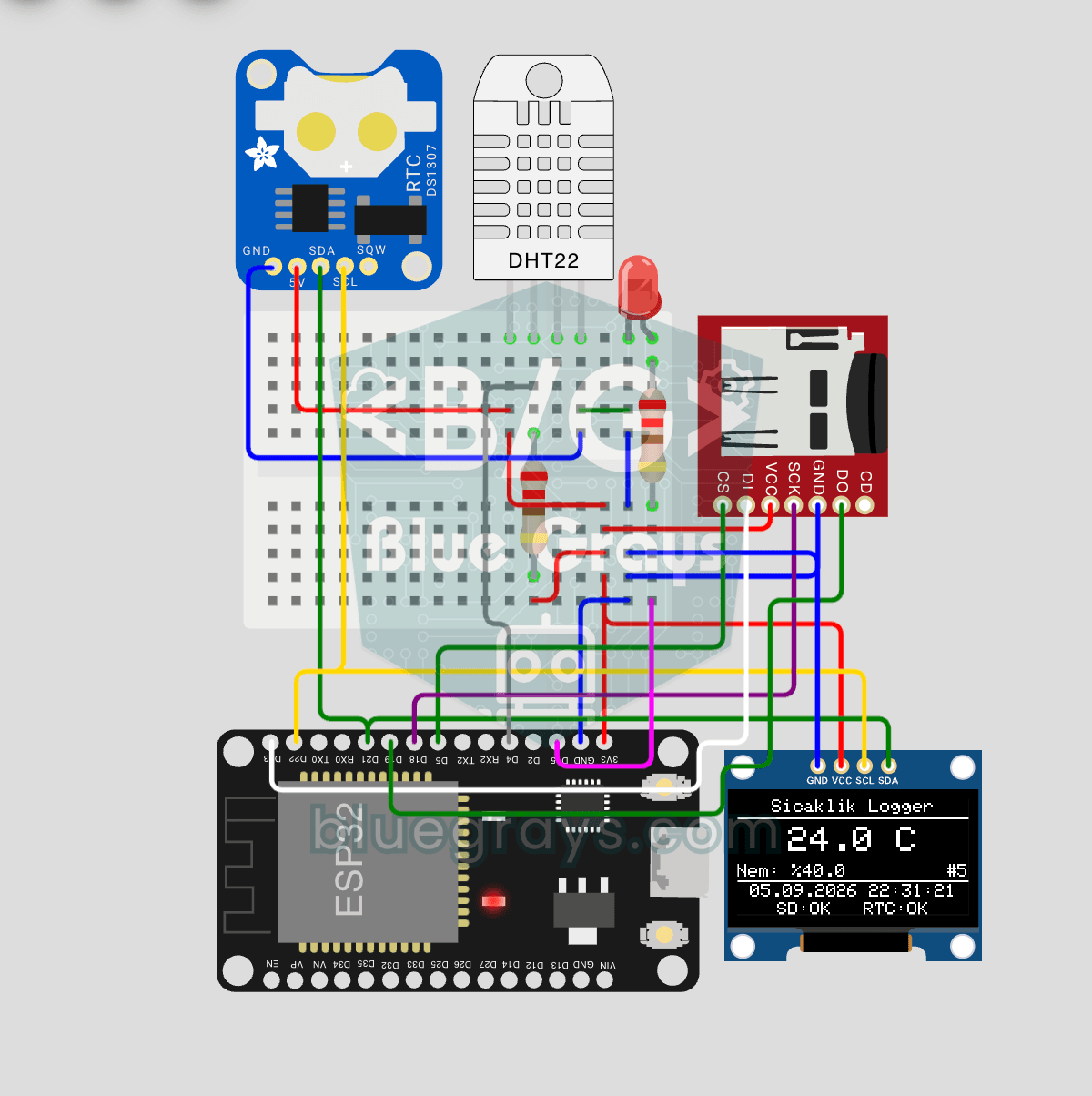
Build a timestamped temperature logger with ESP32! Read DHT22 temperature/humidity every minute, get real-world time from DS1307 RTC, and log to microSD card as CSV. The OLED displays live temperature (large font), humidity percentage, timestamp, and log counter. The /temp_log.csv file on the SD card opens in Excel, Google Sheets, or Python pandas for analysis — perfect for greenhouse monitoring, home/room temperature tracking, laboratory data collection, food storage conditions, or beehiv

ESP32 I2C LCD Display (16x2)
In this project, we display text by connecting a 16x2 character LCD screen to the ESP32 via the I2C protocol. Thanks to I2C, we can control the screen using just two data pins (SDA and SCL), eliminating the waste of 6+ pins associated with a classic parallel connection. The code prints a fixed message on the first line and a counter that increments every second on the second line. Additionally, we run an I2C scanner at the start to print the display’s address to the Serial Monitor (typically 0x2