
Arduino Serial Monitor: Baud Rate, Sending Data, Serial Plotter
How to use the Arduino Serial Monitor: Serial.begin and baud rate, fixing garbage characters, line endings, parseInt, Serial Plotter, ESP32 and Pico examples.
The Arduino Serial Monitor is the window inside the Arduino IDE that lets your board and your computer exchange text over the USB cable. This is where you read the output of every Serial.println() line in your sketch, and where you type commands to send back to the board. It's the quickest way to see what a sensor is measuring right now, how far your program got, or whether a button is really being pressed, which makes it the number one debugging tool in the Arduino world. To use it, all you need is Serial.begin(9600) in your code, the right port selected in the board selector and the same speed set in the monitor as in your code.
In this guide you'll start by opening the Serial Monitor and then see what the baud rate really means, how to print numbers in decimal, hexadecimal and binary with print and println, how to control the number of decimal places and how to build tidy lines with snprintf. Using example sketches that actually compile, we cover every cause of garbage characters, how the line ending setting affects your code, sending numbers and text commands from the computer to the board (Serial.read, parseInt, readStringUntil), drawing live graphs with the Serial Plotter and debugging techniques that will make your life easier. The last sections show how serial output differs on the ESP32 and the Raspberry Pi Pico (with both Arduino and MicroPython) and how to fix common problems such as an empty monitor.
What is the Arduino Serial Monitor and how does it work?
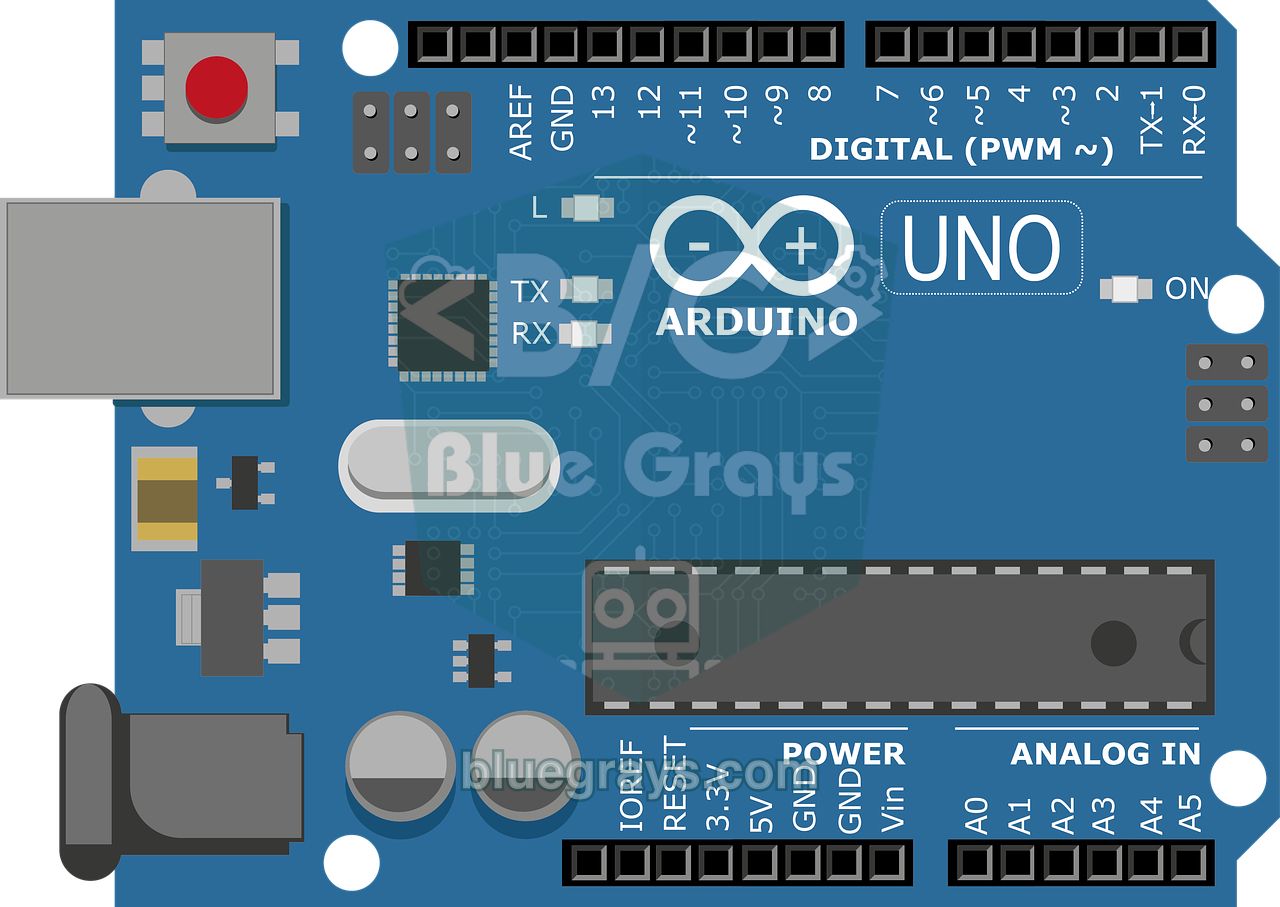
The ATmega328P, the brain of the Arduino Uno, talks to the outside world through a serial communication unit called a UART: it sends data bit by bit on one line (TX) and receives on another (RX). Modern computers no longer have this kind of serial port, so a second chip on the board (an ATmega16U2 on the original Uno, usually a CH340 on clones) converts the signal to USB. The computer sees the board as a virtual serial port: something like COM3 on Windows, /dev/ttyACM0 or /dev/ttyUSB0 on Linux, and a name starting with /dev/cu.usbmodem or /dev/cu.usbserial on macOS. The Serial Monitor opens this port, shows the incoming bytes as text and sends what you type back to the board the same way. By default Arduino uses the 8N1 format: one start bit, 8 data bits, no parity bit and one stop bit per byte. So a single character takes up 10 bits on the line; we'll use that number in the speed calculations.
| Feature | Arduino Uno | ESP32 DevKit | Raspberry Pi Pico |
|---|---|---|---|
| USB connection | ATmega16U2 or CH340 bridge chip | CP2102 or CH340 bridge chip | The RP2040's own USB (USB CDC) |
| Serial pins | D0 (RX), D1 (TX) | GPIO 3 (RX), GPIO 1 (TX) | No pins, straight over USB |
| Extra hardware serial ports | None (software-based with SoftwareSerial) | Serial1 and Serial2 (Serial2 is often used on GPIO 16 RX, GPIO 17 TX) | Serial1 (GP0 TX, GP1 RX), Serial2 (GP8 TX, GP9 RX) |
| Common speed | 9600 baud | 115200 baud | Irrelevant, runs at USB speed |
| Resets when the monitor opens | Yes (DTR line) | Depends on the board and program | No |
| Serial.printf() | Not available, use snprintf | Available | Available |
How to open and use the Serial Monitor
- Add the line Serial.begin(9600); to the setup() section of your sketch and upload it. Without this line the board doesn't write anything to the serial port.
- Select the port your board is connected to in the board selector on the top bar or in the Tools > Port menu. If no port is selected, the Serial Monitor shows the warning Not connected. Select a board and a port to connect automatically.
- Click the magnifying glass icon in the top right corner, use the Tools > Serial Monitor menu or press Ctrl+Shift+M (Cmd+Shift+M on macOS). In IDE 2 the monitor opens in the bottom panel, next to the Output section.
- In the speed menu on the right of the panel, choose the same baud rate as in your code; 9600 in this example. If the speed is different, garbage characters pour onto the screen.
- To send data to the board, type in the message box at the top of the panel and press Enter. Choose the line ending in the menu right next to it; we explain below why this setting matters.
- With the buttons in the top right you can pause autoscroll (handy when reading older lines), turn on timestamps that add your computer's time to the start of each line, and clear the output.
In the old Arduino IDE 1.8 the Serial Monitor opens in a separate window; the controls do the same job, they're just in different places: the autoscroll and timestamp checkboxes are at the bottom left, the line ending and speed menus at the bottom right. You can also watch the serial port without the IDE: PuTTY or CoolTerm on Windows, the screen /dev/ttyUSB0 115200 command on Linux and macOS, and arduino-cli monitor -p COM3 -c baudrate=115200 on any system do the same job. Keep one thing in mind: a serial port can only be opened by one program at a time. While a Python script or PuTTY is holding the port, you can't upload code from the IDE; we covered installing the IDE and the rest of its interface in the Arduino IDE installation guide.
Serial.begin() and baud rate: 9600 or 115200?
Serial.begin(speed) starts the serial port at the given speed and is almost always called once inside setup(). The speed is given in baud, the number of bits carried on the line per second. Since each character takes 10 bits, 9600 baud means at most 960 characters per second; sending a single character takes about 1.04 milliseconds. A 30-character line takes 31 ms at this speed, so as soon as you want to print hundreds of readings per second, you hit this limit. At 115200 baud the same line takes only 2.6 ms. The value in the sketch and the value in the Serial Monitor must match, because there's no shared clock signal and the receiver reads the bits purely by timing.
| Baud rate | Characters per second | Time per character | Where is it used? |
|---|---|---|---|
| 9600 | 960 | 1.04 ms | Arduino examples; default for modules such as the HC-05 and NEO-6M GPS |
| 57600 | 5760 | 174 µs | Upload speed of Nanos with the old bootloader, some modules |
| 74880 | 7488 | 134 µs | ESP8266 boot messages |
| 115200 | 11520 | 87 µs | ESP32, Pico and fast debugging; upload speed of the new Uno bootloader |
| 250000 | 25000 | 40 µs | Fast data logging; generated without error by the Uno's 16 MHz clock |
| 1000000 | 100000 | 10 µs | Very fast data transfer; needs a short cable |
The Uno's 16 MHz clock can't produce every speed exactly: 115200 baud actually runs about 2% off, at 117647 baud. That error causes no trouble in the Serial Monitor, but it can lead to errors when talking to another microcontroller over a long cable; in such cases 57600 or 250000 baud, which is generated without error, is safer. If you're just starting out, use 9600 for the Uno and Nano and 115200 for the ESP32 and Pico. If you connect two boards with TX-RX wires, the speed must be the same on both sides, the GNDs must be shared and a 5 V TX line must be brought down with a voltage divider before it reaches a 3.3 V RX input (ESP32, Pico). You'll find the details in the UART serial communication article.
Serial.print() and Serial.println(): printing and formatting
Serial.print() writes the value you give it and leaves the cursor on the same line; Serial.println() also adds the line ending characters (\r\n) afterwards, so the next output starts on a new line. To show several values on one line, write the first parts with print and the last one with println. These functions accept almost any type, such as int, long, float, char, text and String, and the optional second parameter sets the format. For integers you can choose DEC, HEX, BIN and OCT, while for floating-point numbers the second parameter is the number of decimal places. Floats are printed with 2 decimals by default, rounded. In the code below we've written the output of each line as a comment:
1// Biçimlendirme örnekleri: çıktılar yorumlarda / Formatting examples: output in the comments
2void setup() {
3  Serial.begin(9600);
4  int sayi = 78;
5  float pi = 3.14159;
6
7  Serial.println(sayi);           // 78
8  Serial.println(sayi, HEX);      // 4E
9  Serial.println(sayi, BIN);      // 1001110
10  Serial.println(sayi, OCT);      // 116
11  Serial.println(pi);             // 3.14 (varsayılan 2 basamak / 2 decimals by default)
12  Serial.println(pi, 4);          // 3.1416
13  Serial.write(65);               // A (ham bayt / raw byte)
14  Serial.println();               // yalnız satır sonu / line break only
15
16  Serial.print("Sicaklik:\t");    // \t = sekme / \t = tab
17  Serial.print(23.46, 1);         // 23.5
18  Serial.println(" C");           // Sicaklik:  23.5 C
19
20  char satir[32];
21  int saat = 9, dakika = 5;
22  snprintf(satir, sizeof(satir), "Saat %02d:%02d", saat, dakika);
23  Serial.println(satir);          // Saat 09:05
24
25  char metin[10];
26  dtostrf(pi, 6, 2, metin);       // Uno'da %f yerine / instead of %f on the Uno
27  Serial.println(metin);          // "  3.14"
28}
29
30void loop() {
31}| Code | What the Serial Monitor shows | Note |
|---|---|---|
| Serial.print(78); | 78 | Decimal (DEC) is the default |
| Serial.print(78, HEX); | 4E | Hexadecimal; for addresses, colours and byte values |
| Serial.print(78, BIN); | 1001110 | Binary; leading zeros aren't printed |
| Serial.print(3.14159); | 3.14 | Floats default to 2 decimals |
| Serial.print(3.14159, 4); | 3.1416 | 4 decimals, rounded |
| Serial.write(65); | A | Sends ASCII character number 65, not the number |
| Serial.print('A'); | A | The char type is printed as a character |
| Serial.print(5e9); | ovf | On the Uno, floats above about 4.29 billion can't be printed |
Instead of printing long lines piece by piece, you can build a single string with snprintf(): %d is an integer, %02d a two-digit integer with a leading zero, %s text and %lu an unsigned long such as millis(). To save memory, the C library on the Uno doesn't support %f; if you try to print a float, you'll see a ? in its place. So convert floats to text first with dtostrf(number, width, decimals, buffer). On the ESP32 and Pico you can use Serial.printf() directly. The Uno has only 2 KB of RAM; writing fixed text with the F() macro, as in Serial.println(F("Hello")), keeps it in flash instead of RAM and prevents low memory problems in big projects.
Garbage characters in the Serial Monitor and how to fix them
If you see ⸮⸮⸮, � or piles of random letters and symbols, the data is reaching the computer but being decoded wrongly. Because serial communication has no shared clock signal, the receiver calculates the middle of each bit from its own speed, starting from the moment it sees the start bit. If the speed is wrong, or the board's clock isn't what it should be, the bits are sampled at the wrong moments and every byte turns into a different character. The cause is usually a single setting; the table below lists the most common cases by symptom. For boards with different clock options, such as the Pro Mini, also take a look at the Arduino Pro Mini article.
| Symptom | Cause | Fix |
|---|---|---|
| Garbage from start to finish | The Serial Monitor speed differs from the Serial.begin() value | Choose the speed from your code in the menu on the right |
| Only one line is garbled at startup, the rest is fine | The ESP8266 at 74880 or the ESP32 at 115200 baud prints its own boot message | That's normal; set the monitor to that speed if you want to read it |
| Output on a Pro Mini is always garbled | A 5 V / 16 MHz board was selected for a 3.3 V / 8 MHz one, so the real speed is halved | Choose the board's real clock in the Tools > Processor menu |
| Random characters get mixed into normal text | A module on pins D0/D1 is also talking on the line | Connect the module to other pins with SoftwareSerial |
| Strange symbols instead of numbers | Serial.write(number) sends the number as a raw byte | Use Serial.print() to print the number as text |
| Data between two boards is corrupted | No shared GND, a long cable or different speeds | Connect the GNDs, shorten the cable, lower the speed |
| The same garbled line keeps appearing and the board restarts | The power supply isn't enough and the board keeps resetting | Check the power supply and cable, power the load separately |
Line ending setting: No Line Ending, New Line, Carriage Return, Both NL & CR
When you type in the message box and press Enter, the Serial Monitor sends not only the characters you typed but also one or two invisible characters, depending on the line ending you've chosen. If your code doesn't expect them, for example if it handles every incoming byte as a command, then '\n' (value 10) and '\r' (13) are read as commands too. On the other hand, if your code waits for a line ending and the setting is No Line Ending, the line never ends; readStringUntil() waits until the timeout runs out. The table below shows the bytes sent to the board when you type 42 and press Enter:
| Meaning | Name in the IDE | Character added | Bytes sent for 42 |
|---|---|---|---|
| Nothing is added | No Line Ending | None | 52, 50 |
| New line (LF) | New Line | \n (LF, 10) | 52, 50, 10 |
| Carriage return (CR) | Carriage Return | \r (CR, 13) | 52, 50, 13 |
| Both (CR + LF) | Both NL & CR | \r\n (13, 10) | 52, 50, 13, 10 |
Here's a practical rule: for code that reads line by line, choose New Line and apply trim() to the text you read; that way your code works whichever setting the user picks. For single-character commands such as 1, 0 or a, No Line Ending is the cleanest choice. The IDE remembers your choice, so don't forget to check it when you switch to another project.
Sending data from the computer to Arduino: Serial.read(), parseInt(), readStringUntil()
The bytes you send from the Serial Monitor queue up in the board's receive buffer (64 bytes on the Uno). Serial.available() tells you how many bytes are waiting in it, Serial.read() takes the next byte and removes it from the buffer, returning -1 if there's no data, and Serial.peek() looks at the next byte without removing it. Remember that everything from the keyboard arrives as ASCII characters: when you type 7, the board doesn't receive the number 7 but 55, the code of the character '7'. You'll find an example of simple one-key commands in the Arduino commands article; here we deal with multi-digit numbers and commands made of words. If the buffer fills up, newly arriving bytes are lost, so timing with millis() instead of waiting a long time with delay() inside loop() makes serial reading safer too.
Serial.parseInt() extracts the first integer from the incoming characters: it skips leading letters and spaces, joins the digits and stops at the first character that isn't a digit; it also understands a minus sign. So the text "128" becomes the number 128. For floats, Serial.parseFloat() does the same job. These functions have one habit you need to know: if no number arrives, they wait 1000 ms by default and then return 0. The classic bug goes like this: with the setting on New Line you send 42, parseInt reads 42 but the '\n' stays in the buffer. On the next pass, loop() sees available() greater than 0 and calls parseInt again, which waits a second and returns 0. The result is a 0 after every number, and you can't figure out why the LED goes dark a second after every number. The code below solves the problem at the root by discarding the next character if it isn't a digit, and shortens the wait with setTimeout().
1// Seri Port Ekranı'ndan sayı al: LED parlaklığı 0-255
2// Read a number from the Serial Monitor: LED brightness 0-255
3const int LED_PIN = 9;   // ~9 PWM pini + 220 ohm direnç / ~9 PWM pin + 220 ohm resistor
4
5void setup() {
6  pinMode(LED_PIN, OUTPUT);
7  Serial.begin(9600);
8  Serial.setTimeout(100);   // parseInt en fazla 100 ms bekler / parseInt waits at most 100 ms
9  Serial.println(F("0-255 arasi bir sayi yaz / Type a number from 0 to 255"));
10}
11
12void loop() {
13  if (Serial.available() > 0) {
14    char c = Serial.peek();               // sıradakine bak, silme / look at the next byte, keep it
15    if (isDigit(c) || c == '-') {
16      int deger = Serial.parseInt();      // "128" -> 128
17      deger = constrain(deger, 0, 255);   // aralığın dışına çıkma / stay within range
18      analogWrite(LED_PIN, deger);
19      Serial.print(F("Parlaklik / Brightness: "));
20      Serial.println(deger);
21    } else {
22      Serial.read();                      // '\r', '\n' ve harfleri at / drop '\r', '\n' and letters
23    }
24  }
25}
For commands made of words, the easiest way is to read the whole line as a String. Serial.readStringUntil('\n') reads until a '\n' arrives, discards the line ending character and returns the rest. If the setting is Both NL & CR, a '\r' is left at the end of the text, your "on" command becomes "on\r" and the comparison fails. That's why you should apply trim() to the line right away: it removes leading and trailing spaces as well as '\r' and '\n' characters. toLowerCase() makes ON, On and on equal. The example below understands the on, off, blink 250 and status commands; use the Serial Monitor at 115200 baud with New Line. Because it blinks with millis() instead of delay(), it answers a new command instantly at any moment.
1// Metin komutları: on, off, blink 250, status
2// Text commands: on, off, blink 250, status
3const int LED_PIN = LED_BUILTIN;   // Uno'da pin 13 / pin 13 on the Uno
4bool ledAcik = false;              // LED'in şu anki durumu / current LED state
5bool yanipSon = false;             // yanıp sönme modu / blink mode
6unsigned long aralik = 500;        // yanıp sönme aralığı (ms) / blink interval (ms)
7unsigned long sonDegisim = 0;      // LED'in son değiştiği an / last time the LED changed
8
9void ledYaz(bool acik) {
10  ledAcik = acik;
11  digitalWrite(LED_PIN, acik ? HIGH : LOW);
12}
13
14void komutuIsle(String komut) {
15  if (komut == "on") {
16    yanipSon = false;
17    ledYaz(true);
18    Serial.println(F("LED: on"));
19  } else if (komut == "off") {
20    yanipSon = false;
21    ledYaz(false);
22    Serial.println(F("LED: off"));
23  } else if (komut.startsWith("blink")) {
24    long ms = komut.substring(5).toInt();       // "blink 250" -> 250
25    aralik = (ms >= 50) ? ms : 500;             // çok küçükse 500 ms / fall back to 500 ms
26    yanipSon = true;
27    Serial.print(F("Blink (ms): "));
28    Serial.println(aralik);
29  } else if (komut == "status") {
30    Serial.print(F("LED: "));
31    Serial.print(ledAcik ? F("on") : F("off"));
32    Serial.print(F(", blink: "));
33    Serial.println(yanipSon ? F("yes") : F("no"));
34  } else {
35    Serial.print(F("Bilinmeyen komut / Unknown command: "));
36    Serial.println(komut);
37  }
38}
39
40void setup() {
41  pinMode(LED_PIN, OUTPUT);
42  Serial.begin(115200);
43  Serial.setTimeout(100);   // satır sonu gelmezse 100 ms sonra bırak / give up after 100 ms without a line ending
44  Serial.println(F("Komutlar / Commands: on, off, blink 250, status"));
45}
46
47void loop() {
48  if (Serial.available() > 0) {
49    String komut = Serial.readStringUntil('\n');   // Enter'a kadar oku / read up to Enter
50    komut.trim();                                  // '\r' ve boşlukları sil / strip '\r' and spaces
51    komut.toLowerCase();                           // ON ile on aynı olsun / treat ON like on
52    if (komut.length() > 0) {
53      komutuIsle(komut);
54    }
55  }
56
57  if (yanipSon && millis() - sonDegisim >= aralik) {   // delay() olmadan yanıp sön / blink without delay()
58    sonDegisim = millis();
59    ledYaz(!ledAcik);
60  }
61}| Function | Returns | How long does it wait? | Best used for |
|---|---|---|---|
| Serial.read() | One byte (int), -1 if there's no data | Doesn't wait | Single-character commands, your own parser |
| Serial.peek() | The next byte, without removing it | Doesn't wait | Looking at what's coming before deciding |
| Serial.parseInt() | A long integer, 0 on timeout | The setTimeout time (1000 ms by default) | Number input: angle, speed, brightness |
| Serial.parseFloat() | A float, 0 on timeout | The setTimeout time | Decimal settings, such as 2.5 |
| Serial.readStringUntil(c) | The text up to character c (String) | Until c arrives or the time runs out | Commands with words and parameters |
| Serial.readBytesUntil(c, buffer, n) | Number of bytes read; writes the text into a char array | Until c arrives, n bytes are read or the time runs out | RAM-friendly reading without String |
Drawing live graphs with the Serial Plotter
The Serial Plotter turns the numbers coming from the serial port into a live line graph; open it with the waveform icon in the top right corner of the IDE or from the Tools > Serial Plotter menu. The format is very simple: separate the values on a line with commas, spaces or tabs, and end the line with println. Each line becomes one time step on the graph, and each value on the line becomes a separate coloured trace. If you put a name in front of the values in label:value form, the traces are named after it and can be hidden or shown one by one with the checkboxes above the graph; without labels, the traces get names like value 1 and value 2. Here too, the speed menu must match your code. The code below plots the raw reading on A0 and its smoothed version on the same graph:
1// Seri Çizici: ham değer ve yumuşatılmış değer / Serial Plotter: raw and smoothed value
2const int SENSOR_PIN = A0;   // potansiyometre ya da LDR bölücü çıkışı / potentiometer or LDR divider output
3float yumusak = 0;           // üstel ortalama / exponential moving average
4
5void setup() {
6  Serial.begin(115200);
7}
8
9void loop() {
10  int ham = analogRead(SENSOR_PIN);           // 0-1023
11  yumusak = yumusak * 0.9 + ham * 0.1;        // yeni ölçümün payı %10 / the new reading weighs 10%
12
13  Serial.print("Min:0,Max:1023,");            // dikey ekseni sabitler / keeps the y-axis fixed
14  Serial.print("Ham:");
15  Serial.print(ham);
16  Serial.print(",Yumusak:");
17  Serial.println(yumusak);                    // satırı bitir: bir ölçüm / end the line: one sample
18  delay(20);                                  // saniyede yaklaşık 50 satır / about 50 lines per second
19}- Fix the scale: The Serial Plotter keeps rescaling the vertical axis to fit the incoming values, so small fluctuations look huge. Adding two constant values such as Min:0,Max:1023, to every line keeps the axis fixed.
- Don't use spaces in labels: Since spaces and commas count as separators, "Room Temp:24" gets split into two parts; use names with underscores such as Room_Temp.
- Only labels and numbers on the line: Units and descriptions such as "Temp 24 C" mess up the graph; print descriptions for the Serial Monitor in separate code.
- Tune the sending rate: delay(20) means about 50 lines per second. Send too fast and the graph scrolls away in an instant; send too slowly and the line looks like a staircase.
- See the filter with your own eyes: Plotting the raw value and the average on the same graph instantly shows how much a filter reduces noise; methods are in the sensor data filtering article.
- Use another tool for logging: The Serial Plotter doesn't save data to a file. For long measurements, print the values as CSV lines and import them into Excel or read them with Python.
Debugging techniques with the Serial Monitor
The Arduino Uno has no debugger that steps through your code; the Serial Monitor does that job. But print lines scattered randomly through your code soon turn into an unreadable pile of text. These habits will help you find bugs much faster:
- Print a message from setup() first: If you see the "Started" line once every time the board starts, it's running. If that line keeps repeating, the board keeps resetting and the problem lies in the power supply rather than the code; see the Arduino keeps resetting guide.
- Print values with their names: Instead of printing just 512, write temp=24.5 hum=40; you won't have to work out later which number belongs to what.
- Mark where you are: If the program freezes somewhere, put short markers such as A, B, C before the important steps. The last marker on screen shows where the program got stuck.
- Print on change, not on every pass: loop() runs thousands of times a second. Printing on every pass floods the screen and slows the program down; print a value only when it changes, or once a second with millis().
- Measure the time: To see how long an operation takes, store the micros() value before and after it and print the difference. That's how you catch a slow sensor read or a long loop.
- Don't print inside interrupts: Serial output takes time; using Serial.print inside an interrupt function makes it needlessly long and can make you miss other events. In the interrupt just set a flag variable and do the printing in loop(); details in the Arduino interrupt article.
- Put debug lines behind one switch: With the macros below you can strip all debug output from the code completely by setting DEBUG to 0; in the finished project you save both flash memory and time.
1// Hata ayıklama makroları: tek satırla aç ya da kapat
2// Debug macros: switch all debug output on or off with one line
3#define DEBUG 1                  // 0 yaparsan debug satırları koddan çıkar / set to 0 to strip debug lines
4
5#if DEBUG
6  #define DBG(x)   Serial.print(x)
7  #define DBGLN(x) Serial.println(x)
8#else
9  #define DBG(x)
10  #define DBGLN(x)
11#endif
12
13const int SENSOR_PIN = A0;
14const int ESIK = 800;            // uyarı eşiği / warning threshold
15bool esikUstunde = false;        // son durum / last state
16unsigned long sonRapor = 0;
17unsigned long turSayisi = 0;     // saniyedeki loop() turu / loop() passes per second
18
19void setup() {
20  Serial.begin(115200);
21  DBGLN(F("Basladi / Started"));
22}
23
24void loop() {
25  turSayisi++;
26  int deger = analogRead(SENSOR_PIN);
27
28  bool simdi = deger > ESIK;
29  if (simdi != esikUstunde) {          // yalnız değişince yaz / print only on change
30    esikUstunde = simdi;
31    DBG(F("[esik / threshold] "));
32    DBG(simdi ? F("ustunde / above") : F("altinda / below"));
33    DBG(F(", deger / value = "));
34    DBGLN(deger);
35  }
36
37  if (millis() - sonRapor >= 1000) {   // saniyede bir özet / one summary per second
38    sonRapor = millis();
39    DBG(F("t = "));
40    DBG(sonRapor);
41    DBG(F(" ms, tur/s / loops/s = "));
42    DBGLN(turSayisi);
43    turSayisi = 0;
44  }
45}
Remember that serial output has a cost. On the Uno the transmit buffer is also 64 bytes; when it's full, Serial.print() waits until there's room and loop() slows down. You can measure this yourself with the loop counter in the code above: if you add a 25-character line that prints on every pass, at 9600 baud the program drops to about forty passes per second, while printing only on change keeps thousands. If you want to be sure what the board printed just before it froze or reset, call Serial.flush() after the critical line; it waits until everything in the buffer has been sent. In more complex programs, switching to a state machine structure and printing a single line only when the state changes makes tracking down bugs much easier.
Serial output on the ESP32
On ESP32 DevKit boards, Serial is UART0 on GPIO 1 (TX) and GPIO 3 (RX), connected to USB through the CP2102 or CH340 chip on the board. The usual speed is 115200 baud, because the ROM inside the chip also prints lines such as rst:0x1 (POWERON_RESET),boot:0x13 (SPI_FAST_FLASH_BOOT) at this speed during boot; if you keep the monitor at 115200, those lines become readable too. The ESP32 Arduino core offers Serial.printf() and supports printing floats with %f. The extra serial ports Serial1 and Serial2 can be assigned to any pins you like; when connecting a module, using Serial2 on GPIO 16 and 17 is common. On boards with built-in USB such as the ESP32-S3 and ESP32-C3, if the Serial Monitor stays empty, set Tools > USB CDC On Boot to Enabled. To see the core's own warnings, choose Error, Warn, Info, Debug or Verbose in the Tools > Core Debug Level menu, and in your own code you can print log entries with file and line information using the log_e, log_w and log_i macros.
1// ESP32: Serial (USB), Serial2 (GPIO16/17), printf ve log
2// ESP32: Serial (USB), Serial2 (GPIO16/17), printf and logging
3const int POT_PIN = 34;              // ADC1, yalnız giriş pini / ADC1, input-only pin
4unsigned long sonYazdirma = 0;
5
6void setup() {
7  Serial.begin(115200);                       // açılış mesajlarıyla aynı hız / same rate as the boot messages
8  delay(500);
9  Serial2.begin(9600, SERIAL_8N1, 16, 17);    // RX = GPIO16, TX = GPIO17
10
11  Serial.printf("Model: %s, CPU: %lu MHz\n", ESP.getChipModel(), (unsigned long)ESP.getCpuFreqMHz());
12  Serial.printf("Bos RAM / Free heap: %lu bayt / bytes\n", (unsigned long)ESP.getFreeHeap());
13  log_i("Core Debug Level en az Info ise gorunur / shown when Core Debug Level is Info or higher");
14}
15
16void loop() {
17  while (Serial2.available() > 0) {           // Serial2'den geleni USB'ye aktar / forward Serial2 data to USB
18    Serial.write(Serial2.read());
19  }
20
21  if (millis() - sonYazdirma >= 1000) {       // delay() yok, tampon taşmaz / no delay(), no buffer overflow
22    sonYazdirma = millis();
23    float volt = analogReadMilliVolts(POT_PIN) / 1000.0;          // kalibre gerilim / calibrated voltage
24    Serial.printf("t=%lu ms, GPIO34=%.2f V\n", millis(), volt);   // ESP32'de %f çalışır / %f works on ESP32
25  }
26}
With Wi-Fi connection problems, unexpected resets and Guru Meditation errors, the Serial Monitor is the first place to look: the error type, the reset reason and the backtrace lines appear here. We explain how to interpret these messages in the ESP32 brownout and Guru Meditation and ESP32 won't connect to Wi-Fi guides. If you're using the ESP32 for the first time, start with the What is the ESP32? article.
Serial output on the Raspberry Pi Pico: Arduino and MicroPython
The Raspberry Pi Pico has no USB-to-serial bridge chip; the RP2040 handles USB itself and appears to the computer directly as a serial port (USB CDC). In Earle Philhower's Arduino-Pico core, Serial is this USB port, and because the data flows at USB speed, the speed value in Serial.begin() is ignored. This has two consequences: it no longer matters which speed you choose in the monitor, but the board doesn't reset like an Uno when you open the Serial Monitor. The first messages you print in setup() have already been sent and lost by the time you open the monitor, so wait briefly for the computer to open the port, as shown below. The same applies to ATmega32U4 boards such as the Leonardo, Micro and Pro Micro. The Pico's real UART on pins GP0 and GP1 is used under the name Serial1.
1// Raspberry Pi Pico (Arduino-Pico çekirdeği): USB seri port
2// Raspberry Pi Pico (Arduino-Pico core): USB serial port
3void setup() {
4  Serial.begin(115200);                  // USB'de hız değeri önemsiz / the baud value is ignored over USB
5  unsigned long baslangic = millis();
6  while (!Serial && millis() - baslangic < 3000) {
7    delay(10);                           // port açılana kadar en çok 3 sn bekle / wait up to 3 s for the port
8  }
9  Serial1.begin(9600);                   // UART0: GP0 = TX, GP1 = RX
10  Serial.println("Pico hazir / Pico ready");
11}
12
13void loop() {
14  Serial.print("Sicaklik / Temperature (C): ");
15  Serial.println(analogReadTemp(), 1);   // dahili sensör, yaklaşık / internal sensor, approximate
16  Serial1.println(millis());             // aynı anda UART0'a da yaz / also write to UART0
17  delay(1000);
18}
In MicroPython things are even simpler: everything you print with print() goes to the computer over USB and appears in Thonny's Shell; there's no baud rate to set. If you open the View > Plotter menu in Thonny, the numbers in the lines turn into a live graph, just like in the Serial Plotter. To receive data from the computer you can use input(), but input() stops the program until a line arrives. To listen for commands while you keep measuring, check whether data is waiting on stdin with select.poll(), as shown below; just type on or off in the Shell and press Enter. We covered the Pico and installing MicroPython in the What is the Raspberry Pi Pico? article.
1# Pico MicroPython: print() ile yazdır, programı durdurmadan komut al
2# Pico MicroPython: print with print(), read commands without blocking
3import sys
4import select
5import time
6from machine import ADC, Pin
7
8led = Pin(25, Pin.OUT)            # Pico'da dahili LED; Pico W'de Pin("LED") / onboard LED; Pin("LED") on Pico W
9sensor = ADC(4)                   # dahili sıcaklık sensörü / internal temperature sensor
10poll = select.poll()
11poll.register(sys.stdin, select.POLLIN)
12
13while True:
14    volt = sensor.read_u16() * 3.3 / 65535
15    sicaklik = 27 - (volt - 0.706) / 0.001721
16    print("Sicaklik:{:.1f}".format(sicaklik))    # Thonny Plotter da çizer / Thonny's Plotter can graph it
17    if poll.poll(0):                              # bekleyen veri var mı? / is input waiting?
18        komut = sys.stdin.readline().strip()      # satırı al, boşlukları sil / read the line, strip spaces
19        if komut == "on":
20            led.value(1)
21        elif komut == "off":
22            led.value(0)
23        print("Komut / Command:", komut)
24    time.sleep(1)
Serial Monitor empty or port busy: common errors and fixes
| Symptom | Cause | Fix |
|---|---|---|
| The screen is completely empty | No Serial.begin() or the wrong port selected | Add Serial.begin() to setup(), pick the right port in the board selector |
| Not connected. Select a board and a port to connect automatically. | No port selected in the IDE or the board has been unplugged | Plug the board in and select it in the Tools > Port menu |
| Serial port busy or Access is denied | The port is open in another IDE window, in PuTTY or in a Python script | Close the program holding the port; a port can be opened by only one program at a time |
| First lines missing on a Leonardo or Pico | A board with built-in USB doesn't reset when the monitor opens | Wait briefly in setup() with while (!Serial) |
| Nothing shows up on an ESP32-S3/C3 | USB CDC On Boot is disabled, output goes to the UART pins | Tools > USB CDC On Boot: Enabled |
| A 0 appears after every number | parseInt times out on the line ending character | Skip non-digit characters or choose No Line Ending |
| Command comparisons never match | A '\r' is left at the end of the text | Apply trim() after reading |
| The port never appears in the list | A charge-only cable or a missing CH340/CP210x driver | Use a data cable, install the driver |
Project ideas with serial communication
- LED and relay controlled from the computer: Extend the command parser from this article to control a relay or a motor with on, off and blink commands.
- Sensor data logger: Print temperature and humidity as comma-separated CSV lines and turn them into a table and chart on the computer; the DHT11 is a good sensor to start with.
- Live light graph: Watch an LDR or potentiometer value in the Serial Plotter and see the effect of the filter on the same graph.
- Desktop panel with Python: Read the data sent by the Arduino with a Python program and build an interface with buttons; details in the Arduino Python serial communication article.
- Module test station: GPS, Bluetooth and GSM modules use a serial port too; forward the module's raw data to the Serial Monitor to see whether it works (HC-05, NEO-6M GPS).
- Trying it without a board: If you don't have a board at hand, Tinkercad also has a Serial Monitor; you can run the code from this article in a Tinkercad simulation.
Once you're comfortable with the Serial Monitor, finding bugs in Arduino stops being guesswork and becomes a matter of measuring. As a next step, read the UART serial communication article to make two boards talk over TX and RX, and the USB-to-TTL converter article to program boards without USB. In the BlueGrays app you'll find projects such as printing the distance measured by an HC-SR04 to the Serial Monitor, reading light intensity with an LDR, measuring temperature and humidity with a DHT11 and linking two Arduinos over a serial line, step by step with circuit diagrams and ready-made code.
Frequently asked questions
How do I open the Arduino Serial Monitor?
After uploading your code, click the magnifying glass icon in the top right corner of the Arduino IDE, use the Tools > Serial Monitor menu or press Ctrl+Shift+M. In IDE 2 the monitor opens in the bottom panel. The right port must be selected in the board selector, and the speed menu on the right must match the Serial.begin() value in your code.
Why does the Serial Monitor show garbage characters?
The most common cause is that the baud rate in the Serial Monitor differs from the Serial.begin() value in your code; once the two match, the text becomes readable. If only one line is garbled at startup, it's the ESP8266's or ESP32's own boot message and that's normal. Choosing the wrong clock frequency on boards like the Pro Mini or connecting a module to pins D0/D1 causes the same symptom.
Should I use 9600 or 115200 baud for Arduino?
Both work; what matters is that your code and the Serial Monitor use the same speed. 9600 baud carries about 960 characters per second and is enough for simple Uno projects. If you print a lot of data or use an ESP32 or Pico, choose 115200; it's 12 times faster and printing slows your program down less.
What is the difference between Serial.print and Serial.println?
Serial.print() writes the value and leaves the cursor on the same line; Serial.println() adds carriage return and newline characters (\r\n) after writing. To show several values on one line, use print first and println at the end. The line also has to end with println so the Serial Plotter can count each line as a separate sample.
Why is nothing showing in the Serial Monitor?
First check that setup() contains Serial.begin() and that the right port is selected in the board selector. On boards with built-in USB such as the Leonardo, Pico and ESP32-S3, the first messages in setup() can be sent and lost before the monitor opens; add a short wait with while (!Serial). On the ESP32-S3 and C3, the USB CDC On Boot setting in the Tools menu must also be Enabled.
Why does my Arduino reset when I open the Serial Monitor?
On the Uno, Nano and Mega, the DTR line of the USB chip is connected to the RESET pin through a capacitor; when the port opens, this line produces a short pulse and the board restarts. This arrangement exists to make uploading easier and ensures you don't miss the messages from setup(). If you don't want it, you can fit a 10 µF capacitor between RESET and GND, but you have to remove it before uploading.
Projects to build after reading this
See all projects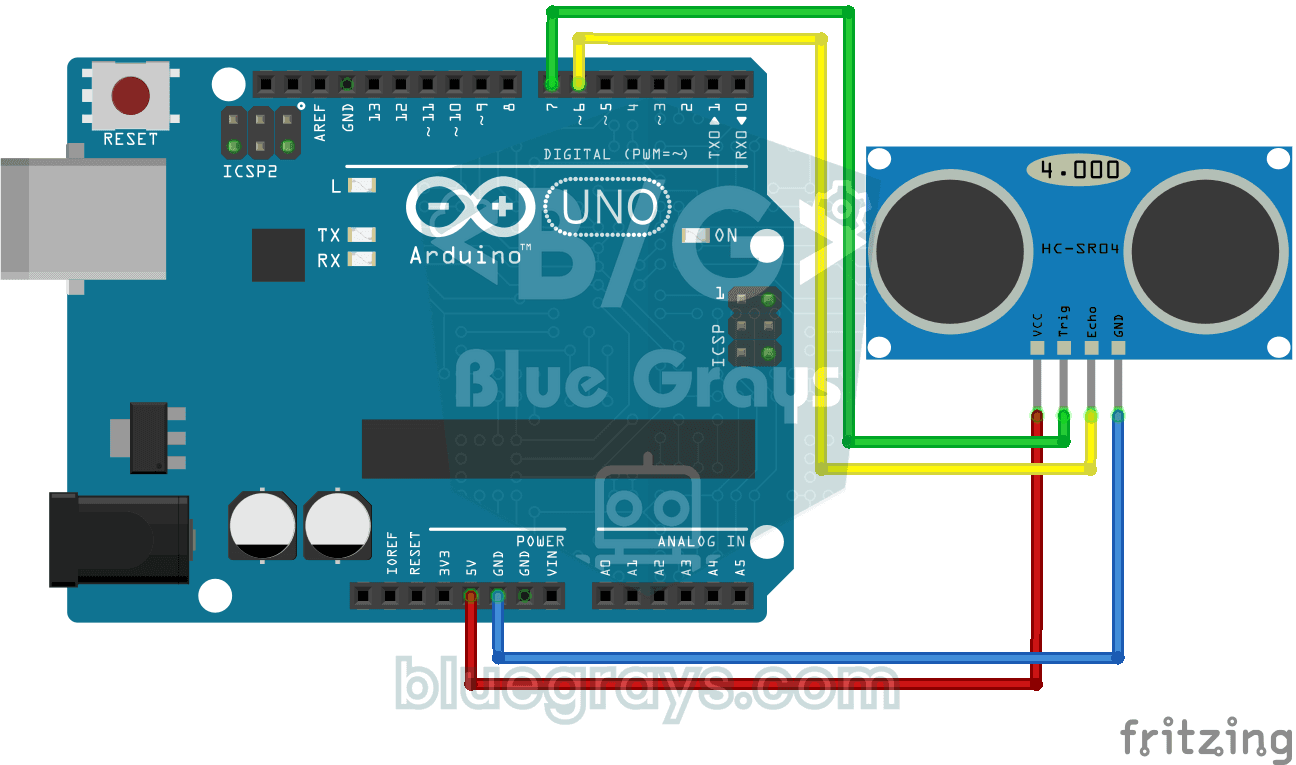
HC-SR04 Distance Measurement (Serial Display)
The HC-SR04 sensor works just like a bat finding its way in the dark: it sends out a sound you cannot hear, listens for the echo and measures how far away the object in front of it is. The Arduino wri

Measuring Light Intensity with an LDR
Want to see how bright your room is as a number? The LDR, a small part that reacts to light, measures the light around it, and the Arduino writes the value to your computer screen every half second. C
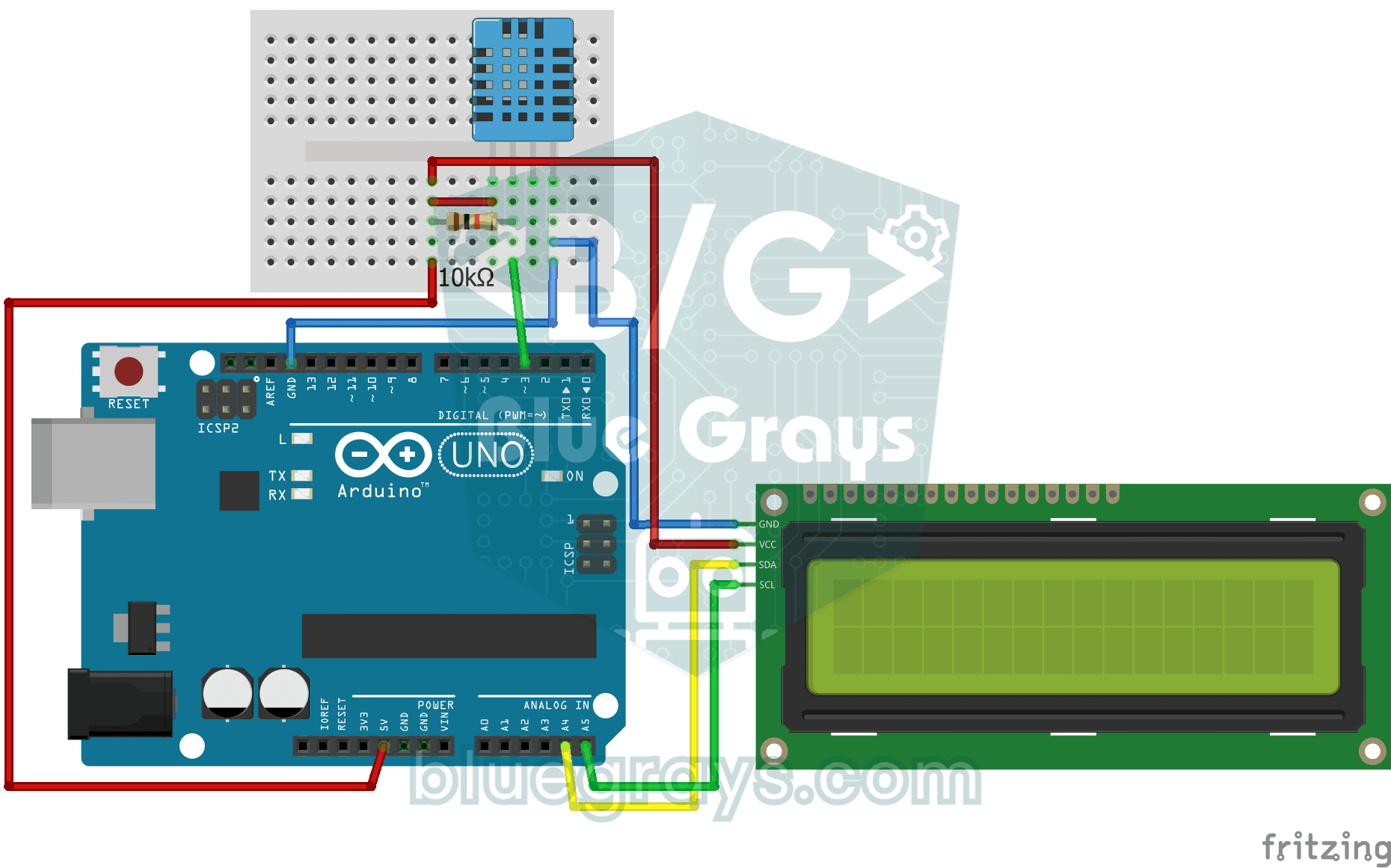
Temperature and Humidity with DHT11
How warm is your room, and is the air humid or dry? The DHT11 sensor measures temperature and humidity, and the Arduino writes the values on a two-line LCD screen, refreshing every couple of seconds.

Reading Light Intensity with the ESP32 LDR Module
Real-time monitoring of the LDR module's raw ADC value and relative light percentage calculated from dark and light reference values in the Serial Monitor. This percentage is not a lux measurement. Teaches the module’s calibration logic. It is ideal to complete this before Project 10, as it is used to determine the threshold value.
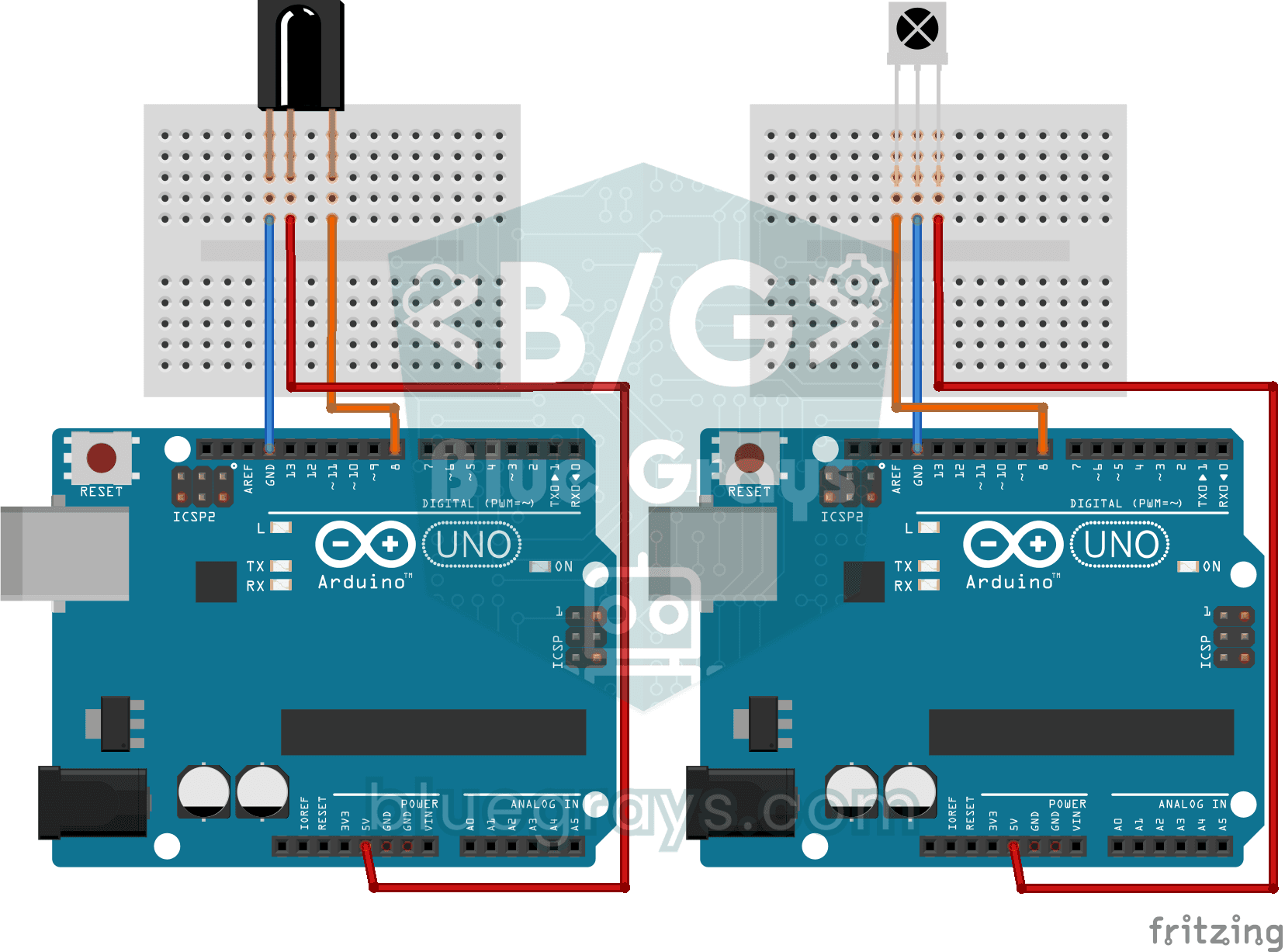
Reading IR Remote Control Codes
Every button on your TV remote sends a secret code using light you cannot see. The infrared receiver catches that light, and the Arduino writes the code of every button you press on your computer scre
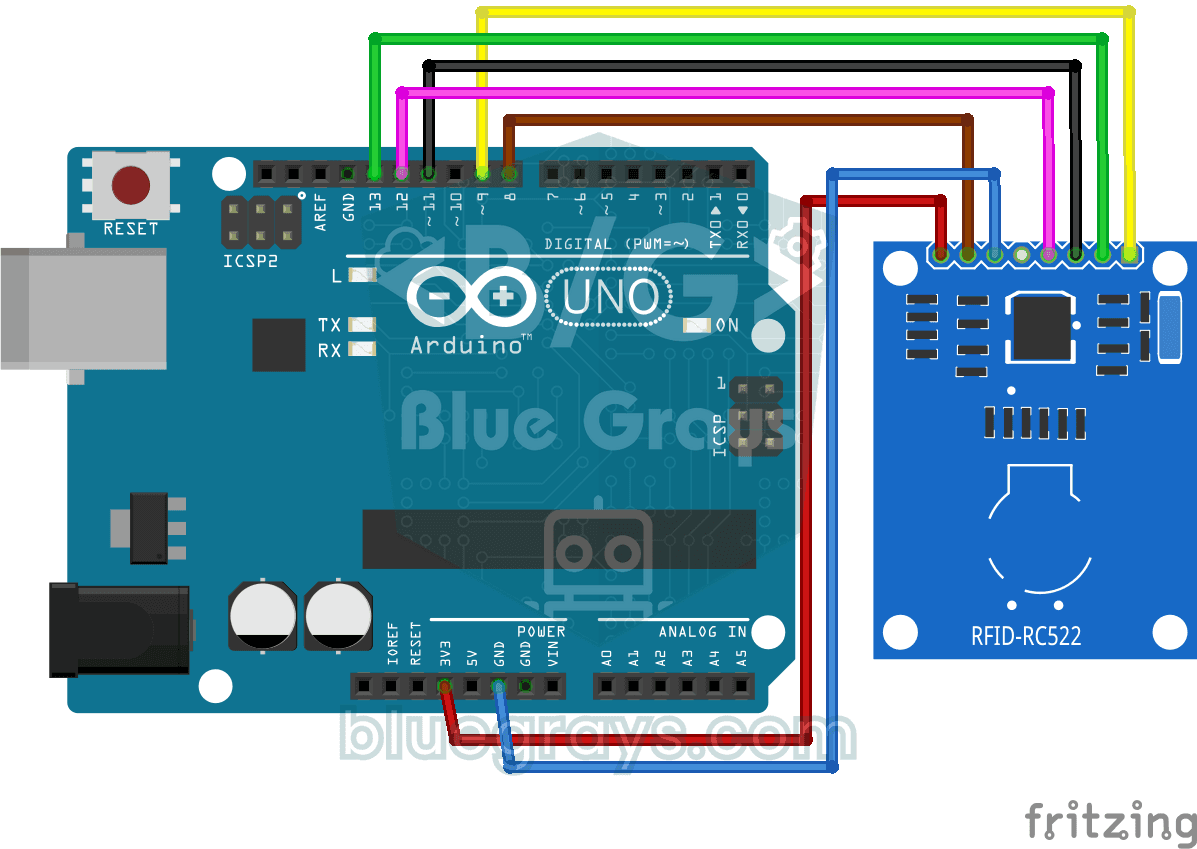
RFID Value Reading
Your building key fob or access card hides a secret ID number, and this project reads it. Hold the card near the RFID reader and the Arduino writes the card's number to your computer screen. The first
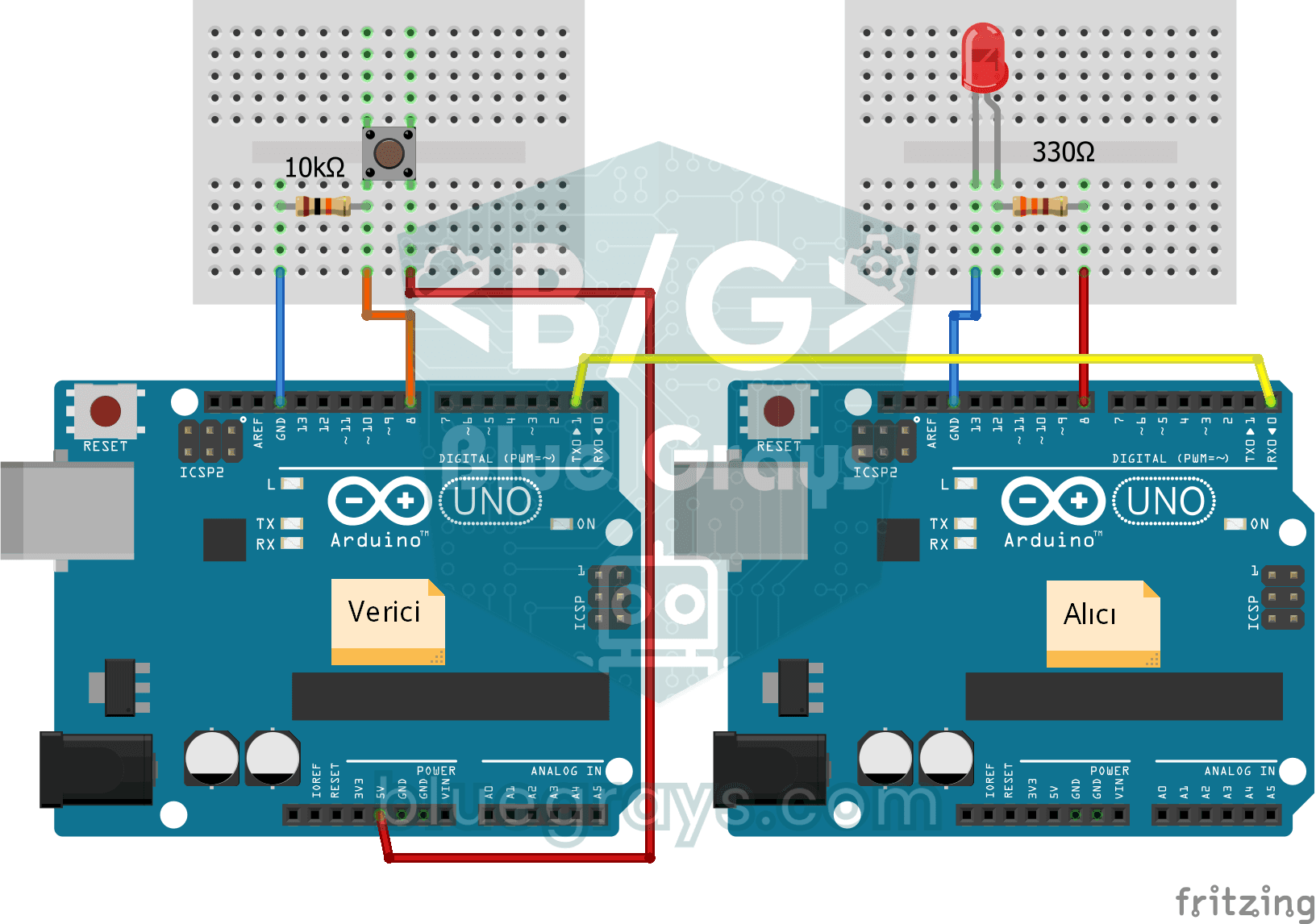
One-Way Communication Between 2 Arduinos
You get two Arduinos talking over a single wire: press the button on one and the LED on the other lights up, press it again and it goes off. The sending board reports the button press with a short mes
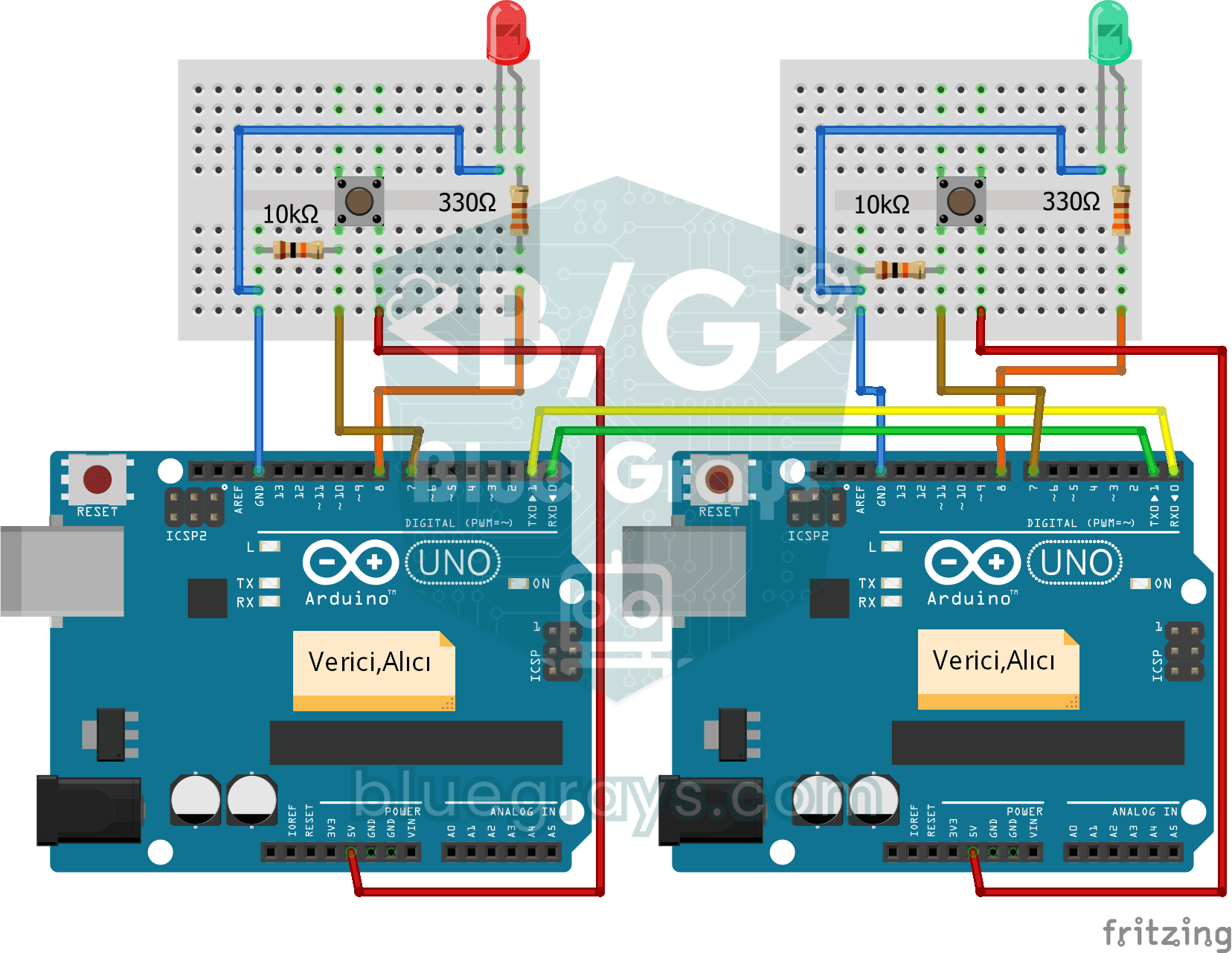
Two-Way Communication Between 2 Arduinos
Two Arduinos are wired together and talk to each other: press the button on one and the light on the other comes on, press it again and it goes off. Both boards run the same program, so each one both