
Basic Electronic Components: Symbols, Units and Functions
What are basic electronic components? Resistor, capacitor, inductor, diode, transistor, MOSFET, relay, regulator and crystal: symbols, units, uses in one table.
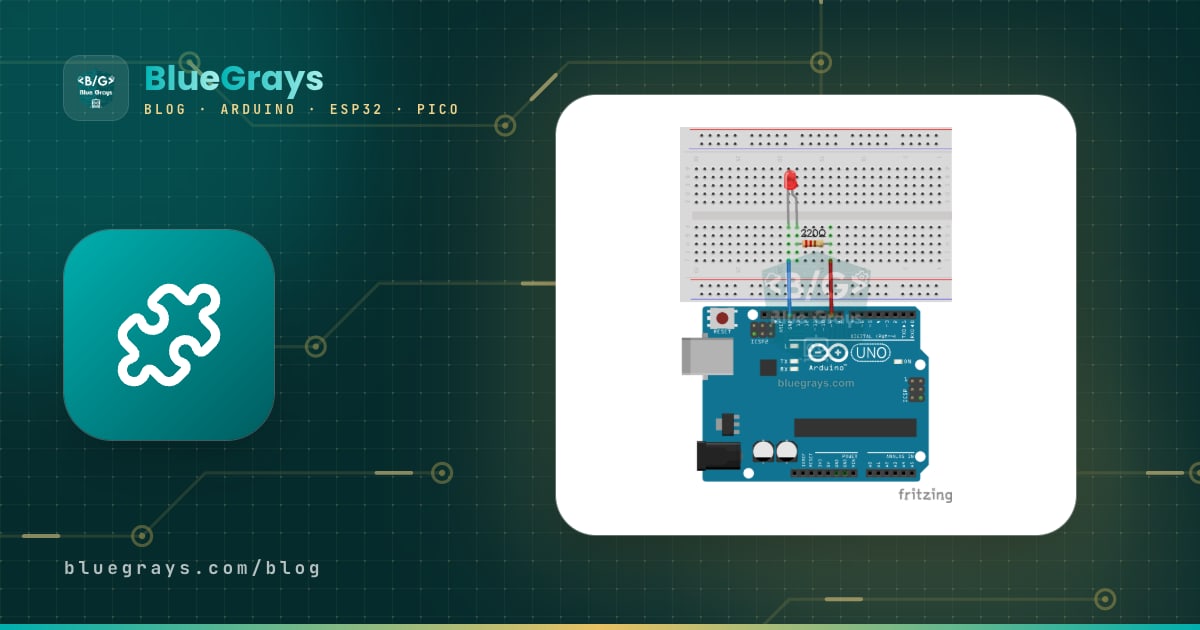
Basic electronic components are the building blocks of every circuit: parts that limit current, store energy, let current flow in one direction only, switch, amplify a signal or protect the circuit. Resistor, capacitor, inductor, diode, LED, transistor, MOSFET, integrated circuit, relay, voltage regulator, fuse, push button, potentiometer and crystal: from a phone charger to an Arduino board, you will find several of these fourteen components inside almost every electronic device. Each one has its own schematic symbol, a reference letter (such as R, C, L, D or Q) and a unit that describes its value. Recognising them is the first step towards reading a schematic and building your own projects without mistakes.
In this guide we first collect all fourteen components in one summary table with their reference letter, unit, symbol, appearance and typical job. Then we explain the difference between passive and active components, how each part works, which values you will come across and the most common mistakes; at the end of each section you will find a link to an in-depth article about that component. In the last part we build an Arduino, ESP32 and Raspberry Pi Pico circuit that combines a potentiometer, resistor, LED, button, transistor, diode, capacitor and relay, and you will see how to test components with an Arduino and a multimeter.
What are the basic electronic components? Summary table
The table below compares the fourteen components covered in this article at a glance. The reference letter is the abbreviation written at the start of a part's label on a schematic; numbers such as R1, C3 or Q2 tell parts of the same type apart. The unit column shows which quantity a component's value is given in: resistors are measured in ohms (Ω), capacitors in farads (F), inductors in henries (H) and crystals in hertz (Hz). Diodes, transistors and relays have no single unit; you choose them by the voltage (V) and current (A) they can handle. The symbol column follows the IEC drawings used in Europe and much of the world; on American (ANSI) schematics some symbols look different.
| Component | Reference letter | Unit / key value | Schematic symbol | Appearance | Typical job |
|---|---|---|---|---|---|
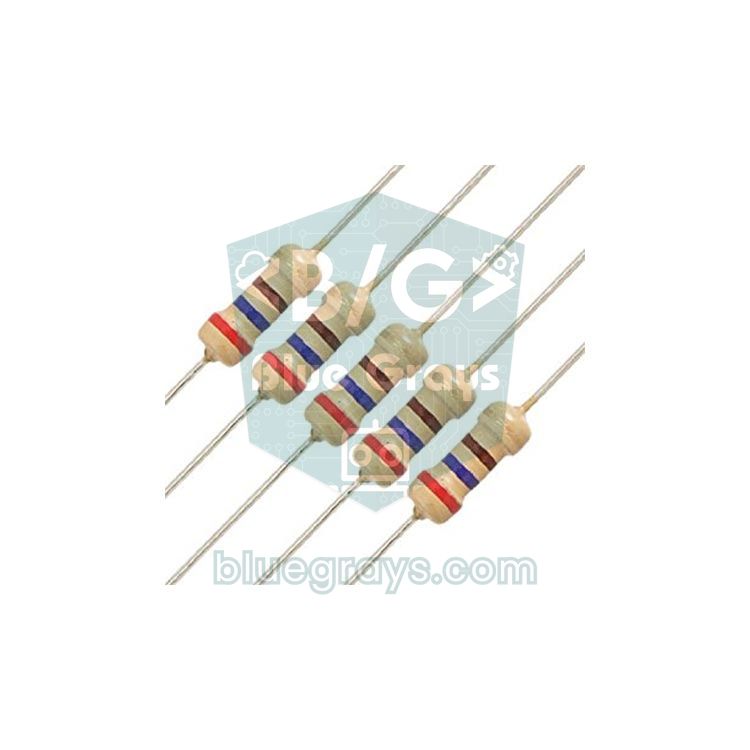
| Resistor | R | Ohm (Ω) | Rectangle (zigzag line on US schematics) | Small cylinder with colour bands; tiny numbered block in SMD | Limiting current, dividing voltage |
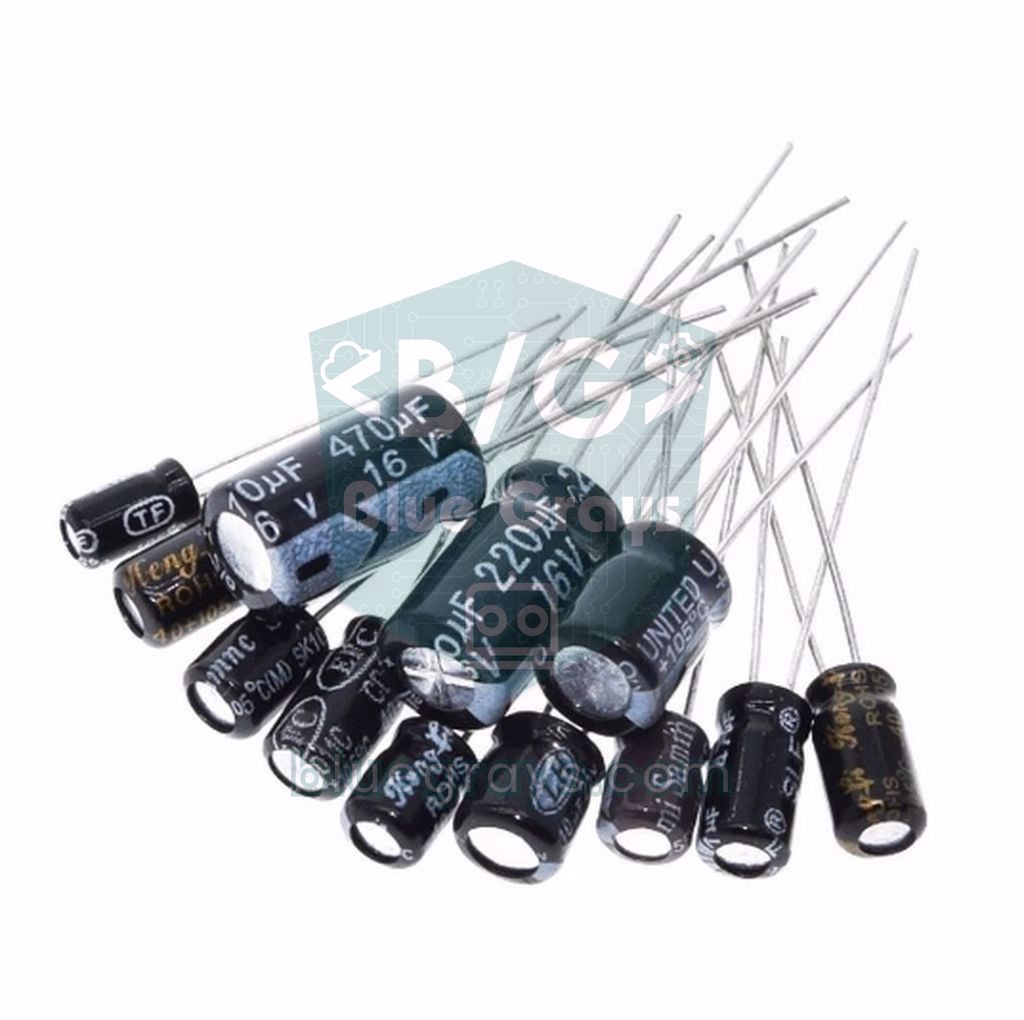
| Capacitor | C | Farad (F): pF, nF, µF | Two parallel lines; + sign or curved plate when polarised | Ceramic disc or striped electrolytic cylinder | Storing energy, filtering, decoupling, timing |
| Inductor (coil) | L | Henry (H): µH, mH | Row of half loops | Wire wound on a bobbin or a ferrite-core cylinder | Slowing current changes, DC-DC converters, filters |
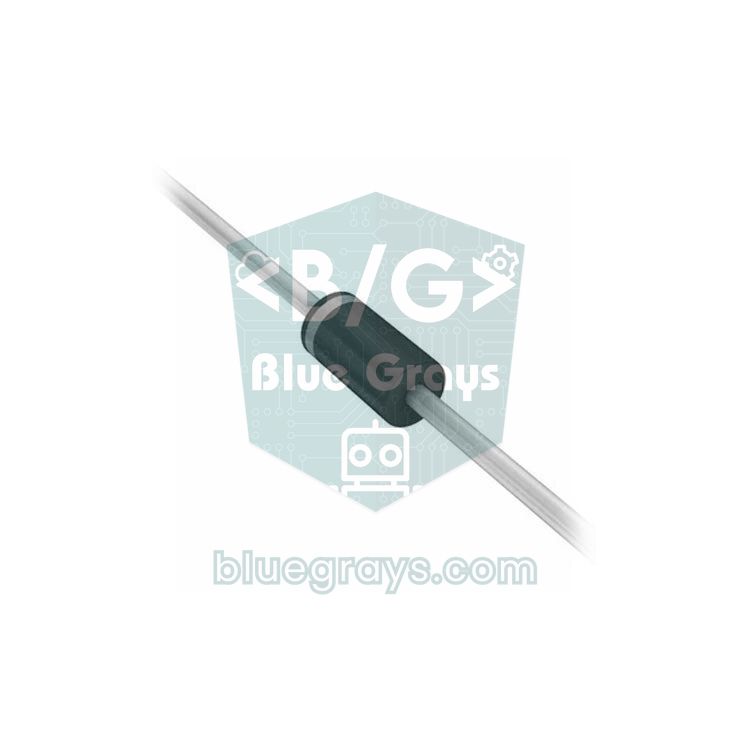
| Diode | D | Reverse voltage (V), forward current (A) | Triangle with a bar at its tip | Black body with a grey or white band on the cathode side | One-way current, rectification, protection |
| LED | LED or D | Forward voltage (V), current (mA) | Diode symbol with two arrows pointing out | Coloured clear dome; the long leg is the anode | Giving light, indicators |
| Transistor (BJT) | Q (T in some sources) | Current gain hFE, maximum IC (A) | Base line inside a circle; arrow on the emitter | Three-legged half cylinder (TO-92) or metal-tab TO-220 | Switching, amplifying signals |
| MOSFET | Q | RDS(on) (Ω), threshold voltage VGS(th) (V) | Gate (G) line separated from the channel, D and S terminals | Usually a TO-220 or SMD package | Switching high current with low loss, PWM |
| Integrated circuit (IC) | U or IC | Part number (e.g. NE555) | Box with numbered pins | Black multi-pin body (DIP-8, DIP-16) with a notch | Timing, logic, amplifiers, microcontrollers |
| Relay | K (RL in some sources) | Coil voltage (V), contact current (A) | Coil box linked to a switch by a dashed line | Blue or black cube with 5 pins | Switching mains or high current with a small signal |
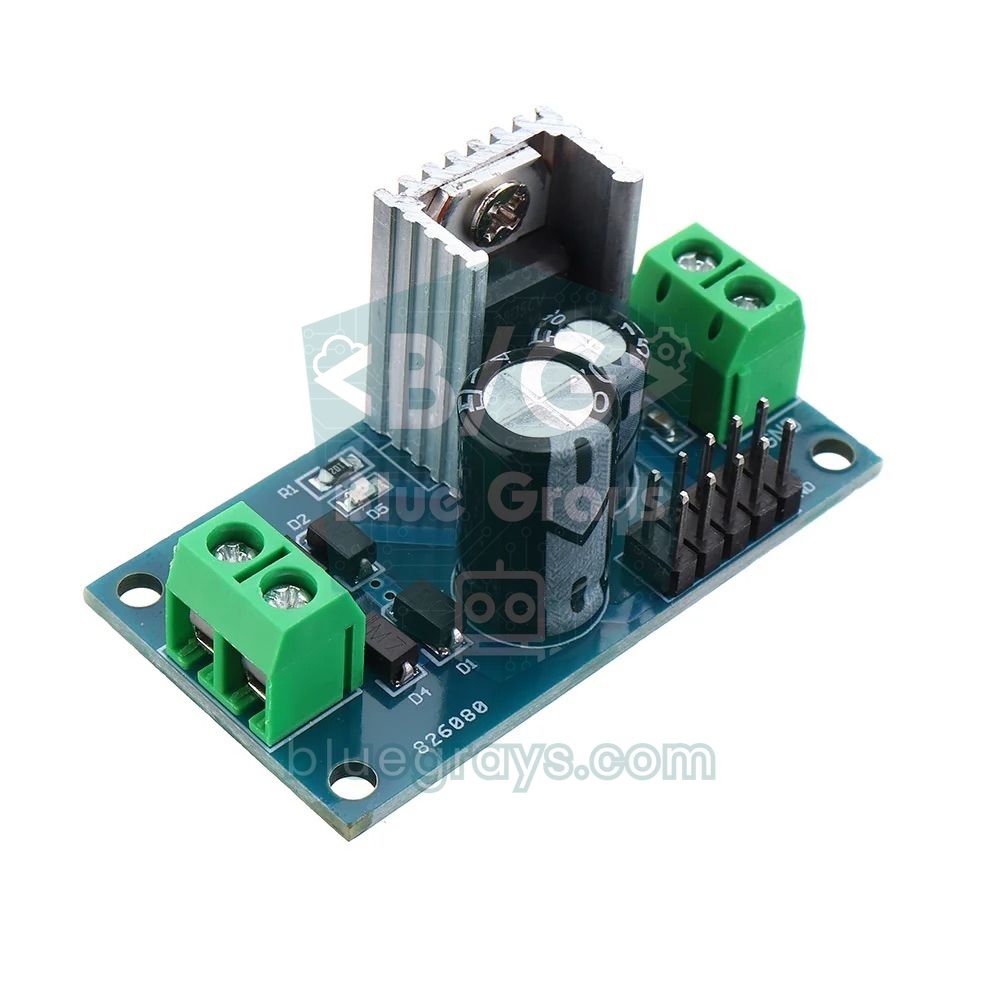
| Voltage regulator | U or VR | Output voltage (V), maximum current (A) | Box with IN, GND and OUT terminals | TO-220 (7805) or SOT-223 (AMS1117) | Producing a steady 5 V or 3.3 V |
| Fuse | F | Rated current (A), voltage (V) | Rectangle with a line through the middle | Glass tube (5×20 mm), blade type or PTC | Cutting the circuit on overcurrent |
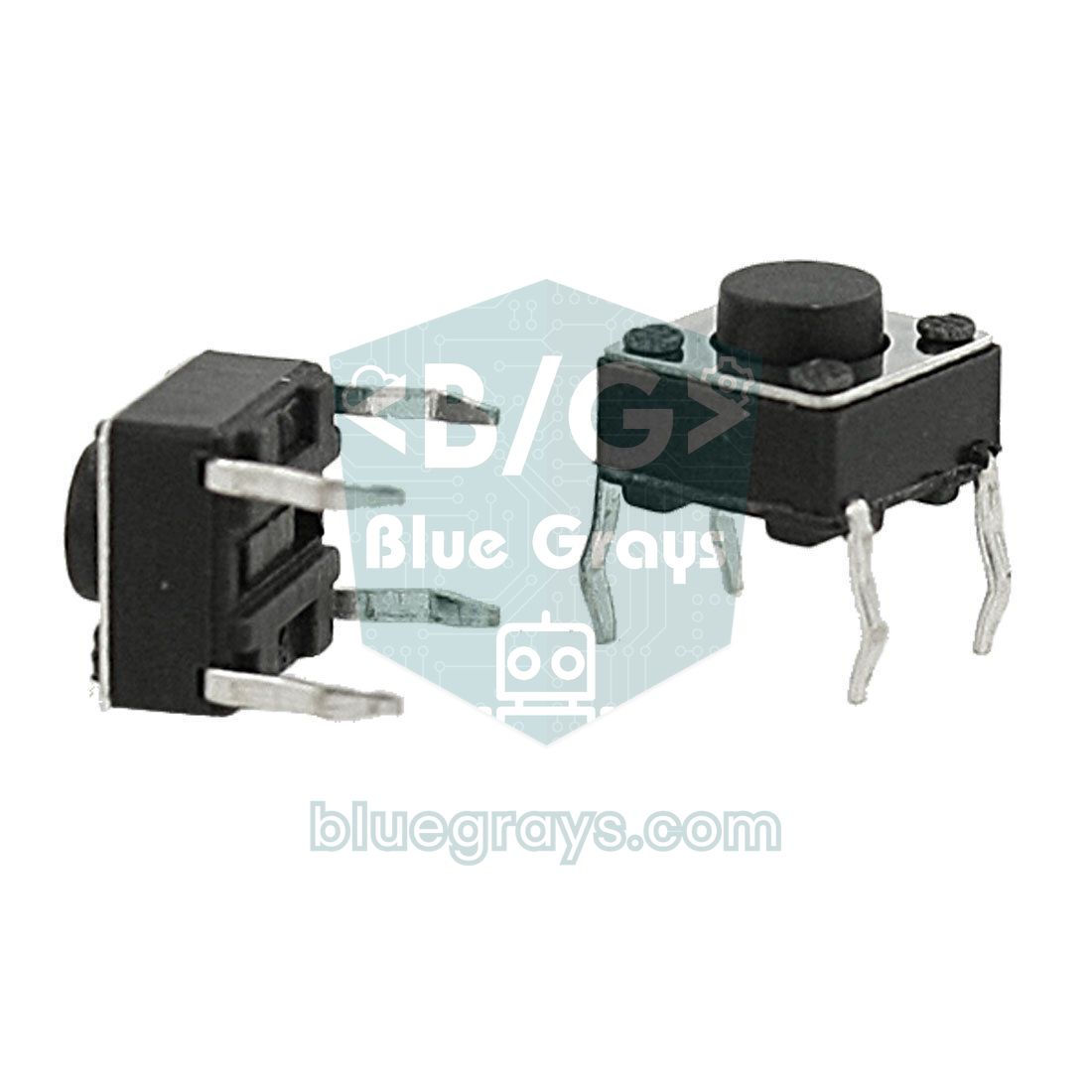
| Button / switch | S or SW | Contact current (A), voltage (V) | Open slanted line; a plunger on top for a button | 6×6 mm four-leg button, slide or toggle switch | Opening and closing a circuit by hand, giving input |
| Potentiometer | RV or VR | Ohm (Ω), e.g. 10 kΩ | Resistor symbol with an arrow pointing at its middle | Three-legged body with a shaft; screw head on a trimmer | Adjustable voltage divider, volume and speed control |
| Crystal | Y or X | Hertz (Hz): kHz, MHz | Thin rectangle between two plates | Oval metal can (HC-49) or small cylinder | Giving a microcontroller a stable clock signal |
Passive and active components
Electronic components are usually divided into two large groups. Passive components add no energy to the circuit and cannot amplify a signal; they only dissipate energy (resistor), store it (capacitor, inductor) or filter it. Active components use energy from a power supply to control another current or amplify a signal; transistors, MOSFETs and integrated circuits belong to this group. Diodes and LEDs sit on the border: since they provide no gain they are passive under the strict definition, but because they are made of the same semiconductor material as transistors, many textbooks list them among active components. If this comes up in an exam, go with your textbook's definition. Parts such as relays, buttons and fuses are often grouped separately as electromechanical or protection components.
| Group | Components | What they have in common |
|---|---|---|
| Passive | Resistor, capacitor, inductor, potentiometer, crystal | Do not generate or amplify energy; they dissipate, store or filter it |
| Semiconductor (active) | Diode, LED, transistor, MOSFET, IC, regulator | Made of a semiconductor such as silicon; steer, switch or amplify current |
| Electromechanical | Relay, button, switch | Physically open and close the circuit with moving metal contacts |
| Protection | Fuse, PTC fuse | Cut the circuit during a fault to protect the wiring and the power supply |
Resistor: the component that limits current
A resistor is the most basic component: it opposes the current flowing through it and turns part of the energy into heat. Its unit is the ohm (Ω), and the relationship between voltage, current and resistance is given by V = I × R, Ohm's law. On an Arduino you will use resistors mostly for two jobs: limiting the current of a part such as an LED, and building a voltage divider. For example, to light a red LED at 15 mA from a 5 V pin you need (5 − 2) / 0.015 = 200 Ω; the next standard value up, 220 Ω, is chosen. The value of a through-hole resistor is read from the colour bands on its body: red-red-brown-gold means 220 Ω with ±5% tolerance. Resistors are made in standard values called the E12 series (10, 12, 15, 18, 22, 27, 33, 39, 47, 56, 68, 82 and their multiples of ten). Just as important as the value is the power rating: resistors in hobby circuits are usually 1/4 W, and if the power calculated with P = I² × R exceeds that, the resistor overheats and burns. You can decode the bands with the Resistor colour code tool; for details see What Is a Resistor? and Ohm's Law.
Capacitor: a small, fast energy store
A capacitor stores electric charge on two conductive plates separated by an insulating layer and can give that charge back very quickly. Its unit is the farad (F), but since a farad is huge, in practice you use picofarads (pF), nanofarads (nF) and microfarads (µF): 1 µF = 1,000 nF = 1,000,000 pF. Once charged it blocks direct current, while fast-changing signals and noise pass through it. That is why a 100 nF ceramic decoupling capacitor sits next to the supply pins of every IC, and 100–1000 µF electrolytic capacitors are placed on motor and servo supplies. Ceramic capacitors are non-polarised and their value is printed as a code: 104 means 10 followed by four zeros, i.e. 100,000 pF = 100 nF. Electrolytics are polarised; the light-coloured stripe on the body marks the negative leg, and if connected backwards they can bulge and burst. When used with a resistor, the time constant τ = R × C sets how fast the capacitor charges; with 10 kΩ and 100 µF, τ = 1 second. You can decode markings with the Capacitor code tool and read about types and calculations in What Is a Capacitor?.
Inductor (coil): the component that resists sudden changes in current
An inductor is made by winding a conductive wire, usually around an iron-powder or ferrite core, and it stores energy in a magnetic field. Its unit is the henry (H); in electronics you will mostly see microhenries (µH) and millihenries (mH). Unlike a capacitor, an inductor opposes sudden changes in current: the voltage across it is given by V = L × di/dt. So it lets DC through with almost no opposition but resists high frequencies; this opposition is calculated with XL = 2π × f × L. The place you will meet it most often is the large black inductor on switching step-down converters such as the LM2596 (typically 33–47 µH), where it stores energy in every switching cycle and passes it on to the load. Relays, motors, buzzers and speakers also contain coils, and the moment their current is cut they produce a high voltage spike in the opposite direction; to suppress it, a diode is connected in reverse across inductive loads. The value of small through-hole inductors is marked with colour bands like resistors, in µH; you can read them with the Inductor code tool, and for details see What Is an Inductor?.
Diodes and LEDs: a one-way street for current
A diode is a semiconductor that lets current flow in only one direction, from anode to cathode; in the reverse direction almost no current flows. While conducting, a forward voltage drops across it: about 0.6–1 V for silicon diodes and 0.15–0.6 V for Schottky diodes. The grey or white band on the body marks the cathode and matches the bar in the schematic symbol. The most common types are the 1N4007 rectifier, rated 1 A and 1000 V, the fast small-signal 1N4148 and the low-drop Schottky 1N5819. A diode has four basic jobs: turning AC into DC (rectification), protecting a circuit from a battery connected backwards, suppressing reverse voltage spikes from inductive loads such as relays and motors (flyback) and, as a Zener diode, holding a voltage at a fixed value. Detailed comparisons and test methods are in What Is a Diode?.
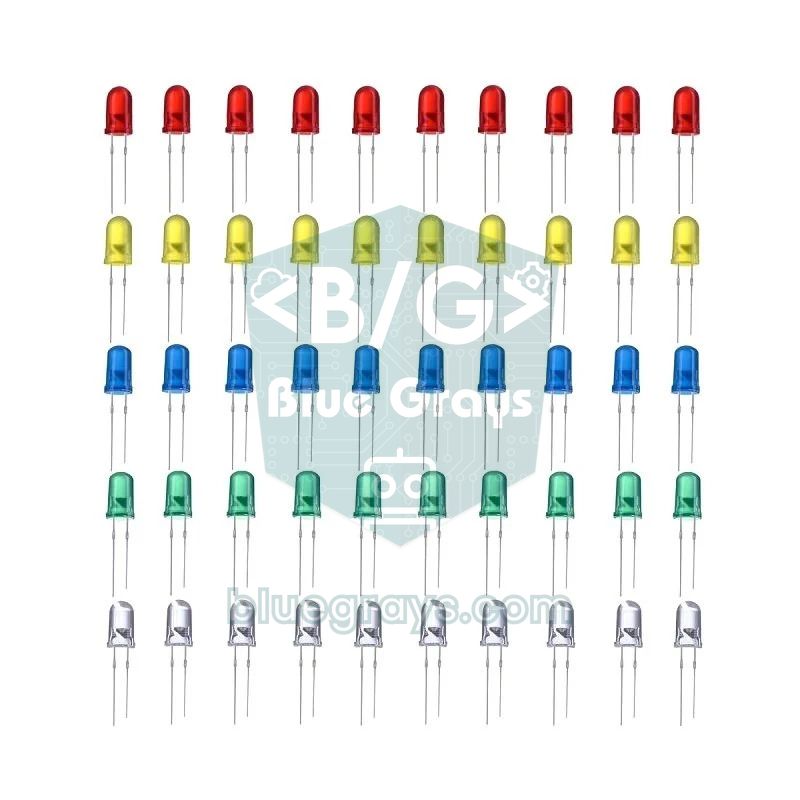
An LED (light-emitting diode) is a diode that gives off light when current flows, and like other diodes it works in one direction only. The long leg is the anode (+) and the short leg the cathode (−); the dome also has a flat edge on the cathode side. The golden rule of LEDs is to always use a series resistor: an LED does not limit its own current, so once the voltage rises slightly above its forward voltage the current shoots up and the LED or the Arduino pin gets damaged. The resistor value is calculated with R = (Vsupply − VLED) / I. Standard 5 mm LEDs run comfortably at 10–20 mA; red and yellow LEDs have a forward voltage of about 2 V, while blue, white and bright green ones are about 3 V. You can do the maths with the LED resistor tool, check forward voltages by colour with the LED voltages tool and read more in What Is an LED?.
| LED colour | Typical forward voltage | Resistor for 5 V (≈15 mA) | Resistor for 3.3 V (≈10 mA) |
|---|---|---|---|
| Red | 1.8–2.2 V | 220 Ω | 150 Ω |
| Yellow, orange, classic green | 2.0–2.4 V | 220 Ω | 120 Ω |
| Blue, white, bright green | 2.8–3.4 V | 150 Ω | 47 Ω (may stay dim) |
Transistors and MOSFETs: electronic switches
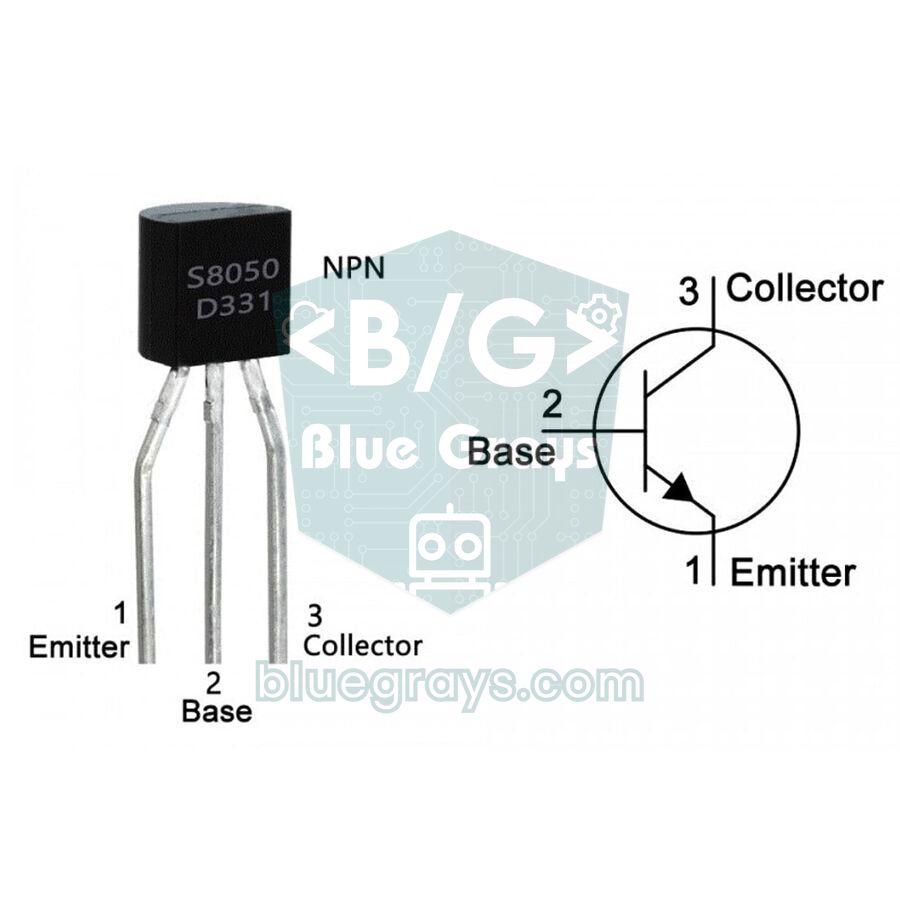
A transistor (BJT) is a three-legged semiconductor that controls a much larger collector current with a small base current. Its legs are the base (B), collector (C) and emitter (E), and its current gain is expressed as IC = hFE × IB. There are two types, NPN and PNP; in Arduino projects the NPN type, with its emitter connected to GND, is far more common. Because an Arduino pin cannot safely supply much more than about 20 mA, loads such as relays, motors, buzzers and LED strips are driven through a transistor. A resistor must always sit between the pin and the base: to drive a 5 V relay (about 71 mA) with a 2N2222A, 680 Ω suits an Arduino Uno and 470 Ω suits the 3.3 V ESP32 and Pico. The BC547 (100 mA) is used for small loads, the 2N2222A (600 mA) for medium loads and the TIP120 Darlington (5 A) for up to a few amps. Since the pinout differs from model to model, check it with the Transistor pinouts tool; operating regions and calculations are in What Is a Transistor?.
A MOSFET is also a transistor, but it is controlled by voltage rather than current. Its terminals are the gate (G), drain (D) and source (S). The gate is insulated from the channel by a thin oxide layer, so in a steady state it draws almost no current; when the gate-source voltage is well above the threshold (VGS(th)), the drain-source resistance (RDS(on)) drops to a few milliohms. That is why a MOSFET runs much cooler than a BJT at high currents. The most important thing with an Arduino is to choose a logic-level part: the IRLZ44N turns fully on with 5 V on its gate, whereas the popular IRF540N needs 10 V for full conduction and heats up at 5 V. For the 3.3 V pins of the ESP32 and Pico, lower-threshold parts such as the IRLB8721 or AO3400 are chosen. Put a 100–220 Ω resistor in series with the gate and a 10 kΩ pull-down between gate and GND. Wiring diagrams are in Using a MOSFET with Arduino.
| Feature | BJT (e.g. 2N2222A, TIP120) | MOSFET (e.g. IRLZ44N) |
|---|---|---|
| Controlled by | Base current (mA) | Gate voltage (V); draws no current in a steady state |
| Terminals | Base, collector, emitter | Gate, drain, source |
| Voltage drop when on | VCE(sat) 0.1–0.3 V (1–2 V for a Darlington) | I × RDS(on); about 0.05 V at 25 mΩ and 2 A |
| Suitable load | A few mA up to 1–2 A | Hundreds of mA up to tens of amps |
| Arduino connection | Pin → base resistor → base | Pin → 100–220 Ω → gate; 10 kΩ between gate and GND |
Integrated circuit (IC): thousands of components on one chip
An integrated circuit (IC, chip) is a ready-made circuit in which thousands or even billions of components such as transistors, resistors and capacitors are combined on a single piece of silicon. On a schematic it is usually drawn as a box with numbered pins and labelled U or IC. Breadboard-friendly versions come in a DIP package (DIP-8, DIP-14, DIP-16), while finished boards use much smaller SMD packages (SOIC, TSSOP). To wire the pins correctly, first find pin 1: look for the half-moon notch at one end of the body or the small dot in a corner. Looking at the chip from above with the notch on the left, the bottom-left pin is pin 1 and the numbers increase anticlockwise. The ICs you will meet most often in hobby projects are the NE555 timer, the 74HC595 that adds more outputs, the LM358 operational amplifier, logic gate chips and the 28-pin ATmega328P that is the brain of the Arduino Uno. Make it a habit to place a 100 nF capacitor between the VCC and GND pins of every IC, as close as possible.
Relay: switching a big load with a small signal
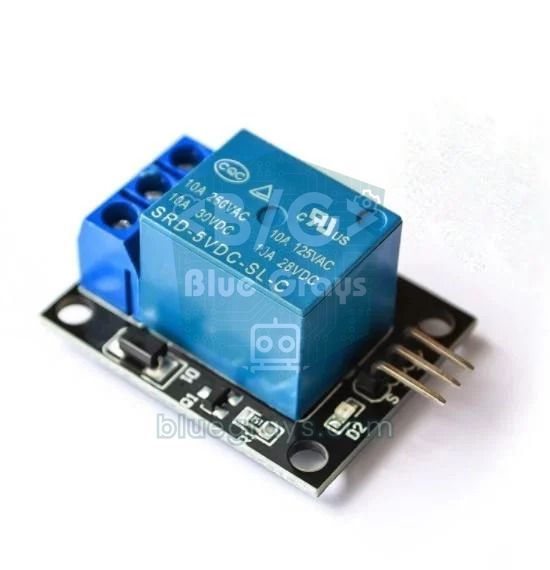
A relay is an electromechanical switch: when current flows through its coil, the resulting magnetic field pulls a metal contact. Because the contact side is electrically isolated from the coil, you can switch a mains lamp or a 12 V pump with a 5 V signal. The contacts are called COM (common), NO (normally open) and NC (normally closed): with the coil unpowered, COM is connected to NC; when the coil pulls in, COM moves over to NO. The SRD-05VDC-SL-C relay found in Arduino kits has a coil of about 70 Ω and draws about 71 mA at 5 V, far more than a pin can supply. That is why a relay is always driven through a transistor, with a flyback diode connected in reverse across the coil. Ready-made relay modules already have the transistor, diode and status LED on the board. Small switches in which two thin contacts inside a glass tube close when a magnet comes near are known as reed switches and are used in door and window sensors.
Voltage regulator: a steady, safe supply
A voltage regulator keeps a constant voltage at its output even when the input voltage fluctuates. The best-known example is the 7805: it produces 5 V from an input between 7 and 35 V and, with a heatsink, can supply up to 1.5 A. With the printed face towards you, the pins from left to right are input (IN), GND and output (OUT). The 7805 is a linear regulator; it turns the voltage difference into heat. The power wasted is P = (Vin − Vout) × I: drawing 0.5 A at 5 V from 12 V produces 3.5 W of heat, which a TO-220 package cannot handle without a heatsink. For a 3.3 V output, the AMS1117-3.3, also found on many ESP32 boards, is used; it is a low-dropout (LDO) regulator, so the input only needs to be about 1.1–1.3 V above the output. If you need high current and efficiency, a switching step-down converter such as the LM2596 delivers up to 3 A at about 80–90% efficiency. Do not forget capacitors on the regulator's input and output; details are in The 7805 Voltage Regulator and Powering an Arduino.
Fuse: the circuit's seat belt
A fuse is a protective component that breaks the circuit by melting, or by sharply increasing its resistance, when the current through it exceeds a set value. Its real job is not to protect electronic parts but to protect wiring, batteries and the power supply from the heat and fire a short circuit could cause. It is marked with its rated current (e.g. 1 A) and the maximum voltage it can withstand (e.g. 250 V). The letter in front matters too: an F (fast-acting) fuse blows immediately on a sudden overcurrent, while a T (time-lag, slow-blow) fuse tolerates the short inrush current of motors and large capacitors at switch-on. Choose a fuse rated at about 1.25–1.5 times the normal operating current and put it in the positive supply line, as close to the source as possible. Glass-tube (5×20 mm) and automotive blade fuses must be replaced after they blow; PTC (resettable) fuses cut the current when they heat up and return to normal once they cool down. The Arduino Uno has such a PTC fuse on its USB input, protecting your computer's USB port at currents above 500 mA. To find out whether your board is really damaged, see Is My Arduino Dead?.
Buttons and switches: opening and closing a circuit by hand
A push button is a momentary switch that makes contact only while you hold it down and opens when you let go. A switch (slide, toggle or rocker) stays in the position you leave it in. Contact arrangements are described with abbreviations: SPST is a simple on-off switch, SPDT is a selector that connects a common terminal to one of two outputs, and DPDT switches two separate circuits at the same time. The 6×6 mm button in breadboard kits has four legs but only two separate contacts: the leg pairs are connected internally, so wiring the button across diagonal legs is the safest approach. When connecting it to an Arduino you need a pull-up or pull-down resistor so that the pin never floats; the easiest way is to enable the ATmega328P's internal 20–50 kΩ resistor with INPUT_PULLUP in your code. The pin then reads LOW while the button is pressed. Mechanical contacts vibrate for a few milliseconds when pressed (bounce); we filter this out in software by waiting 20–50 ms. Details are in How to Connect a Button to Arduino.
Potentiometer: an adjustable resistor
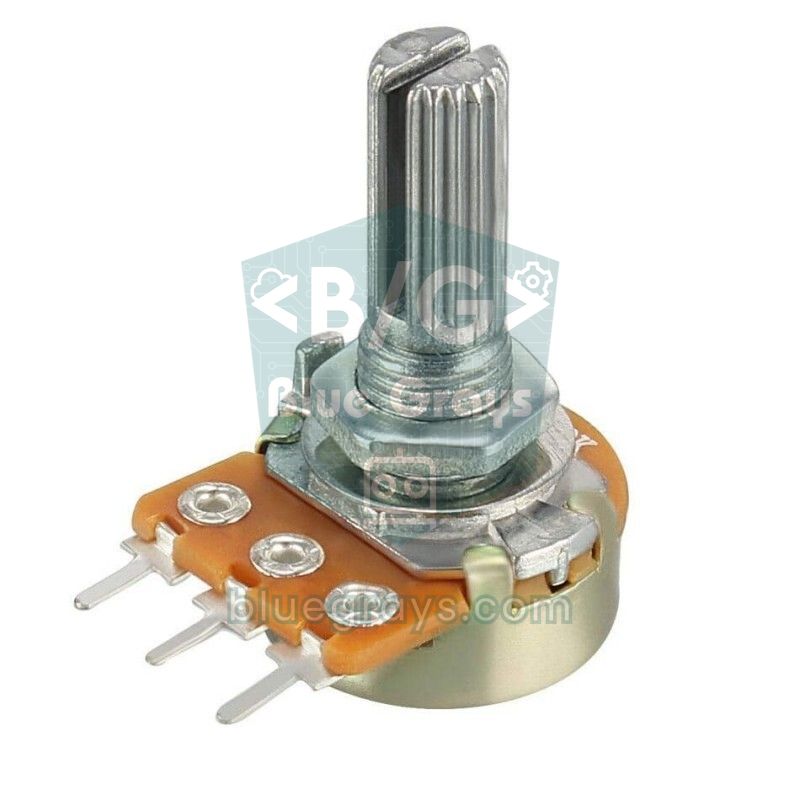
A potentiometer is a three-legged adjustable resistor whose middle terminal (the wiper) slides along a resistive track as you turn the shaft. The resistance between the outer legs is fixed (e.g. 10 kΩ), while the resistance between the middle leg and either outer leg varies from 0 to 10 kΩ. Connect the outer legs to 5V and GND and the middle one to an analog input, and the potentiometer becomes an adjustable voltage divider; the Arduino Uno's analogRead() function then reads a value from 0 to 1023. The letter on the body shows the taper: on most parts B means linear and A means logarithmic (for audio volume); B10K is a 10 kΩ linear potentiometer. The small versions soldered onto a board and set once with a screwdriver are called trimmers (trimpots); they are used for LCD contrast and sensor threshold adjustment. Details and example projects are in What Is a Potentiometer?.
Crystal: the heartbeat of the circuit
A crystal (quartz crystal) is a thin slice of quartz that vibrates at a very stable frequency when a voltage is applied to it; this is called the piezoelectric effect. Its unit is the hertz (Hz), and its value is printed on the body in MHz or kHz (e.g. 16.000 = 16 MHz). Microcontrollers execute their instructions on the clock signal this vibration sets, and the accuracy of timing functions such as delay() and millis() depends on it. ATmega328P-based Arduino boards run at 16 MHz (the original Uno R3 uses a cheaper ceramic resonator instead of a crystal for this, while many clone boards have a metal-can crystal); two small 22 pF capacitors usually go between the crystal's legs and GND. Under the metal shield of ESP32 modules there is a 40 MHz crystal, and the Raspberry Pi Pico has a 12 MHz one. Clock modules use a 32.768 kHz crystal because this value is 2 to the 15th power: divided by two 15 times, it gives exactly 1 Hz, one pulse per second. That is how RTC clock modules keep accurate time even while the Arduino is off.
Reading components and values on a schematic
On a schematic, every component carries two pieces of information: its label, made of a reference letter and a number (R1, C2, Q1, U3), and its value (220, 100n, BC547). The same labels are printed on the circuit board, so you can easily find where R7 on the schematic sits on the board. Values often use the unit letter in place of the decimal point; this stops a decimal point from vanishing in small print and the value being read ten times wrong. We explained how to read schematics step by step in How to Read a Circuit Diagram; these are the notations you will see most often:
- 4k7, 1M, 2R2, 0R: 4.7 kΩ, 1 MΩ and 2.2 Ω respectively; the letter R takes the place of the decimal point in ohm values. 0R is a zero-ohm jumper resistor.
- 100n, 104, 0.1u: All three are the same value, 100 nF; since keyboards have no µ, a u is written instead.
- 10u/16V: A 10 µF electrolytic capacitor rated for 16 V; the voltage rating should be at least 1.5 times the highest voltage in the circuit.
- L1 4u7: A 4.7 µH inductor; because the label starts with L, the unit is henries.
- D1 1N4007, Q1 BC547, U1 NE555: For semiconductors the part number is written instead of a value; you will find its specifications in that part's datasheet.
- 472 or 01C: These are codes printed on SMD resistors; 472 means 47 followed by two zeros, i.e. 4.7 kΩ. For letter codes see SMD resistor codes and the SMD code tool.
Hands-on: running eight components in one circuit
The best way to make the theory stick is to make the components work together. In the circuit we are going to build, a potentiometer sets an LED's brightness, a 220 Ω resistor limits the LED's current and a button toggles a relay on and off with each press; the relay is pulled in by a 2N2222A transistor driven through a base resistor. A 1N4007 diode connected in reverse across the relay coil protects the transistor, while a 100 nF capacitor between the potentiometer's wiper and GND reduces noise in the analog reading. You do not need to connect anything to the relay contacts for now; you will hear it click when it switches. If this is your first time with a breadboard, read What Is a Breadboard? first.
| Connection | Arduino Uno | ESP32 | Raspberry Pi Pico |
|---|---|---|---|
| Potentiometer outer legs | 5V and GND | 3V3 and GND | 3V3(OUT) and GND |
| Potentiometer middle leg (100 nF to GND) | A0 | GPIO 34 | GP26 (ADC0) |
| LED anode (through 220 Ω), cathode to GND | D9 | GPIO 18 | GP15 |
| Button (other leg to GND) | D2 | GPIO 4 | GP14 |
| 2N2222A base resistor | D7, 680 Ω | GPIO 23, 470 Ω | GP16, 470 Ω |
| Transistor emitter | GND | GND | GND |
| Relay coil: + end / − end | 5V / collector | 5V (VIN) / collector | VBUS / collector |
| 1N4007 diode (across the coil) | Cathode to 5V, anode to collector | Cathode to 5V, anode to collector | Cathode to VBUS, anode to collector |
1// Elektronik devre elemanları deneyi / Electronic components experiment
2// Pot -> LED parlaklığı, buton -> transistör + röle / pot -> LED brightness, button -> transistor + relay
3#if defined(ESP32)
4const int POT_PIN = 34;       // ADC1, yalnızca giriş / ADC1, input only
5const int LED_PIN = 18;       // 220 Ω üzerinden LED / LED via 220 Ω
6const int BUTTON_PIN = 4;     // diğer bacak GND'ye / other leg to GND
7const int RELAY_PIN = 23;     // 470 Ω ile 2N2222A beyzine / to the 2N2222A base via 470 Ω
8const int ADC_MAX = 4095;     // 12 bit ADC
9const float VREF = 3.3;
10#else
11const int POT_PIN = A0;
12const int LED_PIN = 9;        // PWM pini (~) / PWM pin (~)
13const int BUTTON_PIN = 2;     // diğer bacak GND'ye / other leg to GND
14const int RELAY_PIN = 7;      // 680 Ω ile 2N2222A beyzine / to the 2N2222A base via 680 Ω
15const int ADC_MAX = 1023;     // 10 bit ADC
16const float VREF = 5.0;
17#endif
18
19bool relayOn = false;
20int lastReading = HIGH;             // son ham okuma / last raw reading
21int stableState = HIGH;             // zıplamadan arınmış durum / debounced state
22unsigned long lastChange = 0;       // son değişim anı / time of last change
23unsigned long lastPrint = 0;
24
25void setup() {
26  pinMode(LED_PIN, OUTPUT);
27  pinMode(RELAY_PIN, OUTPUT);
28  digitalWrite(RELAY_PIN, LOW);           // açılışta röle kapalı / relay off at startup
29  pinMode(BUTTON_PIN, INPUT_PULLUP);      // dahili pull-up direnci / internal pull-up resistor
30  Serial.begin(115200);
31}
32
33void loop() {
34  // 1) Potansiyometre -> LED parlaklığı (PWM) / potentiometer -> LED brightness (PWM)
35  int pot = analogRead(POT_PIN);
36  analogWrite(LED_PIN, map(pot, 0, ADC_MAX, 0, 255));
37
38  // 2) Buton -> röle, 30 ms zıplama filtresi / button -> relay, 30 ms debounce
39  int reading = digitalRead(BUTTON_PIN);
40  if (reading != lastReading) {
41    lastChange = millis();
42    lastReading = reading;
43  }
44  if (millis() - lastChange > 30 && reading != stableState) {
45    stableState = reading;
46    if (stableState == LOW) {             // basıldı / pressed
47      relayOn = !relayOn;
48      digitalWrite(RELAY_PIN, relayOn ? HIGH : LOW);
49    }
50  }
51
52  // 3) Yarım saniyede bir rapor / report every half second
53  if (millis() - lastPrint >= 500) {
54    lastPrint = millis();
55    Serial.print("Pot: ");
56    Serial.print(pot * VREF / ADC_MAX, 2);
57    Serial.print(" V | Röle / relay: ");
58    Serial.println(relayOn ? "AÇIK / ON" : "KAPALI / OFF");
59  }
60}
The code does three independent jobs in the same loop() without making any of them wait. analogRead() reads the voltage at the potentiometer's wiper and map() converts it to the 0–255 range; thanks to PWM, the LED's brightness follows that value. The button is read with millis() instead of delay(): if the reading stays unchanged for 30 ms it counts as a real press and the relay state is toggled. When the pin goes HIGH, the 2N2222A saturates, current flows through the relay coil and the contact clicks over to NO; when the pin goes LOW, the energy in the coil dies away harmlessly through the 1N4007. Thanks to the #if defined(ESP32) line, the same code compiles on an ESP32 with its own pins and 12-bit ADC resolution. Open the Serial Monitor at 115200 baud to watch the potentiometer voltage and the relay state live.
The same circuit with Raspberry Pi Pico and MicroPython
To run the same circuit on a Raspberry Pi Pico with MicroPython, wire it according to the Pico column of the table and power the relay coil from the VBUS pin, which carries the USB 5 V. Because the Pico's read_u16() function returns readings in the 0–65535 range, the value can be passed straight to the PWM duty_u16() function with no extra conversion. If you save the code to the Pico as main.py using Thonny, it starts automatically every time the board powers up. If you are new to MicroPython, start with What Is the Raspberry Pi Pico?.
1# Pico: pot -> LED parlaklığı, buton -> transistör + röle / pot -> LED brightness, button -> transistor + relay
2from machine import Pin, ADC, PWM
3import time
4
5pot = ADC(26)                            # GP26 = ADC0, pot orta ucu / pot wiper
6led = PWM(Pin(15))                       # GP15, 220 Ω üzerinden LED / LED via 220 Ω
7led.freq(1000)                           # 1 kHz PWM
8button = Pin(14, Pin.IN, Pin.PULL_UP)    # diğer bacak GND'ye / other leg to GND
9relay = Pin(16, Pin.OUT, value=0)        # 470 Ω ile 2N2222A beyzine / to the 2N2222A base via 470 Ω
10
11relay_on = False
12last = 1
13last_print = time.ticks_ms()
14
15while True:
16    raw = pot.read_u16()                 # 0-65535
17    led.duty_u16(raw)                    # parlaklık / brightness
18
19    now = button.value()
20    if now == 0 and last == 1:           # basıldı / pressed
21        time.sleep_ms(30)                # zıplamayı bekle / wait out the bounce
22        if button.value() == 0:
23            relay_on = not relay_on
24            relay.value(1 if relay_on else 0)
25    last = now
26
27    if time.ticks_diff(time.ticks_ms(), last_print) >= 500:
28        last_print = time.ticks_ms()
29        state = "AÇIK / ON" if relay_on else "KAPALI / OFF"
30        print("Pot: {:.2f} V | Röle / relay: {}".format(raw * 3.3 / 65535, state))
31    time.sleep_ms(5)
Measuring a resistor and an LED's forward voltage with Arduino
An Arduino can also become a simple measuring tool to identify the parts you have. Fit the resistor whose value you do not know between A1 and GND, and a known 10 kΩ resistor between 5V and A1; the two form a voltage divider, and the unknown resistance is calculated with Rx = 10 kΩ × reading / (1023 − reading). The measurement is most accurate when the unknown resistor is close to the reference (roughly 1–100 kΩ). For the second measurement, connect 5V through a 220 Ω resistor to an LED's anode, the cathode to GND and the anode also to A2: the voltage A2 reads is the LED's forward voltage at about 8–14 mA. Open the Serial Monitor at 9600 baud, plug in LEDs of different colours one by one and compare them with the table above.
1// Arduino ile direnç ve LED ileri gerilimi ölçme / Measuring a resistor and an LED's forward voltage with Arduino
2const float VCC = 5.0;          // Uno besleme gerilimi / Uno supply voltage
3const float R_REF = 10000.0;    // 5V ile A1 arası bilinen direnç / known resistor between 5V and A1
4
5void setup() {
6  Serial.begin(9600);
7}
8
9void loop() {
10  int raw = analogRead(A1);     // bilinmeyen direnç A1 ile GND arasında / unknown resistor between A1 and GND
11  if (raw >= 1023) {
12    Serial.println("Direnç takılı değil / no resistor connected");
13  } else {
14    float rx = R_REF * raw / (1023.0 - raw);   // gerilim bölücü formülü / voltage divider formula
15    Serial.print("R = ");
16    Serial.print(rx, 0);
17    Serial.println(" ohm");
18  }
19
20  float vf = analogRead(A2) * VCC / 1023.0;    // 5V - 220 Ω - A2 - LED - GND
21  Serial.print("LED Vf = ");
22  Serial.print(vf, 2);
23  Serial.println(" V");
24  Serial.println();
25  delay(1000);
26}
Testing components with a multimeter
When a circuit does not work, the culprit is often a component with the wrong value or a faulty one. A multimeter lets you test each part in a few seconds; always measure with the power off and, if possible, with the component removed from the circuit, because other parts in the circuit change the reading. We explained how to use each range in detail in How to Use a Multimeter.
| Component | Multimeter range | If it is good | If it is faulty |
|---|---|---|---|
| Resistor | Ω | Close to the colour-code value (±5%) | OL (open) or a very different value |
| Capacitor | Capacitance (F) or Ω | Close to the marked value; on Ω, starts low and then rises | 0 Ω (short) or a bulging body |
| Inductor | Ω or continuity | A few ohms or less, beep | OL (broken wire) |
| Diode | Diode test | 0.5–0.7 V one way, OL the other way | 0 V both ways or OL both ways |
| LED | Diode test | 1.6–1.9 V and a faint glow for red, OL in reverse | OL both ways |
| Transistor (NPN) | Diode test | 0.5–0.8 V from the base to the other two legs | 0 V between collector and emitter (short) |
| Relay | Ω and continuity | Coil about 70 Ω; beep between COM and NC | Coil OL or contacts never beep |
| Fuse | Continuity | Beep and a value close to 0 Ω | OL (blown) |
| Button / switch | Continuity | Beeps when pressed, silent when released | Never beeps or beeps all the time |
| Potentiometer | Ω | Fixed between the outer legs; smooth change at the wiper as you turn | Value jumps or goes to OL |
Project ideas with these components
- Traffic light: Your first sequential-output project with three LEDs and three 220 Ω resistors; the steps are in Arduino traffic light.
- Automatic night light: A voltage divider made of an LDR and a 10 kΩ resistor detects darkness, and a transistor lights a 12 V LED strip.
- Flasher without an Arduino: An LED that blinks once a second with an NE555, two resistors and a capacitor; change R and C to adjust the frequency.
- Knight Rider light: Drive eight LEDs from just three pins with a 74HC595 (Arduino Knight Rider LEDs).
- Digital voltmeter: Measure voltages above the Arduino's 5 V limit with a two-resistor voltage divider (Building an Arduino voltmeter).
- Smart plug: Switch a lamp on from your phone with a relay and an ESP32; the safety rules are in What Is a Relay Module?.
Common mistakes and how to fix them
| Symptom | Likely cause | Fix |
|---|---|---|
| LED flashes once and dies, or never lights | Connected without a resistor or fitted backwards | Long leg (anode) to the pin, short leg to GND; add 220 Ω in between |
| Resistor gets hot or turns dark | Power exceeds 1/4 W | Calculate with P = I² × R and choose a 1/2 W or 1 W resistor |
| Electrolytic capacitor bulged or burst | Connected backwards or voltage rating exceeded | Striped leg to GND; use a part rated at least 1.5 times the circuit voltage |
| Arduino resets when the relay releases | No flyback diode | Add a 1N4007 in reverse across the coil, cathode to positive |
| 7805 gets too hot to touch | Too much input-output difference and current | Fit a heatsink, lower the input voltage or use a switching regulator such as the LM2596 |
| One press is detected several times | Contact bounce | Apply a 20–50 ms software debounce |
| An unconnected pin reads random HIGH and LOW | No pull-up or pull-down resistor | Use INPUT_PULLUP or add a 10 kΩ resistor |
| MOSFET heats up, load does not get full power | Not logic level, gate voltage too low | Choose a logic-level part such as the IRLZ44N |
| IC does not work or gets hot | Inserted backwards (pin 1 in the wrong place) | Check the notch and dot, verify the supply pins in the datasheet |
Learning the basic electronic components is like learning the alphabet of a language: once you know what resistors, capacitors, diodes, transistors and the rest do, every new schematic and module becomes easier to understand. As a next step you can read each component's in-depth article in turn, move on to circuit calculations with Kirchhoff's laws, and check the Arduino starter kit guide to decide which parts to buy. In the BlueGrays app you can explore projects that use these components, such as LED blinking, controlling an LED with a button, an LDR night light, a potentiometer-controlled servo and switching a mains lamp with a relay, step by step with circuit diagrams and code.
Frequently asked questions
What are the basic electronic components?
The most basic electronic components are the resistor, capacitor, inductor, diode, LED, transistor, MOSFET, integrated circuit, relay, voltage regulator, fuse, button and switch, potentiometer and crystal. Special-purpose parts such as sensors, buzzers, speakers and optocouplers are added to these. Each has its own schematic symbol and reference letter.
What is the difference between active and passive components?
Passive components do not generate energy and cannot amplify a signal; resistors, capacitors and inductors belong to this group. Active components use energy from a power supply to control or amplify another current; transistors, MOSFETs and ICs are active. Diodes and LEDs provide no gain, but because they are semiconductors many textbooks count them as active.
What is the difference between a resistor and a capacitor?
A resistor opposes current and turns energy into heat; its unit is the ohm. A capacitor stores energy in an electric field, blocks DC once charged and passes AC and noise; its unit is the farad. Used together, they form timing and filter circuits with the time constant τ = R × C.
What do R, C, L, D and Q mean on a schematic?
They are reference letters: R stands for resistor, C for capacitor, L for inductor, D for diode and Q for transistor. ICs are marked U or IC, relays K, fuses F, switches S or SW and crystals Y or X. The number after the letter tells parts of the same type apart (R1, R2, R3).
What does an inductor do?
An inductor opposes sudden changes in current and stores energy in a magnetic field. It is used to transfer energy in switching power supplies, to filter high-frequency noise and to create a magnetic field in parts such as relays, motors and speakers. Its unit is the henry (H).
What electronic components do I need for Arduino?
To start, an Arduino Uno, a breadboard, jumper wires, 220 Ω, 1 kΩ and 10 kΩ resistors, LEDs, buttons, a 10 kΩ potentiometer, 100 nF and 100 µF capacitors, 1N4007 diodes, BC547 or 2N2222A transistors and a relay module are enough. With these parts you can build every LED, button, analog-input and relay-control project.
Projects to build after reading this
See all projects
LED Blink
The very first hello of electronics: switching a single LED on and off. The Arduino turns the LED on and off at short intervals, so the light blinks quickly. You see in the simplest way how the board

LED Control with a Push Button (Push)
Just like a doorbell: the light stays on as long as you press, and goes off when you let go. The Arduino keeps listening to the button; while it's pressed the LED is on, and the moment you lift your f

Night Light with Ldr
A little night light that turns on by itself when it gets dark and goes off when morning comes. A light sensor measures how bright the room is, and the Arduino switches the LED on when it is dark enou
Raspberry Pi Pico: Controlling an External LED (GP14 + Breadboard)
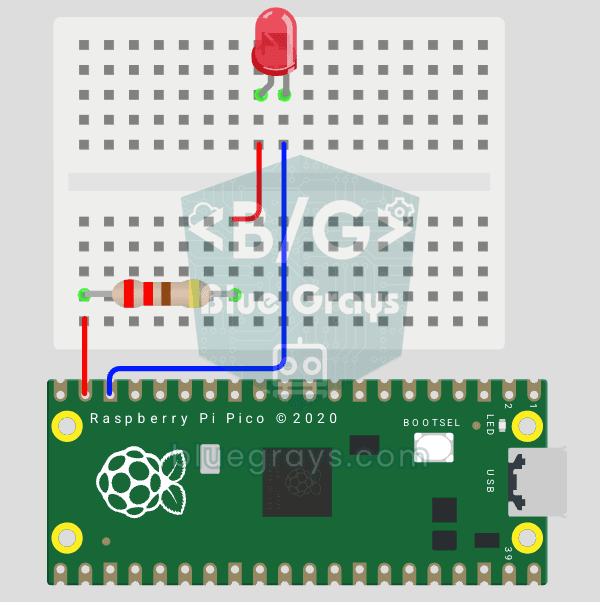
The next step after Pico’s built-in LED: connecting an external LED to the breadboard and controlling it via the GP14 pin. In this project, you’ll learn how to use any of the Pico’s general-purpose GPIO pins as an output, the LED’s polarity (long leg = anode/+, short leg = cathode/–), and why a current-limiting resistor (220Ω) is required. If you don’t include the resistor, excessive current will flow through the LED and it may burn out. The circuit is very simple: Pico GP14 → 220Ω resistor → LE

LED Blink with ESP32
Teaches basic GPIO output usage with ESP32. We achieve a blinking effect by turning an LED on and off from a digital pin. ESP32 version of the classic blink project on Arduino UNO; the basic blink commands in the Arduino environment are the same, but the ESP32's pin layout and 3.3 V GPIO levels differ from those of the Arduino UNO.
Lighting 220V Bulb with Push Button
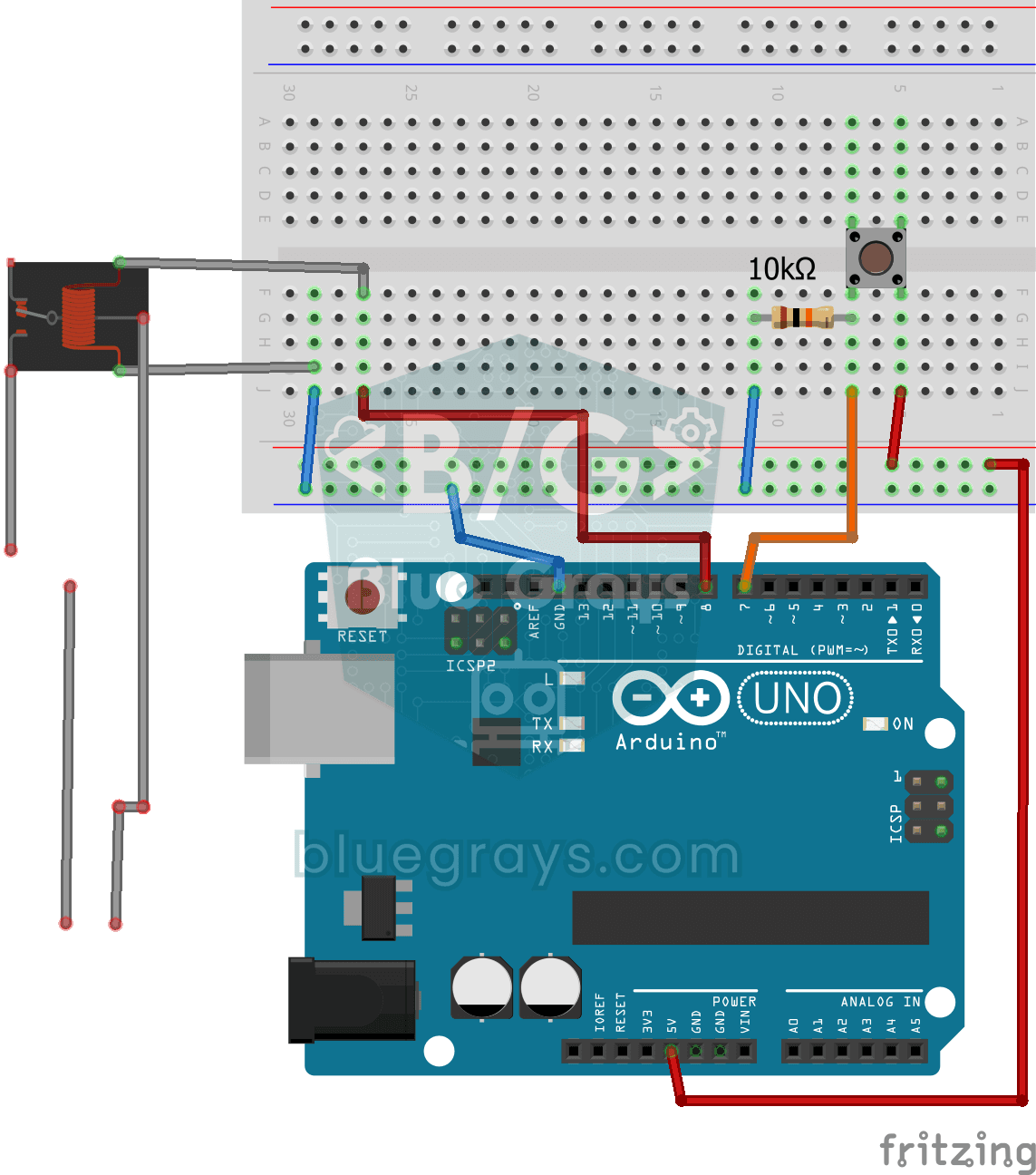
As long as you hold the button, a real 220-volt bulb stays lit, and it goes out the moment you let go. The Arduino's tiny signal cannot light the bulb directly, so a relay, an electrically controlled
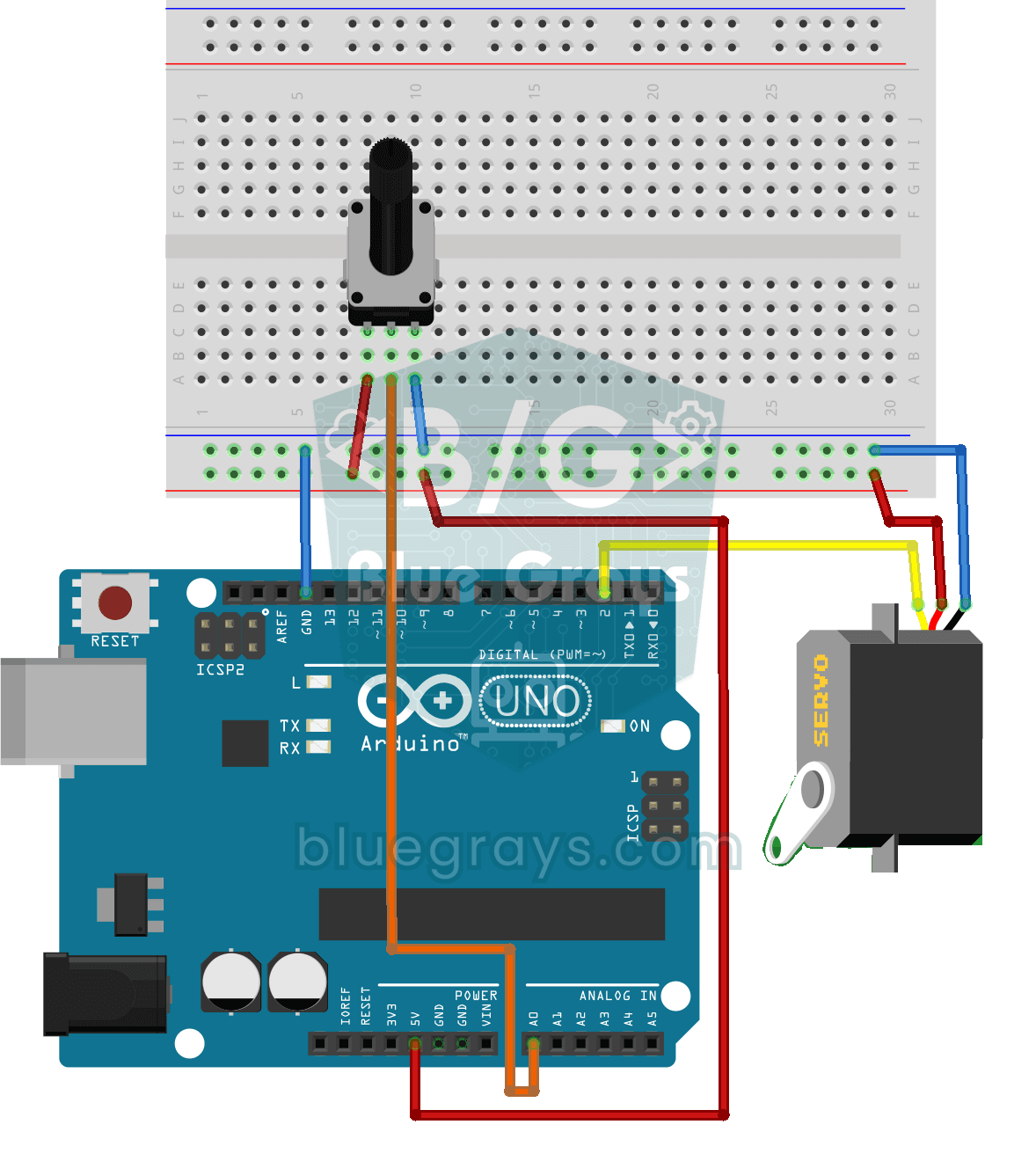
Servo Motor Operation with Potentiometer
As you turn the potentiometer knob, the servo motor's arm turns right along with it: one end of the knob means zero degrees, the other end means half a turn. The Arduino keeps reading the knob's posit

ESP32 LED Brightness Control with a Potentiometer (Analog → PWM)
In this project, we control the brightness of an LED analogically using a potentiometer. The ESP32's ADC pin reads the 0-3.3V voltage from the potentiometer, and this value is then converted into a PWM (Pulse Width Modulation) signal and sent to the LED. As a result, as you turn the potentiometer, the LED gradually brightens and dims. With Arduino Core 3.0+, `analogWrite()` can be used directly; on the ESP32-S2/S3, the ADC resolution is fixed at 12-bit.